To improve Wi-Fi at home, first check whether the problem affects one device, one room, or the whole house. Test the same device beside your router and where the connection usually struggles. A weak distant connection calls for coverage changes; slow service everywhere needs a different investigation.
I check that distinction before recommending a faster internet plan or new hardware. Otherwise, it's easy to buy a mesh kit for a laptop problem—or upgrade a plan when the signal still cannot reach the bedroom.
Start with the comparisons below, then follow the branch that matches your results. You can skip the fixes that address a different problem.
Start with a comparison you can repeat
Use one phone or laptop and the same speed-test service throughout. Pause large downloads, cloud backups, and console updates during the initial comparison. On a phone, make sure the test uses your home Wi-Fi rather than cellular data.
Run a test beside the router and record the download speed, upload speed, and any latency reading.
Repeat in the room where you actually have trouble. Note the network or band when your device shows it.
Repeat the comparison to check whether the difference persists rather than relying on one result.
Try a second device in the problem location.
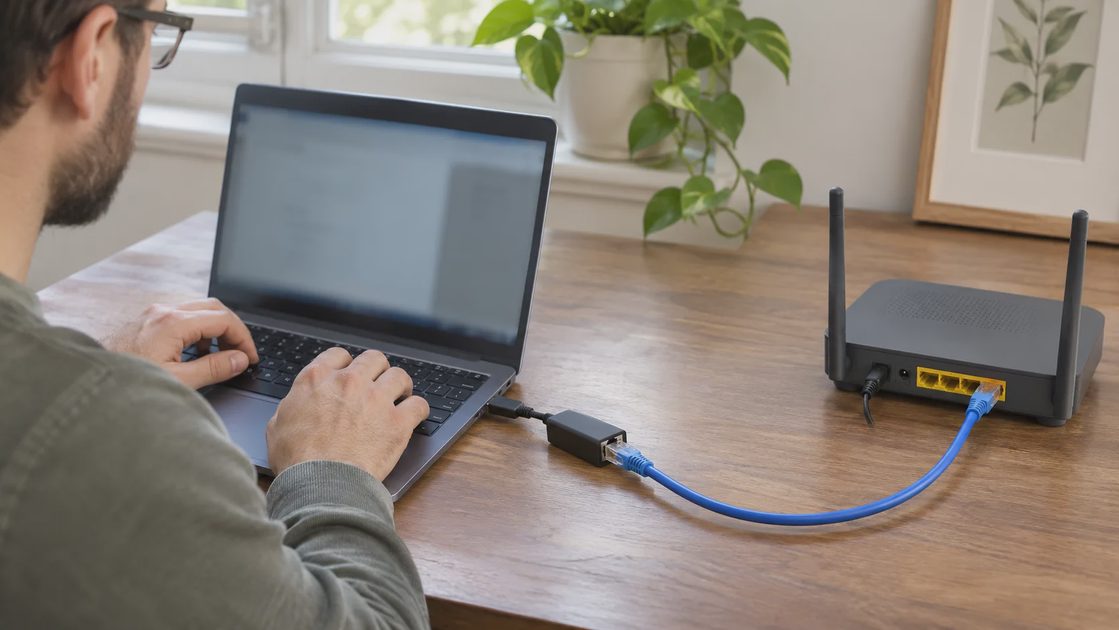
Where possible, connect a computer to a LAN port on the router with Ethernet, turn off that computer's Wi-Fi, and run a comparison test.
An internet speed test includes the wireless link, your home network, the provider's connection, and the test server. It helps narrow the search; it does not identify a faulty component by itself. Google likewise lists distance, obstacles, device capabilities, interference, and provider performance as separate possible causes of slow Wi-Fi.
What you observe | Investigate first | Your next useful action |
|---|---|---|
One device struggles; another works in the same spot | The affected device or its connection | Follow the single-device checks below |
Both devices work near the router but struggle farther away | Coverage, obstacles, or band choice | Follow the weak-signal branch |
Wi-Fi struggles near and far; Ethernet works well | The wireless side of the network | Check band, interference, and router settings |
Ethernet and Wi-Fi both struggle | Household traffic, upstream equipment, cables, or service | Follow the whole-house branch |
Trouble appears during uploads or downloads | Shared capacity and delay under load | Pause the transfer and retry the affected task |
No Ethernet port? You can still compare locations and devices. A router's built-in internet test, where available, adds another reference, although it measures a different path from your phone's test. Without a wired comparison, leave the upstream-versus-wireless conclusion open.
Only one device is slow? Keep the fix local
When another device works in the same location, I leave the household router settings alone initially.
Toggle Wi-Fi off and on on the affected device, reconnect to the expected home network, and restart the device. Check for operating-system and Wi-Fi driver updates through its supported update tools. Then repeat the same task beside the router.
Also compare applications. One slow download or website does not establish a Wi-Fi fault. Try another service, and check whether a VPN or background synchronization is affecting that device. Where appropriate, briefly compare performance without the VPN, following any workplace requirements.
Keep the result: if the second device remains reliable while the first struggles, continue troubleshooting the first device. Extra access points are a poor first purchase for a problem that follows one laptop around the house.
How to fix a weak Wi-Fi signal in the rooms you use
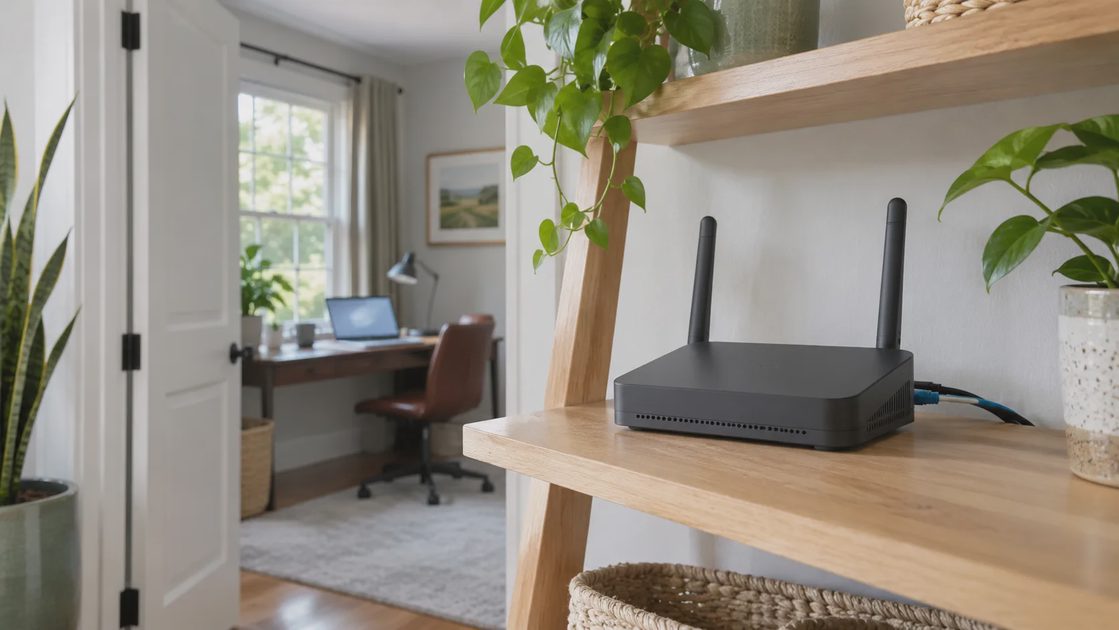
When multiple devices improve near the router and deteriorate in the same distant room, start with the physical route between them.
Move the router, then measure the difference
Place the router in an open, practical location closer to the areas that need coverage. Move it out of a closed cabinet or from behind a television. Reduce the number of thick walls, metal objects, and large appliances between it and the problem room where possible.
You may have limited options because the incoming connection is fixed. Even moving the router into the open on the same shelf is worth comparing before buying equipment. Keep ventilation clear; follow the manufacturer's guidance for external antennas rather than assuming one antenna arrangement suits every model.
Change only the position, then retest from the original problem spot. Try the actual activity that failed as well as a speed test. Keep the new position when the improvement repeats. There is no need to restart after every small position adjustment unless the device requires it.
For a problem concentrated across floors, use the dedicated guide to fix slow Wi-Fi upstairs. Here, the decision is whether placement can solve the gap or additional coverage is justified.
Choose a usable band rather than the highest advertised speed
A 2.4 GHz connection often reaches farther through obstacles, while 5 GHz can provide higher speeds where coverage is good. Compatible 6 GHz equipment provides another option, but a new band does not guarantee a better connection through your particular walls.
When your router exposes separate network names, compare the available bands from the problem room. Keep the connection that reliably supports the task. A distant smart device and a nearby work laptop may benefit from different choices.
With one shared network name, leave automatic band selection in place initially. Permanently splitting bands adds setup work and is unnecessary when the network already selects a reliable connection.
Check Wi-Fi interference without changing everything
Wi-Fi interference can make a connection inconsistent even when the distance seems reasonable. Compare performance with nearby sources of interference inactive—for example, whether trouble coincides with a microwave running. Move the router or affected device away from crowded electronics and compare again.
For router settings, start with automatic channel selection. Apple's recommended router settings specify Auto for channels and 20 MHz channel width on 2.4 GHz. Use your model's documentation to find the corresponding controls; those recommendations are a starting point, not proof of the best settings in every home.
Save the current configuration before changing it. Adjust one setting, retest, and restore it when it provides no repeatable benefit. Do not disable wireless security to chase a better speed-test number.
Good signal bars, but everything still feels slow
Signal bars tell you something about the device's wireless reception. They do not show how much internet capacity is available or whether a remote service is responding promptly.
Picture a video call that works until a large cloud upload starts. Pause the upload and repeat the call from the same location. Then compare again during ordinary household use. That comparison is more informative than assuming full bars mean the connection must be healthy.
Record whether download speed, upload speed, or responsiveness changes. A test that reports latency while the connection is busy can add context, but no single score replaces checking the affected application.
For a fixed work desk, television, or console, try Ethernet when convenient. It removes that device's Wi-Fi link from the comparison and may provide a more consistent connection. It cannot increase the speed supplied by your internet plan.
Slow throughout the house? Check the shared connection
First, pause heavy transfers and check your provider's outage information. Compare more than one device before treating the router as the cause.
Restart the router once through its supported controls or power procedure. Wait until its normal connection indicators return; startup time varies. A restart preserves settings in normal use, while a factory reset can erase them. Follow the separate guide to restart your router without resetting it when the controls are unclear.
Check firmware through the manufacturer's official app or support page. For wired comparisons, inspect accessible Ethernet connections and check that the computer, adapter, cable, and router ports support the speed you're trying to evaluate. Google identifies cables and upstream equipment as potential connection bottlenecks.
Start wired testing at the router's LAN port. Bypassing the router or connecting directly to provider equipment is a separate diagnostic step to perform under the provider's instructions.
Evening slowdowns need the same comparisons. First rule out your own household's busy period. Repeated slow wired results with heavy traffic paused are useful evidence to take to the provider; timing alone does not prove neighborhood congestion.
How to enhance Wi-Fi range when placement is not enough
Add coverage when multiple devices still struggle in an important area after the free adjustments. Choose according to the route back to the main router and the rooms you need to serve.
Option | A sensible use | What to check before choosing |
|---|---|---|
Ethernet to one device | A fixed desk, TV, or console needs reliability | A practical cable route and compatible ports |
Wired access point | A room or floor needs wireless coverage and cable is feasible | Ethernet back to the router and correct access-point configuration |
Wi-Fi extender | A limited coverage gap with a usable upstream signal | Placement and the model's connection and performance limits |
Mesh system | Several areas need coverage and coordinated management | Node-to-router connection, layout, ports, and supported backhaul |
For mesh Wi-Fi vs. extender decisions, I start with that upstream connection. Both need a working route back to the network. Google explains that a weak connection between mesh points can become a bottleneck for devices using them.
Place a wireless node or extender where it still receives a useful connection, then test from the target room. The geometric midpoint is not automatically right, and placing equipment inside a dead zone does not supply the missing upstream link. Wireless repeating can also consume capacity; the effect depends on the equipment and connection design.
A wired access point deserves consideration when cabling is practical. For several rooms or a more substantial redesign, plan a simple home network before choosing a kit. A router with ended security support also warrants a separate replacement decision, even when coverage remains acceptable.
“How do I boost the Wi-Fi signal?” Know when to stop
Start with placement and band choice, address interference, and add coverage only where repeated tests show a need. Those actions target the wireless connection. A faster plan addresses a different limit.
Use the same device in the same problem location to verify your change. Then restore normal household activity and check:
The work call remains usable from the desk.
The television plays without the recurring interruptions you were fixing.
Phones reconnect and work in the rooms that matter.
Other household devices still connect after any settings changes.
You do not need every room to match the speed beside the router. I stop when the required activities work reliably under normal use.
When the problem persists, keep a short record: device, room, time, connection type, test results, and which single change you tried. Take repeated wired and whole-house failures to your provider; take a repeatable room-specific gap into a coverage decision. That record makes the next conversation—or purchase—much more useful.