Your phone used to feel fine. Now it hesitates when you open Messages, the battery drops faster than it used to, and you’re pretty sure it didn’t used to get warm just sitting on the kitchen counter. A lot of people jump straight to “I need a new phone” or “I have too many apps open.” In our house, the more common culprit is quieter: apps are still refreshing in the background even when you’re not using them.
Background App Refresh (on iPhone) and the equivalent background activity controls (on Android) let apps wake up, check for new content, and sync data while the screen is off. That’s useful for a couple of apps. For the rest, it quietly uses CPU, memory, and battery. The result is the exact complaint that shows up in search: why is my phone so slow, and why is my phone charging slow even though nothing seems to be happening.
I’ve seen this on the family phones more than once. One of the kids’ devices started feeling sluggish after a few weeks of new games and shopping apps. The battery page showed several apps using background time that nobody had opened that day. Restricting those made a clearer difference than repeatedly swiping everything away.
What Background App Refresh Actually Does (and Why It Slows Your Phone)
Background App Refresh is not the same as “I left apps open in the recent apps screen.” On iPhone, apps that are no longer on screen are usually suspended. Background App Refresh gives them permission to wake up anyway to pull fresh content so it’s ready when you open them. Android handles this differently by brand, but the effect is similar: apps can keep network connections, check for updates, and run background tasks.
That activity uses a little power and a little processing each time. Multiplied across a dozen apps that check frequently (social feeds, shopping, weather, news, games that look for offers), it adds up. The phone has less free memory and CPU for the thing you’re actually trying to do, so it feels slower. The battery also has less capacity left by evening. Apple lists turning this off as one of the ways to improve battery life, and Android battery usage screens routinely show “background” time for apps you barely opened.
Force-closing everything from the recent apps screen often doesn’t help much, and can sometimes make things worse. The system just relaunches many of those apps later, and a cold start uses more resources than resuming a suspended one. The more useful control is the background refresh or background activity setting itself.
Check Which Apps Are Actually Causing the Problem First
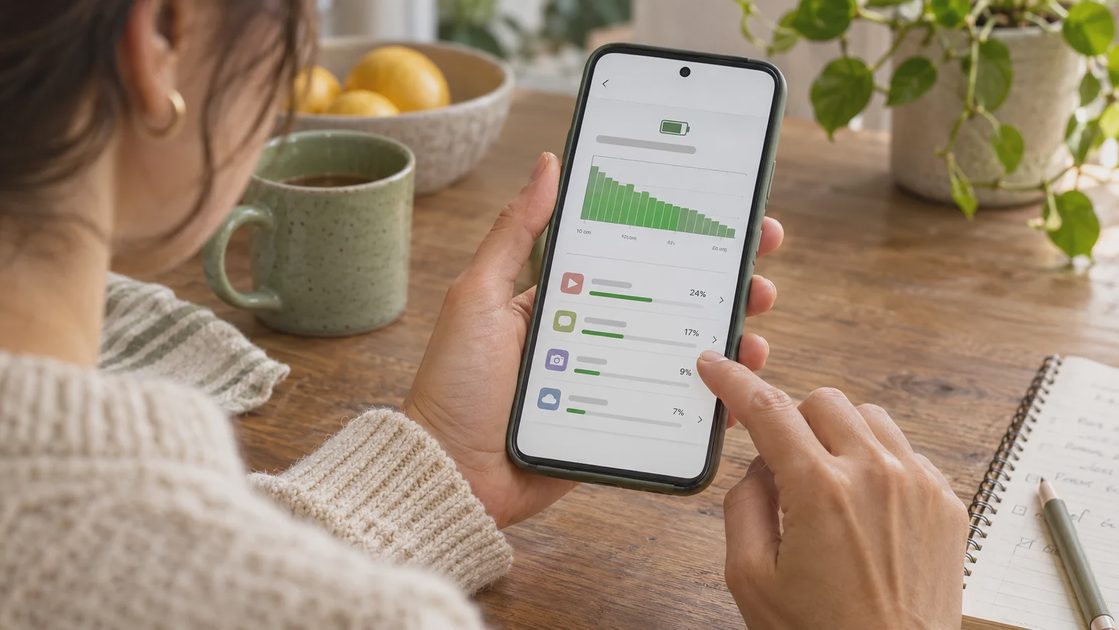
Before you change anything, look at the data your phone already has.
A quick distinction helps here: apps that open slowly and webpages that load slowly may have different causes. When the slowdown mainly affects browsing or streaming at home, check your home Wi-Fi connection before changing more app settings.
On iPhone, open Settings > Battery. Scroll through the list and note which apps show significant “Background” activity relative to how often you actually open them. On Android, go to Settings > Battery > Battery usage (wording varies slightly by brand). Tap into any high-usage app you don’t remember using much.
Common patterns in a household:
Games and shopping apps that nobody has opened today still show background time.
Weather or news apps that refresh constantly.
A couple of social apps that stay busy even when the kids are at school.
If an app you rarely open is near the top of the battery list, it’s a candidate to restrict. You don’t need to restrict everything. Messaging, email, maps, and a banking app you want alerts from are usually worth leaving alone at first.
How to Limit or Turn Off Background App Refresh on iPhone
On iPhone the path is straightforward:
Open Settings.
Tap General.
Tap Background App Refresh.
Tap Background App Refresh again at the top.
Choose Off (stops it for all apps), Wi-Fi (allows it only on Wi-Fi), or Wi-Fi & Cellular Data (the default, most activity).
You can also leave the global setting on and scroll down to turn off individual apps. That’s usually the better first move. Turn it off for games, shopping apps, weather, and news. Leave it on for Messages, Mail, and any app where a delay would actually matter to you.
Low Power Mode (Settings > Battery, or Control Center) temporarily disables Background App Refresh along with other background activity. It’s a quick way to test whether the setting is part of the problem without changing a lot of permanent options.
After you change it, the next time you open a restricted app you may see a short loading spinner while it fetches fresh content. That’s normal. The trade-off is less constant activity while the phone is in your pocket.
How to Restrict Background Activity on Android
Android doesn’t use the exact same name, but the goal is the same. Paths vary a bit by manufacturer:
On many Pixel and stock Android phones: Settings > Battery > Battery usage. Tap an app, then set App battery usage to Restricted (or turn off Allow background usage).
On many Samsung phones: Settings > Battery > Background usage limits, then add apps to Sleeping apps or Deep sleeping apps. You can also go into individual app battery settings and restrict them.
A few practical notes:
Restricting background activity rarely breaks core functions. Push notifications for messaging apps usually still arrive when the phone is awake.
You can still open any app and use it normally. It just won’t keep working as hard when you aren’t looking at it.
Avoid third-party “cleaner” or “booster” apps. They often force-close things in ways that make the phone do more work later.For apps you no longer use, restricting background activity may only be a temporary stop. You can remove unused Android apps without losing important data and free up storage at the same time.
If your phone is running slow mainly when you’re on mobile data, also check the app’s data settings and consider limiting background data for non-essential apps. That pairs well with the battery restriction.
What to Keep On, What to Turn Off, and What Changes After You Do It
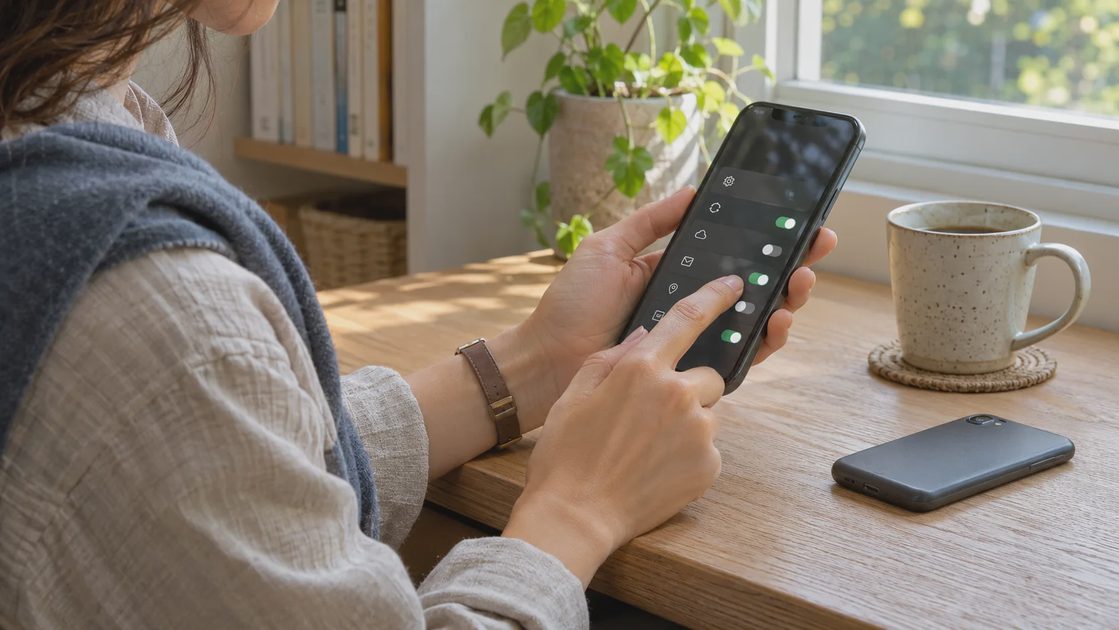
Not every app needs the same treatment. A simple household rule that has worked for us:
Keep background refresh or background activity on for: Messages, Mail, calendar, maps, and any banking or school app where a delay would be annoying.
Turn it off or set to Wi-Fi only for: games, shopping, weather, news, and most social apps that don’t need to be current the second you open them.
Try the change for 1–2 days and check the Battery screen again. You should see less background time for the apps you restricted, and the phone often feels a bit snappier when you switch between the apps you do use.
What you’ll notice:
Opening a restricted app may take an extra second or two while it loads new content.
Battery drain during the day usually slows down, especially if several high-activity apps were restricted.
The phone is less likely to feel warm when it’s just sitting in a pocket or on a table.
If the improvement is clear, you can leave the settings as they are. If something important starts arriving late, turn background activity back on for that one app. It’s easy to reverse.
I tested this on the three phones we actually use every day. One is my wife’s iPhone 14, one is my older Pixel, and one is the Android the kids share after school. For seven days I left everything as-is and just noted, each evening, which apps still showed background time in the battery screen even though no one had opened them. On the kids’ phone the same three apps (a shopping app, a free game, and a news app) were consistently in the top five for background use. On the seventh evening I restricted only those three—left Messages, the school portal, and maps alone—then watched for another week. The phone stopped getting warm in a backpack by mid-afternoon, and it no longer needed a charge before dinner on school nights. The iPhone showed a similar but smaller change after I turned Background App Refresh off for the same categories of apps and left it on for Mail and banking. I didn’t see any missed messages or delayed school alerts. The only noticeable difference was that the shopping app took an extra second or two to load fresh deals the first time someone opened it. That was enough for me to keep the restrictions in place instead of recommending a new phone or a paid “optimizer.”
When This Fix Won’t Be Enough
Background refresh is a common reason a phone feels slow or the battery drops faster, but it isn’t the only one. If you’ve restricted the obvious apps and the phone is still lagging or draining quickly, check these next:
Storage is nearly full. Phones need free space to work smoothly. If you’re regularly seeing “storage almost full” warnings, free up space before chasing more background settings.
Battery health is low (especially on older iPhones). An aging battery can cause the system to throttle performance. Check Battery Health if available.
A single app is misbehaving. If one app is always at the top of the battery list even after restriction, try updating it, clearing its cache, or removing it temporarily.
Recent system update. Sometimes a phone feels slower for a day or two after a big update while it finishes background tasks.
If the phone is still slow after those checks, the issue may be hardware age or something else that a settings change won’t fix. Before spending on an upgrade, compare replacing the battery with buying a new phone. Battery condition, remaining software support, and repair cost can help you decide which option makes sense.
The practical takeaway is simple: most of the time, why is my phone so slow comes down to a handful of apps that are allowed to keep working when you’re not looking at them. Checking the battery usage screen and selectively turning off Background App Refresh (or the Android equivalent) is one of the faster, cheaper fixes you can try before you assume the phone itself is worn out. Making everyday tech simple, safe, and affordable usually starts with fixing what you already own.