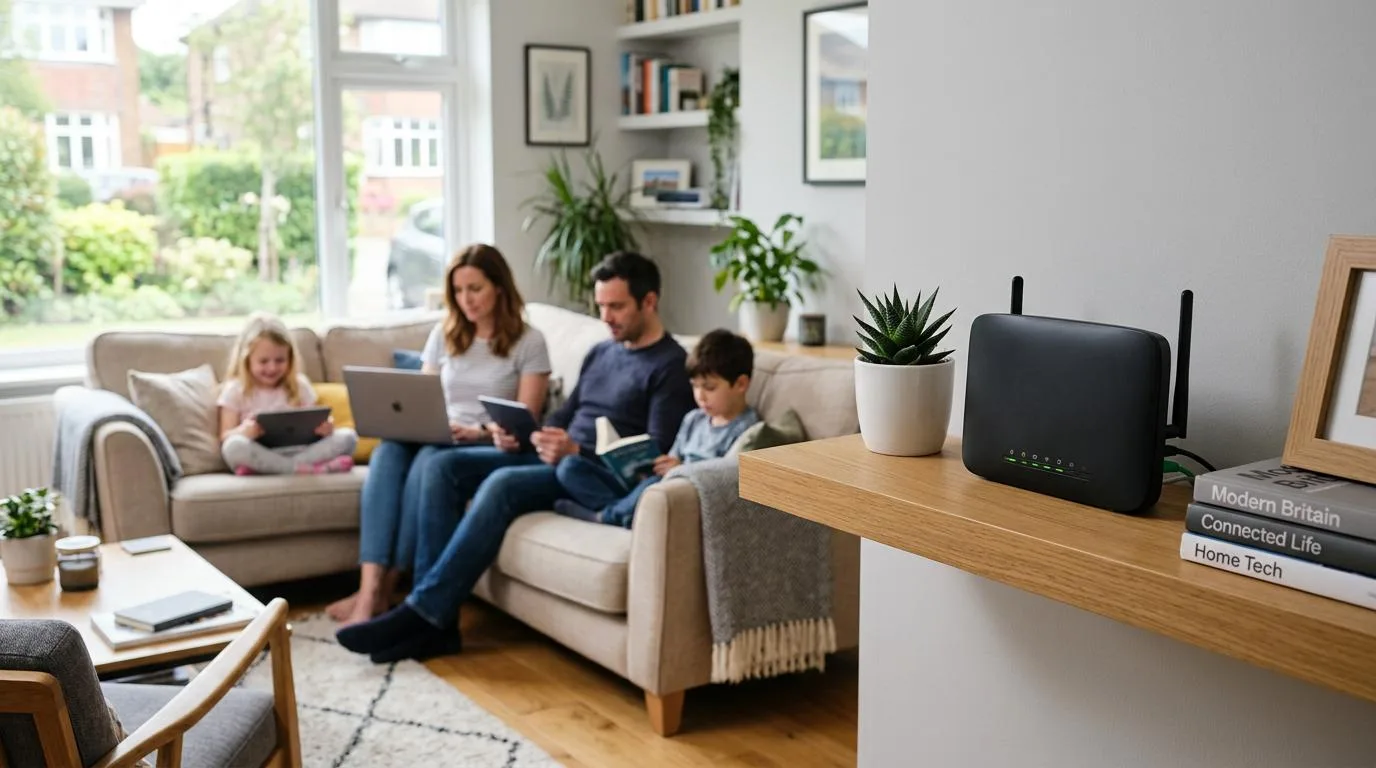
A family home can have a surprising number of devices competing for one internet connection.
Two laptops are open for work and homework. Someone is streaming a movie in the living room. A game console is downloading an update. The printer is supposed to be connected, although nobody is quite sure which Wi-Fi network it's using.
And somewhere upstairs, a phone has full signal bars but still struggles to load a video.
When people think about improving their home network, they often start by shopping for a more expensive router.
I would start somewhere else.
For a typical family, I'd build the simplest home network that provides reliable coverage, keeps important devices connected, and doesn't require constant troubleshooting.
That might mean using the router you already own. It might mean adding one access point. And in a larger home, it might mean a mesh Wi-Fi system.
Here's how I would make those decisions, set everything up, and avoid paying for features the household may never use.
The setup I'd recommend for most families
For a typical home with two adults, school-age kids, several phones and laptops, a streaming TV, and a few smart-home devices, I'd start with this arrangement:
One reliable router or ISP-provided gateway managing the home network.
Wi-Fi positioned to cover the areas where people actually spend time.
Wired Ethernet connections for stationary devices when convenient.
One additional access point or a mesh system only if coverage requires it.
A separate guest network if the equipment supports it.
A straightforward way for everyone to connect without memorizing technical settings.
The basic layout looks like this:
Internet connection → Modem or fiber ONT → Router → Wi-Fi and wired devices
A modem or optical network terminal (ONT) connects your home to your internet provider. The router directs traffic between your devices and the internet, and often provides Wi-Fi as well.
Some internet providers give you one box that combines several of these functions. That's fine. You don't need to buy separate devices simply because a networking diagram shows multiple boxes.
If your existing gateway delivers reliable service everywhere you need it, I'd keep it.
The point of a good home network setup is to solve household problems—not to build a miniature corporate IT department.
Step 1: Check what you already have before buying anything
Before changing your home network configuration, locate the equipment that currently provides internet service.
You may find:
A cable modem connected to a separate Wi-Fi router.
A fiber ONT connected to a router.
An all-in-one gateway supplied by your internet provider.
An existing mesh Wi-Fi system with multiple units.
Take a photo of how everything is connected before unplugging cables.
Find the equipment's model number and check which box is actually providing Wi-Fi. If you already have several networking devices, identify whether more than one is acting as a router.
Know the three devices that matter most
Device | What it does | Does a typical family need it? |
|---|---|---|
Modem or ONT | Connects the home to the internet provider's network | Usually required, but often provided or installed by the ISP |
Router or gateway | Manages the local network and connection to the internet | Yes; it may be integrated into an ISP gateway |
Wi-Fi access point | Adds wireless coverage to an existing network | Only when additional coverage is needed |
Ethernet switch | Adds wired network ports | Optional, useful when you have more wired devices than available ports |
A mesh Wi-Fi kit is another way to extend coverage. Depending on the product and configuration, one unit may serve as the router while the others provide additional Wi-Fi coverage.
My first rule: Don't replace a working piece of equipment until you've identified what it isn't doing well.
An older ISP router may be perfectly adequate for a small home. An expensive router in a poor location can still leave bedrooms with unreliable Wi-Fi.
Step 2: Choose the right Wi-Fi arrangement for your home
There isn't one ideal router for every floor plan. Walls, building materials, distance, neighboring networks, and the number of devices all affect the result.
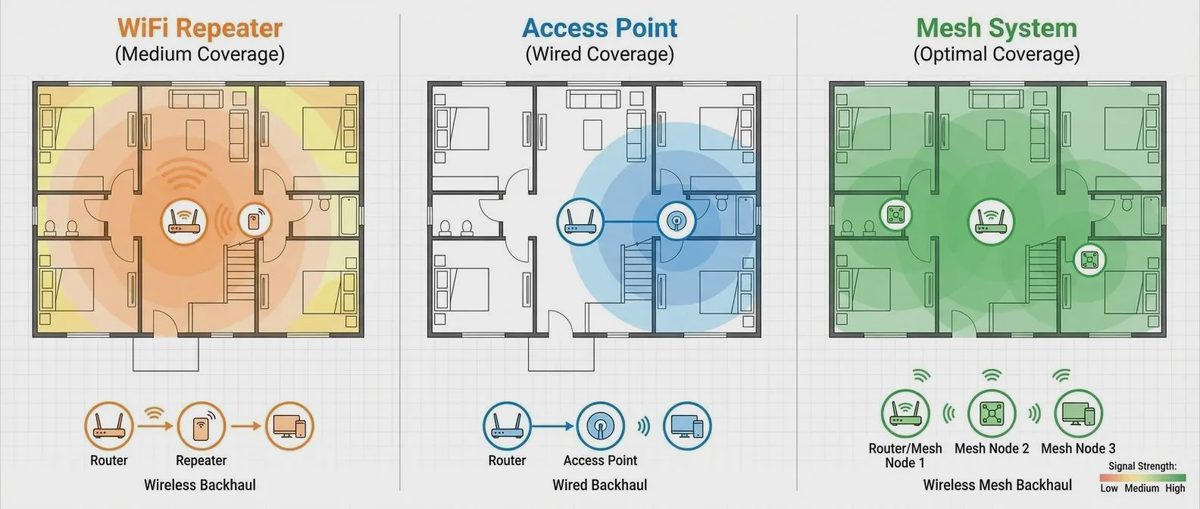
I would choose among three practical options.
Option A: One well-placed router
Best starting point: Smaller homes, apartments, and houses where a central router reaches the important rooms.
One router is the simplest arrangement. It usually means fewer devices to maintain, fewer cables, and no coordination between multiple access points.
Start by positioning it properly before buying anything else.
If the signal is strong in bedrooms, the home office, and the living room, stop there. Adding more Wi-Fi equipment won't necessarily make the network better.
Option B: A mesh Wi-Fi system
Worth considering: Larger homes, multiple floors, or homes with coverage gaps that one router cannot reasonably reach.
Mesh systems use multiple compatible units to provide wireless coverage across the home.
They can be convenient because compatible units are designed to work together under one managed system.
But mesh isn't magic. A satellite placed where the existing Wi-Fi signal is already weak may have difficulty communicating with the main unit.
And adding too many units can introduce unnecessary complexity or interference.
For a two-story house, I would first see whether a thoughtfully placed main router is enough. If not, I'd identify the weak area and choose an additional mesh node location that still has a good connection to the main unit.
Option C: Wired access points
My preferred upgrade when Ethernet is already available: A wired Wi-Fi access point in the part of the house that needs better coverage.
A wired access point connects back to the main network using Ethernet rather than depending on a wireless link to the primary router.
This can provide a more dependable connection between the access point and the rest of the network, especially when walls or distance make wireless backhaul unreliable.
The tradeoff is installation. Running cable through finished walls may not be practical or inexpensive.
If the home already has Ethernet wiring, however, I'd investigate this option before buying a costly wireless-only mesh package.
What about Wi-Fi extenders?
A basic wireless extender may help in certain situations, but it isn't always my first choice.
Some extenders introduce additional network names, add management complexity, or reduce effective throughput depending on how they communicate with the router.
A compatible mesh setup or wired access point is often a cleaner long-term arrangement, though actual results depend on the equipment and placement.
The right answer isn't always the newest device. It's the smallest change that fixes the actual coverage problem.
Step 3: Put the router where your family uses the internet
A router hidden behind the television or tucked into a metal cabinet may be convenient to conceal, but it isn't necessarily well placed for wireless coverage.
I'd start with an open location reasonably close to the center of the area that needs Wi-Fi.
That usually means:
Keeping the router out in the open rather than inside enclosed furniture.
Avoiding unnecessary placement behind large metal objects.
Keeping it away from major physical obstructions where practical.
Positioning it so the busiest rooms aren't all at the far edge of its coverage.
Following the manufacturer's mounting, ventilation, and orientation guidance.
In a two-story home, the best location may be different from the geometric center of the house. Floor construction, stairwells, and the location of the internet connection can all influence the result.
A router doesn't need to be attractive enough for the living room. It needs to be placed where it can do its job.
If your internet provider installed the gateway in a poor location, you may not be able to move it easily. That's one reason a separate wired access point or mesh system can be useful.
I wouldn't drill holes or buy extra equipment until I'd tested a few practical locations.
Step 4: Connect the equipment without creating unnecessary complications
Once you've chosen the arrangement, keep the physical connections simple.
For a modem or ONT and separate router
Identify the Ethernet connection intended to feed your router from the modem or ONT.
Connect it to the router's designated internet or WAN port, following the equipment instructions.
Connect a computer or other wired device to an available LAN port if desired.
Follow your internet provider's and router manufacturer's activation or setup instructions.
Confirm that a device can access the internet before changing optional settings.
Some connections require ISP-specific activation, credentials, or equipment configuration. Don't assume every router can be swapped into every service without additional steps.
For an all-in-one ISP gateway
You may already have everything you need.
Start with the gateway's built-in Wi-Fi and evaluate its performance before purchasing a replacement.
If you later add another router, pay attention to how the devices work together.
Having two devices independently acting as routers can create a situation commonly called double NAT. This doesn't automatically break normal internet browsing, but it can complicate some gaming, remote-access, or device-discovery scenarios.
Depending on the products and ISP service, you may be able to use access-point mode or a supported bridge configuration.
However, don't enable bridge mode without checking its implications. Some ISP gateways also support services or features that depend on their existing configuration.
For a normal family, the easiest setup is usually one main device handling routing, with other units extending network access as needed.
Step 5: Configure the Wi-Fi for everyday use
Your router's setup app or administration page will normally guide you through a few basic settings.
Menu names vary by manufacturer, but the essential decisions are similar.
Choose a recognizable network name
The wireless network name is called the SSID.
Pick something the family can recognize without revealing more personal information than necessary.
You don't need a clever name. You need one that makes it obvious which network household devices should join.
If your router supports multiple frequency bands, it may offer a shared network name with automatic band selection. That's usually a reasonable starting point.
Some older smart-home devices have trouble during setup on networks that combine bands. If that happens, follow the device and router instructions rather than immediately rebuilding the entire network.
Use the available frequency bands sensibly
Modern Wi-Fi equipment may offer 2.4 GHz, 5 GHz, and sometimes 6 GHz bands.
These bands have different practical strengths.
2.4 GHz: Often useful for longer reach and many inexpensive smart-home devices, though it can be crowded.
5 GHz: Often a good choice for laptops, phones, video calls, and streaming where coverage is strong.
6 GHz: Available on compatible equipment and devices, with additional spectrum that can be useful nearby, but generally with more limited reach through obstacles.
You don't need to manually assign every family device to a particular band if the equipment handles band selection effectively.
The household experience matters more than the number printed on the box.
Set up basic protection
At minimum, use a strong, unique Wi-Fi password and an appropriate modern security mode supported by your devices and router, such as WPA3-Personal or a suitable WPA2-AES configuration where needed for compatibility.
Also change default administrator credentials if applicable and enable supported firmware-update features.
These are important starting points, but the deeper details of Wi-Fi security deserve their own guide.
For now, the goal is a connection that is both usable and appropriately protected.
Step 6: Decide which devices should use Ethernet
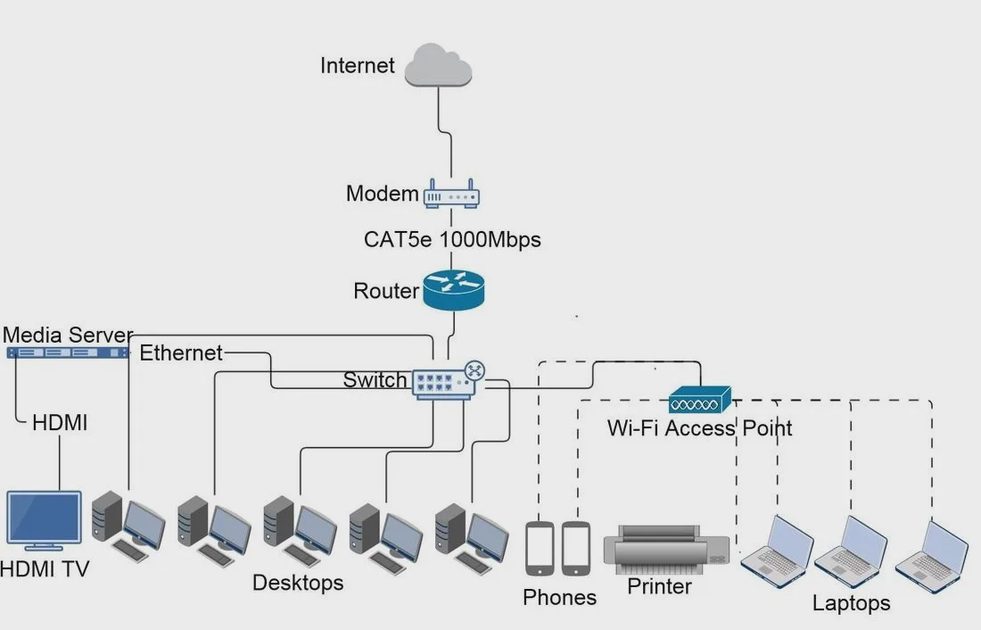
One of the simplest ways to improve a household network is to stop making every stationary device compete for a wireless connection.
If Ethernet is convenient, I'd consider wiring:
A desktop computer in a fixed workspace.
A television or streaming box near the router.
A gaming console used in one location.
A network storage device, if the household uses one.
A separate Wi-Fi access point that needs a reliable connection to the main router.
A wired connection doesn't make your internet plan faster. But it removes the Wi-Fi link from that device's local connection, which can make performance more consistent.
It can also reduce some wireless traffic in busy areas.
Don't feel obligated to run Ethernet through every room. If a TV streams reliably over Wi-Fi, that's probably good enough.
The best use of a cable is where it solves a real problem.
When would I add an Ethernet switch?
A basic unmanaged Ethernet switch can be useful when you need more wired ports than the router provides.
For example, a TV, console, and desktop computer may all sit near one router with too few available LAN ports.
A compatible switch allows several wired devices to share an upstream connection to the router.
Make sure you're using the appropriate Ethernet ports and equipment, and check the supported speeds before purchasing.
Most families don't need a managed enterprise switch, elaborate network segmentation, or a complicated rack of equipment.
Step 7: Test the network room by room
After setting up a home network, I'd test what people actually do—not just look at the Wi-Fi icon.
Start with a few ordinary tasks:
Open websites on a laptop near the router.
Make a video call from the room where someone usually works.
Stream a video in the living room.
Test a phone in each bedroom.
Check the areas where Wi-Fi was previously unreliable.
Confirm that household devices such as printers and smart speakers still connect and work as intended.
You can also run internet speed tests at several locations, using the same device and a consistent test method where practical.
If possible, compare a wired test near the router with Wi-Fi tests elsewhere. The results can help separate a problem with the internet service from a problem with wireless coverage.
Remember that internet speed-test results vary with the test server, device, signal, network activity, and time of day.
A single number isn't a complete picture of network quality.
Keep a simple coverage record
Location | What to test | Result to look for |
|---|---|---|
Living room | Streaming video | Plays reliably without recurring buffering |
Home office | Video call | Stable audio and video |
Upstairs bedroom | Websites and ordinary downloads | Usable, consistent connection |
Kitchen | Phone and smart devices | Reliable connection where used |
Back patio, if needed | Phone browsing | Adequate coverage for actual outdoor use |
If all important rooms work reliably, I'd stop optimizing.
If one area remains unreliable, investigate that area before replacing everything.
A weak upstairs signal might call for moving the router, adding a suitable access point, or changing the wireless layout—not automatically buying the most expensive router available.
Make the network manageable for the whole household
A technically impressive home network can still be a poor family network if nobody else knows how to use it.
I'd aim for a setup that doesn't require one person to act as the full-time help desk.
Give guests their own connection
If the router supports a guest Wi-Fi network, it can provide visitors with internet access without giving them the main household Wi-Fi credentials.
Depending on the router, guest connections may also be isolated from other local devices.
That isolation can be useful, but it may prevent guests from accessing a shared printer or casting to a television. Features and defaults vary.
If your router doesn't support guest networking, that alone isn't necessarily a reason to buy a replacement.
Keep smart-home devices simple
Many homes have smart plugs, cameras, speakers, thermostats, or appliances using Wi-Fi.
Some work only on certain bands or require local communication with a phone or hub.
A separate device network can be helpful in particular situations, but it may also complicate discovery, casting, and setup.
For a small household, I would prioritize reliable connectivity and supported security features before adding a complex network design.
Make a tiny network information sheet
Store these details in a secure place:
Your internet provider and customer-support information.
The router or gateway model.
Which app or administration address manages the router.
How to access the Wi-Fi credentials securely.
Where extra mesh units, access points, or Ethernet switches are located.
Don't leave administrator passwords exposed on a paper posted beside the router.
A password manager or another secure household-access method is preferable.
If someone needs to reconnect the printer or explain the setup to a technician, this small record can save a surprising amount of frustration.
What I would skip—and where I'd spend money instead
Marketing makes it easy to turn a straightforward home networking project into an expensive shopping list.
I would avoid that.
Skip a premium router if your current one works
If the existing router delivers reliable coverage, supports an appropriate security configuration, receives needed updates, and handles the family's actual usage, there's no automatic reason to upgrade.
Newer Wi-Fi standards can offer useful capabilities, but owning the latest standard doesn't guarantee a noticeable improvement in every household.
Skip extra mesh nodes without evidence
More units don't automatically mean better Wi-Fi.
Poor placement and unnecessary wireless overlap can make a network harder to maintain.
Buy additional coverage only after identifying where it is needed and how the new equipment will connect.
Skip complicated networking features you won't maintain
Some routers advertise extensive quality-of-service controls, advanced traffic management, custom DNS options, and elaborate filtering systems.
These features can be valuable for particular needs. But most families do not need to understand or configure every option to have a stable network.
I'd rather have a simple, documented setup than a complicated one nobody remembers how to troubleshoot.
Spend where the bottleneck actually is
If video calls fail in one distant room, better coverage may matter more than a faster internet plan.
If the wired connection itself is consistently slow, upgrading Wi-Fi equipment may not address the underlying service problem.
If a fixed workstation has an unstable wireless connection and Ethernet is already available, a cable might be the most economical improvement.
And if your current router no longer receives important security updates, replacement may be worth considering even if basic browsing still works.
Fix the limiting factor first. That's a better spending rule than assuming every new generation of hardware is worth buying.
The home network setup I'd choose in three common situations
There is no single perfect design, so here's how I'd approach three different households.
Household | Where I'd start | When I'd upgrade |
|---|---|---|
Small apartment with a few phones, laptops, and a TV | One centrally placed router or the ISP gateway | Only if the existing equipment has specific performance, coverage, or support problems |
Typical two-story family house | One main router, Ethernet for convenient stationary devices, room-by-room testing | Add a well-placed mesh unit or wired access point if important rooms remain unreliable |
Larger home with existing Ethernet wiring | One router managing the network plus appropriately placed wired access points | Expand coverage where testing shows a real need |
This isn't a product ranking or a promise about coverage in every building. It's a practical starting framework.
Walls, wiring, room layout, equipment capabilities, and internet service all matter.
A little maintenance beats constant tinkering
Once the home network works, I'd avoid changing settings every weekend.
Instead, keep the routine simple:
Let supported automatic firmware updates run, or check for official updates periodically.
Revisit coverage if you move furniture, rearrange workspaces, or add major equipment.
Check unexplained connection problems before assuming hardware failure.
Keep the main router and access points ventilated and powered appropriately.
Revisit your internet plan when the household's needs or recurring costs change.
If an important device suddenly stops connecting, troubleshoot that device and connection before redesigning the network.
A reliable network should fade into the background of family life.
What I would build—and what I wouldn't
If I were starting a typical family home network today, I'd use the existing gateway if it was reliable and adequately supported, place Wi-Fi where it could serve the busiest rooms, wire a few stationary devices when convenient, and test the connections before spending more money.
I would add mesh Wi-Fi or a wired access point only when the home's layout justified it.
I wouldn't buy the most expensive router, install a pile of extenders, or build an elaborate system just because the hardware specifications looked impressive.
A good home network setup isn't the one with the most equipment.
It's the one that quietly lets everyone work, learn, stream, print, and get on with their day.
That's the network I'd want to live with.