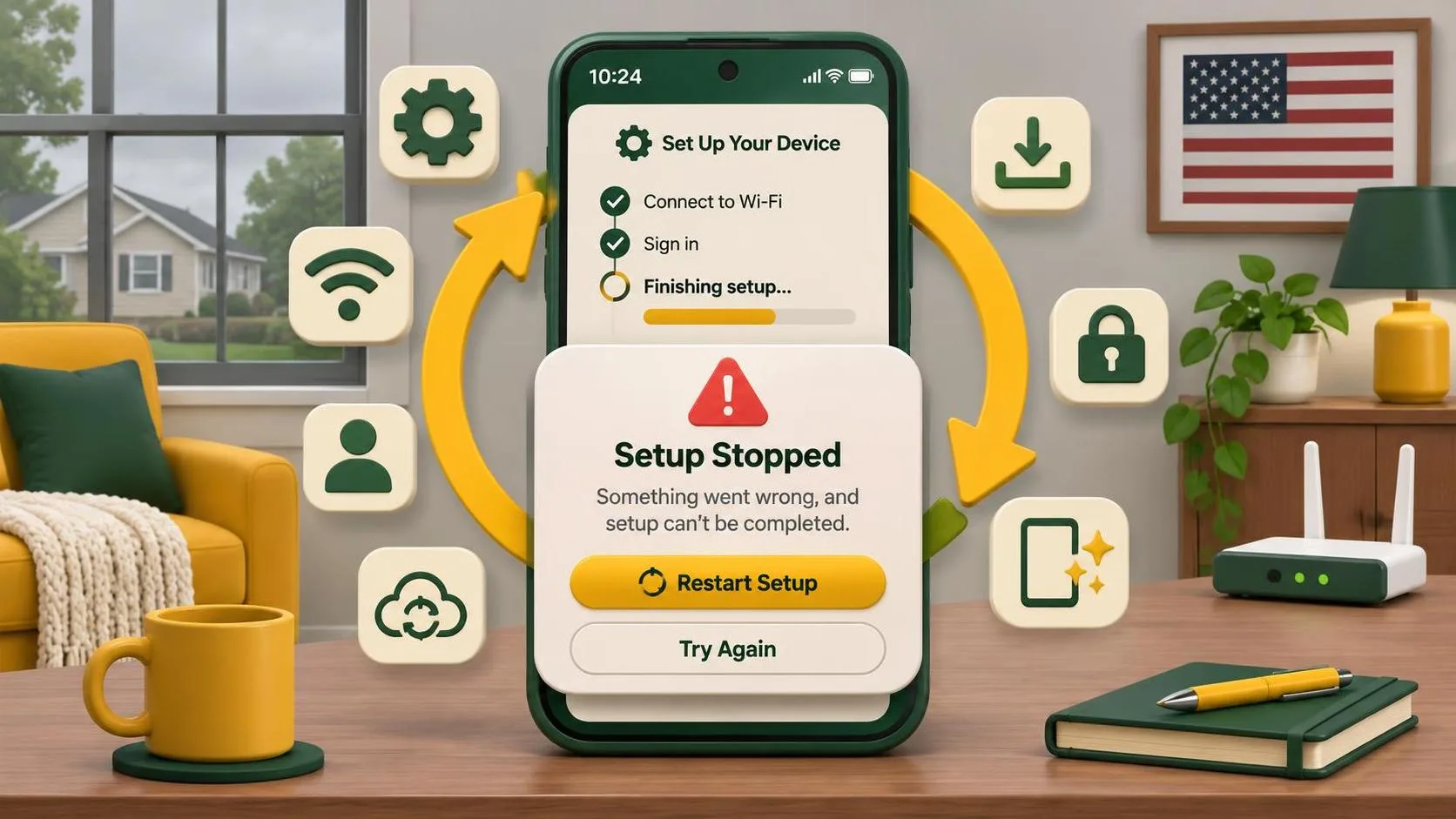
If android setup keeps stopping, restart the phone first, then try a different Wi-Fi connection. If you can reach Settings, clear the Android Setup app’s cache and install available updates. Save a factory reset for last: it erases data on the phone, and it may require a previously used Google account afterward.
This error usually means a setup process has crashed. It can appear on a new phone, after an update, or while moving data from an old device. The right fix depends on whether you can reach the home screen, so start with the least disruptive steps and stop when setup works.
Start with a restart and a different connection
Close the error message if you can, then restart the phone using its power menu. If the screen is frozen, hold the power button until the phone restarts; some models require holding power and volume down instead. Button combinations vary, so check the manufacturer’s instructions if that doesn’t work. A forced restart is not the same as a factory reset and normally won’t erase your files.
After the restart, plug the phone into a charger and give setup another try. If android setup keeps stopping at the same screen, switch networks. A home Wi-Fi connection is often easier for setup than a hotel or public network that requires a separate sign-in page. You can also try a trusted mobile hotspot, keeping in mind that downloads may use a significant amount of mobile data.
If a VPN, private DNS service, or network-level filter is active, temporarily disable it where possible. These services can interfere with connections setup needs. Turn them back on afterward and check whether the problem returns. Avoid connecting to an unfamiliar open network just to get past the error.
Clear the setup app’s cache
If you can reach the home screen, clearing the cache is a reasonable next step when android setup keeps stopping. A cache is temporary app data; clearing it does not normally delete your photos or messages.
Open Settings, tap Apps, and look for Android Setup. On some phones, you may need to tap See all apps, then open the three-dot menu and choose Show system apps. Select Android Setup, tap Storage or Storage & cache, and choose Clear cache. Restart the phone and try again.
Menu names differ by manufacturer, and some phones show more than one setup-related app. Look for the name that matches the error rather than clearing every system app. If you can’t find a matching entry, move on to updates instead of changing unfamiliar settings.
You may also see Clear storage or Clear data. That is a more disruptive step: it can reset the app’s stored state and may make you repeat parts of setup. I’d leave it alone until simpler fixes have failed, particularly if the phone contains data you haven’t backed up. Don’t disable the setup app or uninstall system components to silence the message.
Update the phone and check available space
If android setup keeps stopping after you clear the cache, install available system and app updates. In Settings, look under System or Software update for a phone update. Then open the Google Play Store, tap your profile icon, and look under Manage apps & device for app updates. The exact path varies by phone.
Updates can repair a faulty component, but they need a working connection and enough free storage. Check Settings for Storage. If the phone is nearly full, remove downloads or apps you no longer need, or move photos you have verified are safely backed up. Don’t delete your only copy of anything important to make room.
A recently transferred phone can also stumble over a particular restore. If setup offers the choice, try continuing without copying apps and data, then add your Google account and restore what you need later. Keep the old phone intact until you have checked that your contacts, photos, messages, and authentication methods are accessible on the new one. Some app data may require its own backup or transfer process.
What to do if you cannot get past setup
When android setup keeps stopping before you can open Settings, your options are narrower. Restart, change Wi-Fi, and retry without a cable or data transfer if those choices appear. If a phone-to-phone transfer was interrupted, begin it again only after both phones have power and a stable connection.
If the device was recently purchased or supplied by an employer or school, contact the seller, manufacturer, or organization’s IT support before attempting advanced repairs. A managed device can have setup requirements you can’t change yourself. For a used phone, ask the seller for help if it requests an account you don’t recognize; don’t pay a third party promising to bypass account protection.
A factory reset is the last resort, not the first troubleshooting step. It erases data stored on the phone. Before resetting, confirm that anything you need is backed up elsewhere and that you know the Google account credentials previously used on the device. After a reset, Android’s device protection may ask you to sign in with a previously synced account. If you can’t access that account, recover it through Google before proceeding.
If you can open Settings, look for Reset options under System or General management and read the final confirmation carefully. If you cannot reach Settings, use the manufacturer’s official instructions for your exact model; recovery-menu controls differ, and choosing the wrong option can erase data. A reset may fix damaged software, but it won’t necessarily solve a network problem, account restriction, or hardware fault.
When to ask for repair help
If the error returns immediately after a reset, especially before you restore any apps or data, contact the manufacturer or seller. Note the exact message, where it appears, and which steps you’ve tried. That gives support a useful starting point without sharing passwords or verification codes.
For a new phone, check the return or warranty terms before paying for a repair. For an older phone, ask for a written estimate first. There’s no reason to buy a cleanup app or a replacement device until you’ve tried the free fixes and know what a repair would cost.