
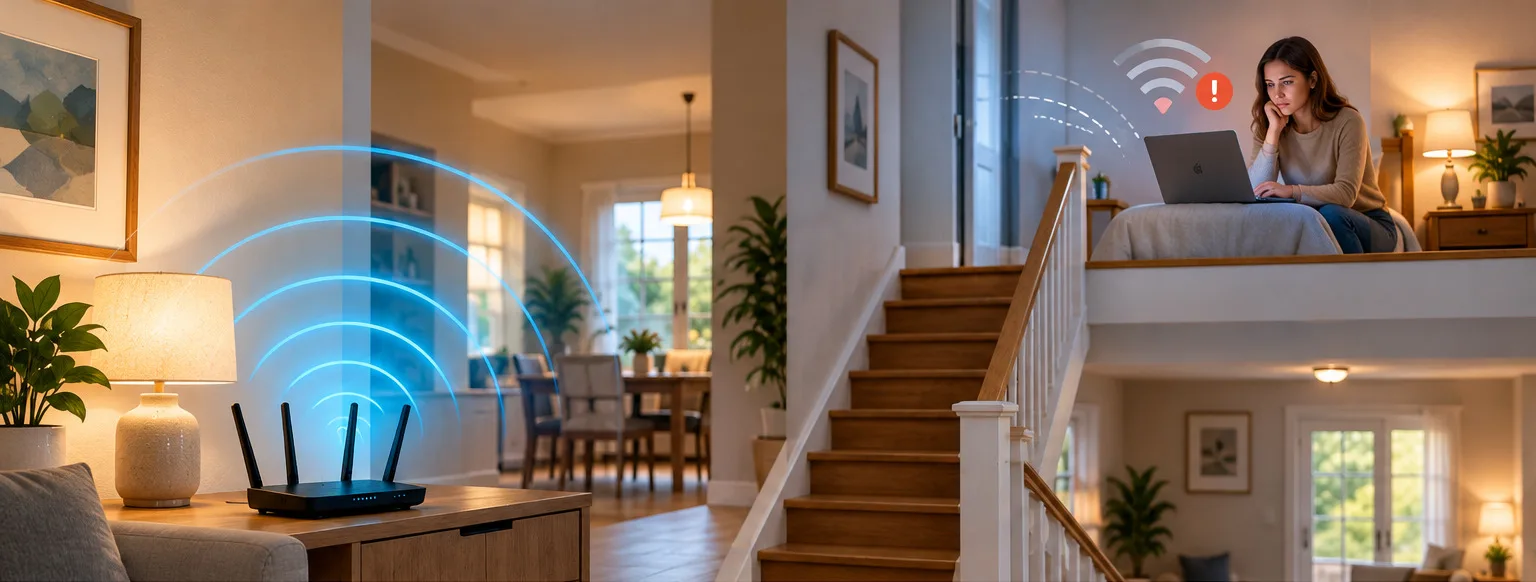
Your Wi-Fi works beautifully when you're sitting near the router. You can stream a movie, join a video call, or download a file without thinking twice.
Then you walk upstairs.
Suddenly, the video buffers. Your phone switches to mobile data. A laptop that worked perfectly downstairs starts acting like your internet connection belongs in another decade.
The frustrating part? You're paying for the same internet service in both rooms.
Here's the good news: slow Wi-Fi upstairs doesn't automatically mean you need faster internet or a new router. Often, the problem is how the wireless signal travels through your home.
And there are several things worth trying before you spend a dollar.
The Quick Answer: Why Wi-Fi Gets Slower Upstairs
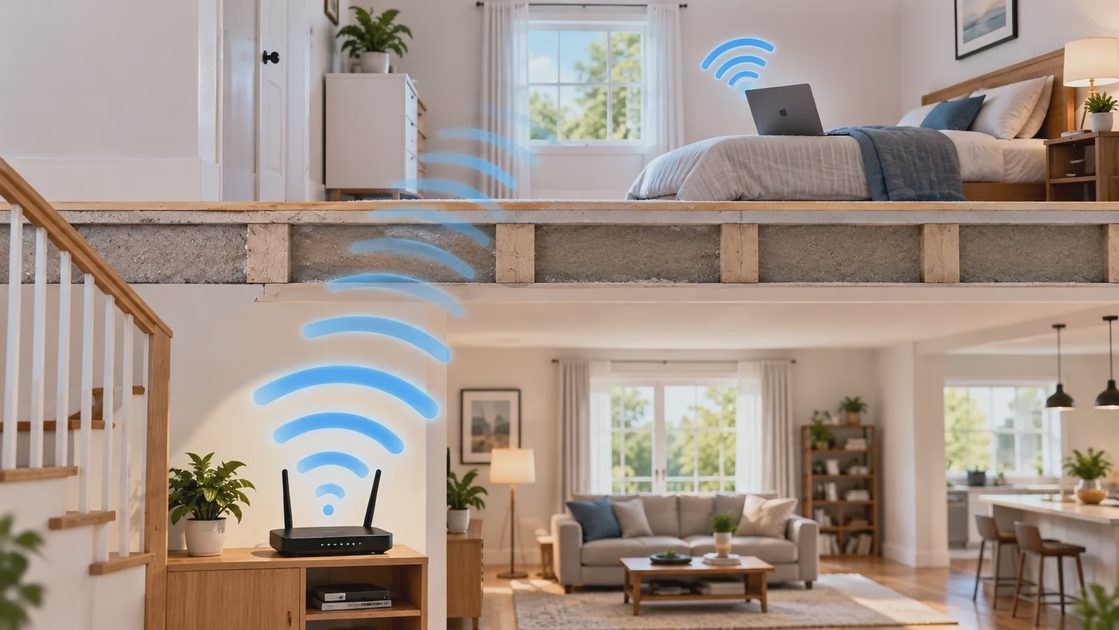
Wi-Fi uses radio signals to connect your devices to your router. Those signals have to travel through the building materials, furniture, and other obstacles between the router and your phone or laptop.
The farther the signal travels—and the more obstacles it encounters—the harder it becomes to maintain a strong connection.
Several things can make upstairs Wi-Fi particularly unreliable:
Floors and walls: Dense materials can weaken wireless signals, especially when they contain concrete, metal, or foil-backed insulation.
Router location: A router hidden in a downstairs corner has a tougher job reaching the opposite end of an upper floor.
Wireless interference: Neighboring networks and household electronics can compete for radio space.
Frequency bands: Higher-frequency Wi-Fi bands can offer excellent performance nearby but often lose strength faster through obstacles.
Device differences: An older laptop or phone may struggle in a location where newer devices still work well.
The key is figuring out which of these problems you're actually dealing with.
First, Find Out Whether It's Your Wi-Fi or Your Internet
Before moving equipment or buying anything, run a simple comparison.
Stand near your router with your phone or laptop. Connect to your normal Wi-Fi network and run a speed test.
Then take the same device upstairs, preferably to the room where you usually have trouble, and repeat the test.
Use the same speed-testing service both times, and try to avoid running the tests while someone else is downloading large files or streaming multiple videos.
Write down the results.
Test location | What to look for |
|---|---|
Near the router | Your reference speed |
Upstairs problem room | Whether speed drops substantially |
Another upstairs room | Whether the issue is local to one room |
Upstairs on a second device | Whether the problem affects multiple devices |
If your connection is fast near the router but much slower upstairs, Wi-Fi coverage, interference, or the upstairs device is a likely cause.
If the connection is slow everywhere, including beside the router, the problem may involve your internet service, router performance, or network congestion instead.
One important detail: a speed test measures more than wireless signal strength. A poor result alone cannot prove exactly what is wrong. But comparing locations gives you a useful starting point.
7 Ways to Fix Slow Wi-Fi Upstairs
Start with the free changes. Move toward new equipment only if the earlier steps don't solve the problem.
1. Move Your Router Out of the Corner
Router placement can make a surprising difference.
If your router sits on the floor behind a television, inside a cabinet, or at the far end of the house, it may be sending much of its useful signal toward areas where nobody needs it.
Try placing it:
In a more central part of the home.
On an open shelf rather than inside furniture.
Away from large metal objects and major appliances.
Somewhere with fewer walls and floors between it and the rooms you use most.
For a two-story house, a central location on the lower floor—or closer to the upper floor when practical—may help.
You don't need to put the router in the exact middle of your house. The goal is to reduce obstacles between the router and your everyday devices.
Try this first: If the router is tucked behind a TV or inside a cabinet, move it into the open and retest upstairs before changing anything else.
2. Check Which Wi-Fi Band You're Using
Many home routers support multiple Wi-Fi frequency bands.
The two most familiar are 2.4 GHz and 5 GHz. Some newer equipment also supports 6 GHz.
Here's the practical difference:
Wi-Fi band | General advantage | Common limitation |
|---|---|---|
2.4 GHz | Often reaches farther and handles obstacles better | More interference and generally less available capacity |
5 GHz | Often provides faster nearby connections | Can weaken more noticeably through walls and floors |
6 GHz | More spectrum for compatible devices | Typically needs a strong, relatively unobstructed signal |
If your router lets you choose between separate 2.4 GHz and 5 GHz network names, try connecting the upstairs device to each and compare performance.
You might find that 2.4 GHz provides a slower maximum speed but a more reliable connection in a distant bedroom.
That's a perfectly reasonable trade-off for email, browsing, and many everyday tasks.
However, if your router automatically manages bands under one network name, you don't necessarily need to disable that feature. Modern band steering can work well, and changing it without a reason may make the network less convenient.
3. Check for Wi-Fi Interference
Your Wi-Fi network doesn't operate in isolation.
Nearby homes may have routers using overlapping wireless channels. Certain household electronics can also create interference, especially around 2.4 GHz.
The symptoms can look familiar: good signal one moment, poor performance the next, or a connection that gets worse at certain times of day.
A few practical checks:
Move the router away from crowded entertainment centers and nearby electronics.
Try another position for the upstairs device.
Compare performance at different times.
Check whether your router has automatic channel selection enabled.
Some router apps also offer a wireless environment scan or channel optimization feature.
You don't need to become a network engineer to use these tools. Start with the automatic settings unless you have a specific reason to change them.
4. Test More Than One Device
Suppose your phone works reasonably well upstairs, but your laptop barely connects.
That changes the diagnosis.
The laptop could have an older Wi-Fi adapter, outdated drivers, aggressive power-saving settings, or simply a less capable antenna.
Try the same upstairs location with another device.
If every device struggles, focus on the router and wireless coverage.
If only one device struggles, focus on that device first.
For a Windows laptop, check for appropriate Wi-Fi driver updates through Windows Update or the laptop manufacturer's support tools.
For a Mac, check for available macOS updates.
Also try forgetting and reconnecting to the Wi-Fi network if the device has a persistent connection problem. Make sure you know the Wi-Fi password first.
5. Restart the Router—But Don't Factory Reset It
If the problem appeared suddenly, a normal router restart is worth trying.
Restarting can clear some temporary software or connection problems. It will not fix poor router placement or make radio signals travel through concrete more effectively.
Use the router's restart function, or follow the manufacturer's instructions for powering it off and back on.
Wait for the router to reconnect fully before testing again.
Important: Restarting and factory resetting are not the same thing.
A factory reset can erase your Wi-Fi name, password, and other custom settings. It is not an appropriate first step for a weak upstairs signal.
If you're unsure about the difference, the planned article Should You Restart Your Router, Reset It, or Replace It? will cover that decision in more detail.
6. Consider a Wi-Fi Extender—But Understand the Trade-Off
A Wi-Fi extender can help when one specific room has a weak signal.
It receives a wireless connection and provides additional coverage beyond the original router's practical range.
That sounds ideal, but placement matters.
An extender placed in the upstairs room where the Wi-Fi is already barely usable may have very little signal to work with.
Instead, it usually needs to sit somewhere between the router and the problem area, where the existing connection is still reasonably strong.
Extenders also have limitations.
Some can reduce available throughput when using the same wireless radio for both the connection to the router and the connection to your devices. They may also require more attention to roaming and network names, depending on the equipment.
An extender can be a sensible, relatively inexpensive fix for a small coverage gap.
It is less appealing when the entire upper floor needs dependable coverage.
7. Consider Mesh Wi-Fi or a Wired Access Point for Larger Coverage Problems
If several upstairs rooms have weak Wi-Fi, the issue may be too large for one extender.
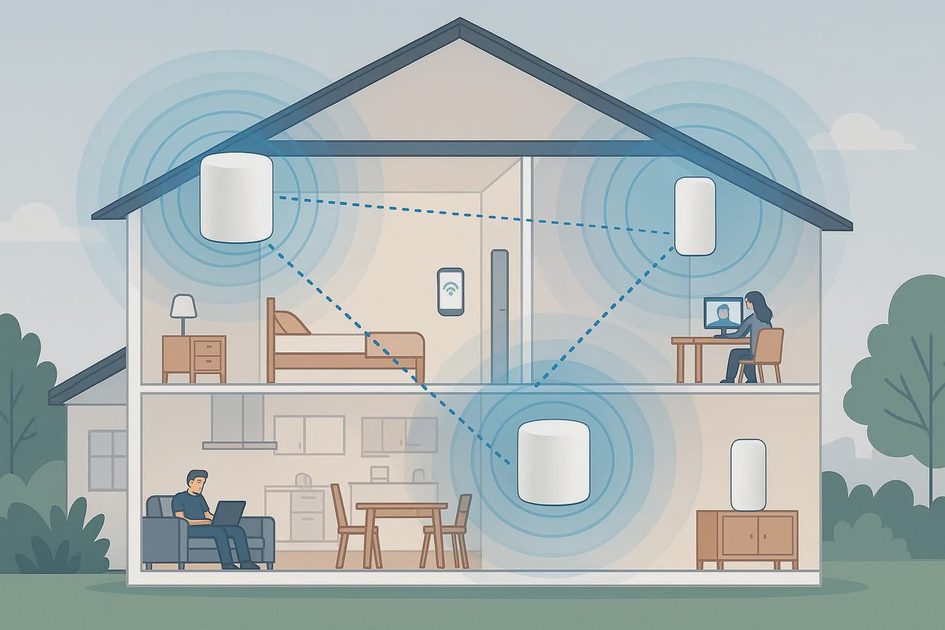
A mesh Wi-Fi system uses multiple units to provide wireless coverage across a larger area.
A typical arrangement might have one main unit near your internet connection and another positioned closer to the upstairs rooms.
But mesh isn't magic.
If the units communicate wirelessly, they still need a good connection to one another. Placing a mesh node in a dead zone can produce disappointing results.
If your home already has Ethernet cabling—or you can reasonably add it—a wired access point can be an especially reliable option.
The cable carries network traffic between locations, while the access point provides Wi-Fi near the upstairs devices.
Here's a simple way to decide:
Your situation | What to try |
|---|---|
One upstairs room has weak Wi-Fi | Improve placement, then consider an extender |
Several upstairs rooms have weak Wi-Fi | Consider mesh Wi-Fi |
You have Ethernet available upstairs | Consider a wired access point |
Only one laptop has trouble | Troubleshoot that laptop |
Wi-Fi is slow throughout the house | Investigate the router, internet service, and network usage first |
The best choice isn't necessarily the most expensive system. It's the one that fixes the coverage problem you actually have.
Three Mistakes That Can Make Upstairs Wi-Fi Worse
Buying a Faster Internet Plan Before Testing Coverage
A faster internet plan won't automatically improve a weak wireless connection between your router and an upstairs device.
If your current service works well downstairs, investigate the wireless link before paying for an upgrade.
Putting an Extender in the Dead Zone
An extender needs a usable connection back to your router.
If it receives a poor signal, it cannot reliably provide a strong internet connection simply by broadcasting another Wi-Fi network.
Assuming More Wi-Fi Equipment Always Means Better Wi-Fi
Adding unnecessary extenders or poorly positioned access points can introduce interference, confusing network behavior, or extra maintenance.
A smaller, properly positioned setup can work better than a house filled with networking gadgets.
What If Your Wi-Fi Is Still Slow Upstairs?
If you've tried the basics and the problem remains, ask three questions.
Is the issue limited to one device?
If yes, troubleshoot that device before buying networking equipment.
Does the entire upper floor struggle?
If yes, a better coverage design—such as a properly placed mesh node or wired access point—may be more useful than changing your internet plan.
Does performance change dramatically throughout the day?
If yes, look into interference, network congestion, and whether other household devices are consuming significant bandwidth.
If you're using equipment supplied by your internet provider, you can also ask whether the router supports additional access points or compatible mesh units before purchasing something independently.
Frequently Asked Questions
Why is my Wi-Fi fast downstairs but slow upstairs?
The most common explanations involve signal loss through floors and walls, router placement, wireless interference, or differences between devices. Testing the same device in both locations can help narrow down the cause.
Will a Wi-Fi extender make my upstairs internet faster?
It may improve the connection in an area with weak coverage, but it cannot guarantee higher speeds. Results depend on the signal reaching the extender, its placement, and how it communicates with the router.
Is 2.4 GHz or 5 GHz better for upstairs?
2.4 GHz often works better through obstacles and over longer distances, while 5 GHz may provide higher speeds when the signal is strong. Test both when your equipment allows it.
Is mesh Wi-Fi worth it for a two-story house?
It can be worthwhile when multiple rooms have weak coverage and a single router cannot reach them reliably. However, good router placement or a wired access point may solve the problem with less equipment.
Should I replace my router if Wi-Fi is slow upstairs?
Not immediately. First test router placement, device behavior, wireless bands, and coverage. A replacement may make sense if the router is outdated, unreliable, unsupported, or unable to support the coverage setup your home needs.
The Bottom Line: Fix the Coverage Before You Spend More
When Wi-Fi works well near the router but struggles upstairs, start by treating it as a coverage problem—not a reason to buy a faster internet plan.
Run the same speed test in two locations. Move the router into the open. Check your Wi-Fi bands. Try another device.
If those free changes don't help, decide whether you need better coverage in one room or across the entire upper floor.
A well-placed extender, mesh node, or wired access point may be the right answer. But you'll make a much better buying decision once you know where the connection is failing.
The goal isn't perfect Wi-Fi everywhere on a speed-test chart. It's a connection that works reliably in the rooms where your family actually uses it.