Your Wi-Fi stops working in the middle of a video call. The TV starts buffering. Someone in the house announces that the internet is down, even though everyone else is still connected.
Now you're staring at the router, wondering which button to press.
Should you unplug it? Restart it through an app? Hold down the tiny reset button? Or is this finally a sign that you need a new router?
Quick answer: If you need to reboot your router, start with a normal restart or power cycle. Don't factory-reset it unless you have a specific reason, and don't replace it until you've ruled out simpler problems.
Those three actions sound similar, but they have very different consequences.
A restart temporarily turns the router off and back on. A factory reset erases its saved settings. Replacing it means buying and configuring new equipment.
Here's how to tell which one your household actually needs.
Restart vs. Reset vs. Replace: The Quick Decision Guide
Action | What it does | Best time to use it | What you risk |
|---|---|---|---|
Restart or reboot | Restarts the router without intentionally erasing saved settings | Temporary connection problems, sluggish behavior, or a router that seems stuck | A short internet interruption |
Power cycle | Removes power, then starts the router again | When a normal software restart isn't available or doesn't work | A short outage for connected devices |
Factory reset | Restores the router to its factory-default configuration | Serious configuration problems, certain recovery situations, or preparing an owned router for transfer | Losing Wi-Fi names, passwords, and custom settings |
Replace | Installs a different router | Hardware failure, inadequate coverage or capacity, or security support that has ended | Equipment cost and setup work |
For most temporary problems, a restart is the least disruptive first step.
If the same problem keeps returning, investigate the cause before making a bigger change.
How to Restart a Wi-Fi Router Safely
If you're searching for how to restart wifi router equipment without losing your settings, the process is usually straightforward.
Option 1: Restart it through the router app or admin page
Some routers and mesh Wi-Fi systems offer a restart option in their management app or web interface.
Open the manufacturer's official router app or administration page.
Sign in with the appropriate administrator credentials.
Look for an option labeled Restart, Reboot, or something similar.
Confirm the action.
Wait for the router to restart and reconnect.
Menu names vary by manufacturer and model.
A restart should preserve the saved configuration. If the screen warns that settings will be erased, stop and confirm that you've selected the correct operation.
Option 2: Unplug the router and reconnect it
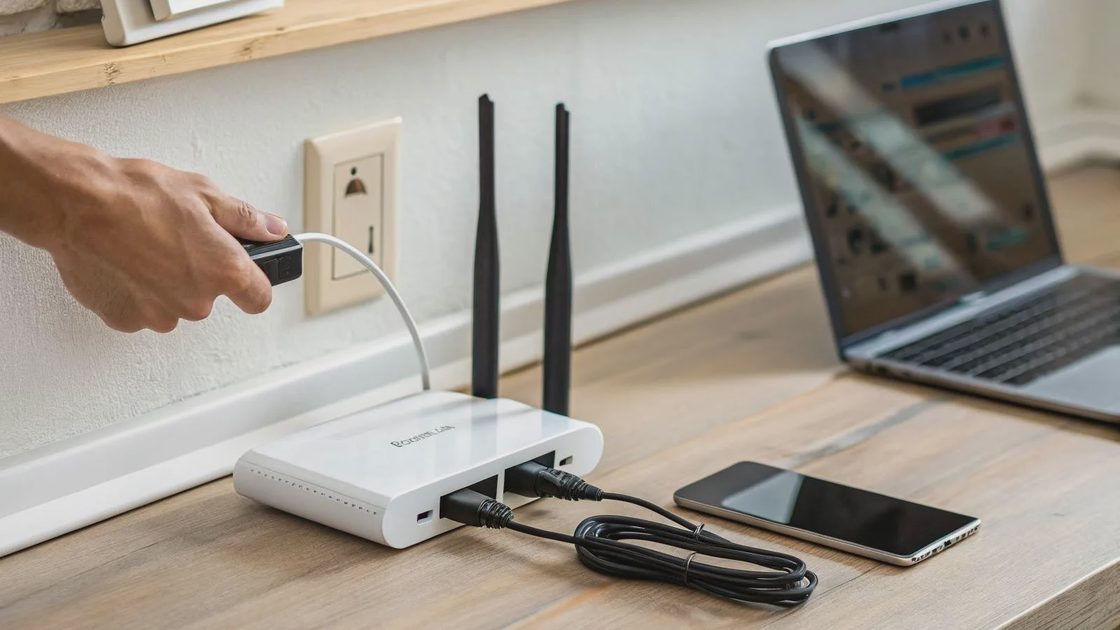
If you can't access the management interface, you can usually restart a home router by disconnecting its power.
Find the router's power adapter or power connection.
Disconnect power from the router.
Wait about 30 seconds as a practical starting point, unless the manufacturer specifies a different procedure.
Reconnect the power.
Allow the router to complete its startup process.
Test the connection on a phone or computer.
The 30-second pause is a general troubleshooting convention, not a universal requirement for every router.
Some systems may take several minutes to become fully operational.
Important: Unplug the power cable, not the small recessed Reset button. They do different things.
If you have a mesh system, follow its manufacturer's restart instructions. Restarting only one node may not address a problem affecting the entire network.
What Does It Mean to Power Cycle a Router?
To power cycle router equipment means to disconnect its power, wait briefly, and reconnect it.
In everyday home networking, people often use restart, reboot, and power cycle interchangeably.
The distinction is mostly about how the operation is performed.
A software restart tells the router to restart through its interface.
A power cycle physically interrupts power and then restores it.
Both are intended to start the router again without erasing its configuration.
Power cycling can help when the router's software interface is unresponsive, but it won't repair damaged hardware, fix poor placement, or resolve every internet-service problem.
Should you restart the modem too?
Maybe.
Your home may have a separate modem and router, a combined gateway supplied by your internet provider, or a fiber connection using an optical network terminal.
These devices have different jobs.
The modem or optical terminal connects your home to the internet provider. The router manages traffic between your home devices and the wider network.
If Wi-Fi is available but internet access is down across the house, the problem could involve either device or the service itself.
Check your provider's outage information before repeatedly restarting equipment.
If a restart of both devices is appropriate, follow the provider's instructions. A common sequence for separate cable modem and router equipment is:
Turn off or disconnect power from the router.
Disconnect power from the modem.
Restore power to the modem and wait for its normal connection status.
Restore power to the router.
Wait for Wi-Fi and internet access to return.
Do not unplug fiber equipment, battery-backed voice gateways, or provider-managed hardware contrary to the provider's guidance. Interrupting a gateway may also interrupt home phone service, including access to emergency calling through that service.
How to Reboot Your Router Without Losing Your Wi-Fi Password
A normal router restart should not erase the Wi-Fi network name or password.
Your phones, laptops, smart TVs, and other devices should generally reconnect once the router is running again.
If they don't, check whether the expected Wi-Fi network is visible.
You may need to wait for the router to finish starting, reconnect a particular device, or investigate a separate problem.
What you should not do is hold the factory-reset button simply because the connection hasn't returned immediately.
That button can erase the settings your household depends on.
How to Reset a Wi-Fi Router—and Why It's Different
A factory reset is a much bigger step.
If you're looking up how to reset wifi router equipment, make sure you actually need to restore factory defaults rather than simply reboot it.
A factory reset can remove settings such as:
Your customized Wi-Fi network name and password
Router administrator settings
Guest network configuration
Parental controls
Port forwarding rules
Reserved IP addresses
Other custom network settings
Exactly what gets erased depends on the router.
Afterward, you may need to complete the initial setup again. Some internet connections also require provider-specific configuration.
When is a factory reset reasonable?
Consider it when:
The router's configuration is seriously broken and simpler recovery steps have failed.
The manufacturer specifically recommends a reset for a documented problem.
You're recovering access through the manufacturer's supported procedure.
You're preparing a router you own for resale, donation, or transfer.
A reset is not a routine fix for weak Wi-Fi upstairs or slow service during busy hours.
Before you factory-reset anything
Make sure you have:
The router's exact manufacturer and model.
Its official setup instructions.
Any necessary internet-provider account or connection information.
A record of important settings you may need to restore.
Enough time to reconnect devices afterward.
If the router belongs to your internet provider, check with the provider before resetting it.
The general factory-reset process
The exact steps vary, so use your model's official documentation.
Many routers support a factory reset through their management interface or a physical Reset control.
A typical physical-reset process involves leaving the device powered on, pressing and holding the designated Reset control for the manufacturer-specified duration, and waiting for the router to restore its default configuration.
Do not assume every router uses the same button-hold time.
After the reset, follow the manufacturer's setup instructions, configure secure administrator and Wi-Fi credentials, and reconnect your devices.
For home Wi-Fi security, use WPA3-Personal when supported by all required devices, or an appropriate WPA2-AES configuration when compatibility requires it. Avoid outdated security modes where possible.
What If Restarting the Router Doesn't Fix the Problem?
Before buying anything, narrow down where the problem occurs.
Problem 1: Only one device is having trouble
If one laptop has no connection while everyone else's devices work, the router may not be the problem.
Try:
Turning Wi-Fi off and on for the affected device
Reconnecting to the correct network
Restarting that device
Checking whether its software needs an update
Testing it near the router
Don't reset the entire household network to fix a problem isolated to one phone.
Problem 2: Wi-Fi works, but the internet doesn't
Your device may connect to the router while the router itself has no working internet connection.
Check whether your provider has reported an outage.
Look at the modem, gateway, or fiber terminal status according to its documentation.
If the issue continues, contact the internet provider before assuming the router needs replacing.
Problem 3: Wi-Fi is slow only in certain rooms
A router restart may temporarily seem helpful, but poor coverage is often a placement or signal problem.
Walls, floors, distance, and interference can all affect Wi-Fi performance.
Try moving the router to a more central, open location when practical.
Avoid hiding it inside a cabinet or behind large objects.
For a larger home, additional access points or a properly configured mesh system may help—but don't buy them before checking placement and coverage.
Problem 4: The connection drops repeatedly
Intermittent problems can be harder to diagnose.
Keep a short record of when they happen.
Notice whether:
All devices disconnect at once.
Only wireless devices are affected.
A wired connection also fails.
The problem happens during heavy use.
The router appears to restart by itself.
The modem or provider gateway reports connection trouble.
Those observations are more useful than repeatedly unplugging everything without a plan.
Problem 5: The router is unusually hot or physically damaged
Routers generate heat during normal operation.
But a device with a damaged power adapter, burning smell, visible electrical damage, or other obvious safety concern should not be treated as an ordinary connection problem.
Stop using unsafe equipment and seek appropriate manufacturer or professional assistance.
Do not open or attempt to repair a mains-powered adapter yourself.
How Long Should a Router Last?
There is no universal expiration date for home routers.
A frequently cited consumer planning range is roughly three to five years, but that is not a guarantee that a router will fail—or become obsolete—within that period.
Some routers remain useful longer.
Others may need replacing sooner because of hardware problems, changing household requirements, or discontinued security support.
The better question isn't simply how long should a router last.
It's whether your router is still reliable, secure, and suitable for the devices and internet service you use.
Three things matter more than age alone
1. Security support
Check whether the manufacturer still provides firmware and security updates for your model.
A router that no longer receives necessary security support may deserve replacement even if it still connects to the internet.
2. Reliability
Occasional troubleshooting doesn't automatically mean a device is failing.
But unexplained restarts, persistent instability, or problems that continue after reasonable diagnosis can be warning signs.
3. Household needs
A router that worked well for a smaller household or slower internet plan may struggle with a different setup.
That doesn't necessarily mean it's broken.
It may simply no longer be the right equipment for the job.
How Do You Know If Your Router Is Going Bad?
The question how do you know if router is going bad doesn't have a single definitive answer.
Several symptoms can suggest a router problem, but they can also have other causes.
Symptom | Possible explanation | What to check first |
|---|---|---|
Frequent disconnections | Router instability, interference, modem trouble, or ISP issues | Whether wired and wireless devices both disconnect |
Unexpected router restarts | Power supply or hardware problem, firmware issue | Power connection, logs, firmware, manufacturer support |
Slow Wi-Fi | Congestion, distance, interference, or limited router capacity | Speed near the router versus farther away |
Some devices cannot connect | Compatibility or device-specific issue | Other devices, network settings, firmware |
Router no longer receives security updates | End of manufacturer support | Official support and firmware information |
Physical damage or electrical warning signs | Potential hardware safety problem | Stop using unsafe equipment and seek help |
No single row proves that the router has failed.
The goal is to gather enough evidence to avoid replacing working equipment unnecessarily.
How Often Should You Replace Your Router?
You don't need to replace a router on a fixed annual schedule.
Instead, review its condition periodically.
A reasonable household check is to look at its security support, reliability, and performance whenever you experience recurring problems—or when your internet plan and device needs change substantially.
Replacement becomes more sensible when:
The manufacturer has ended relevant security support.
Hardware faults persist after reasonable troubleshooting.
The router cannot support an important feature or connection requirement.
Coverage or capacity is inadequate and simpler changes aren't enough.
Repair or replacement of a faulty component is impractical.
When not to replace it
Keep your existing router if it:
Receives appropriate security support.
Provides reliable connections.
Covers the areas where you need Wi-Fi.
Handles your household's normal activity.
Doesn't create excessive maintenance work.
A newer model isn't automatically a meaningful upgrade.
And buying a more expensive router won't fix an internet-provider outage.
The Cheaper Path: Five Things to Try Before Buying a Router
Before spending money, work through this list:
Restart the router once. Give it time to reconnect before deciding the restart failed.
Check for an internet-service outage. Your provider may already know about the problem.
Test more than one device. Determine whether the issue affects the whole network.
Check placement and connections. Move the router if coverage is poor, and inspect accessible cables for loose connections or visible damage.
Review firmware and support. Use the manufacturer's official app or support site to check for updates and determine whether the router is still supported.
If the issue persists, record what you've observed before contacting support or shopping for a replacement.
That information can save time and reduce the chance of buying the wrong solution.
Frequently Asked Questions
How often should I reboot my router?
There is no universal requirement to restart a healthy router on a fixed schedule. Restart it when troubleshooting a problem or when the manufacturer recommends it. If it needs frequent restarts to work properly, investigate the underlying cause.
Is unplugging a router the same as resetting it?
No. Unplugging power and reconnecting it normally performs a restart or power cycle. A factory reset restores default settings and can erase your custom configuration.
How long does it take to reboot a router?
Startup time varies by model and network setup. Many routers take a few minutes to become fully available again. Modems, mesh systems, and provider equipment may require additional time.
Will rebooting my router change my IP address?
It depends on your internet provider, connection type, and network configuration. A restart does not guarantee that your public IP address will change.
Does resetting a router make Wi-Fi faster?
A factory reset is not a general speed upgrade. It may resolve certain configuration problems, but it won't overcome poor coverage, service limitations, or inadequate hardware.
Should I replace a five-year-old router?
Not automatically. Check security-update support, reliability, Wi-Fi coverage, and whether the router still meets your household's needs. Age is one factor, not a verdict.
Keep, Reset, or Replace: The Sensible Decision
When home Wi-Fi stops cooperating, it's tempting to try the biggest fix first.
Don't.
Restart when the problem appears temporary. It's quick, reversible, and usually preserves your settings.
Factory-reset only when you have a specific reason and you're prepared to configure the network again.
Replace when the evidence points to hardware failure, inadequate capabilities, or security support that has ended.
For most households, the best first step costs nothing.
Restart the right equipment, check whether the problem affects one device or the entire network, and gather a little evidence before spending money.
That's how you make everyday tech simpler, safer, and more affordable.