A low-priced laptop can be a good purchase. It can also become the machine you replace early, expand with expensive accessories, or spend every evening working around.
A cheap laptop is actually more expensive when its limitations increase the cost of doing the job you bought it for. That might mean another purchase sooner than expected, paid repairs, storage workarounds, or a collection of adapters. The answer is not automatically to buy a premium model. It is to buy—or keep—the least expensive computer that can reliably handle your needs.
Before comparing sale prices, write down three things you expect the laptop to do together. “Join a video call while viewing a document and keeping my usual browser tabs open” is much more useful than “general use.”
Compare the cost of useful ownership
The sticker price tells you what it costs to take the laptop home. It does not tell you what it costs to keep using it.
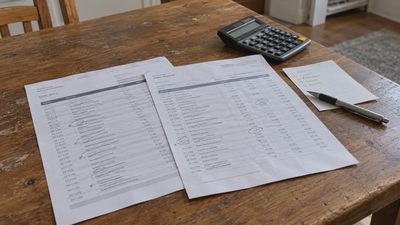
For a practical comparison, estimate:
Purchase price + necessary accessories + realistic upgrade or repair costs − conservative resale value
Then divide that amount by the number of months you reasonably expect the laptop to meet your needs. Use the same treatment of taxes and shipping for both options. Do not assume resale income if you are unlikely to sell the machine.
Here is a hypothetical example, not a product quote or a reliability test:
Planning assumption | Lower-priced option | Better-fitting option |
|---|---|---|
Purchase price, including tax | $300 | $550 |
Necessary accessories | $80 | $30 |
Planned compatible storage upgrade | $40 | $0 |
Total counted cost | $420 | $580 |
Assumed useful ownership | 24 months | 48 months |
Cost per useful month | $17.50 | $12.08 |
The second option looks better only because it is assumed to meet the user's needs for longer. If the $420 setup also lasts 48 useful months, its cost falls to $8.75 per month. If the $580 machine disappoints after two years, it costs about $24.17 per month.
Those assumptions matter more than the neatness of the calculation. Price does not prove lifespan, and a more expensive computer is not automatically more durable.
Use the comparison to uncover a weak assumption: “Will I really be satisfied with this configuration for four years?” Do not use it to justify an upgrade you cannot afford.
Inspect the exact configuration, not the model name
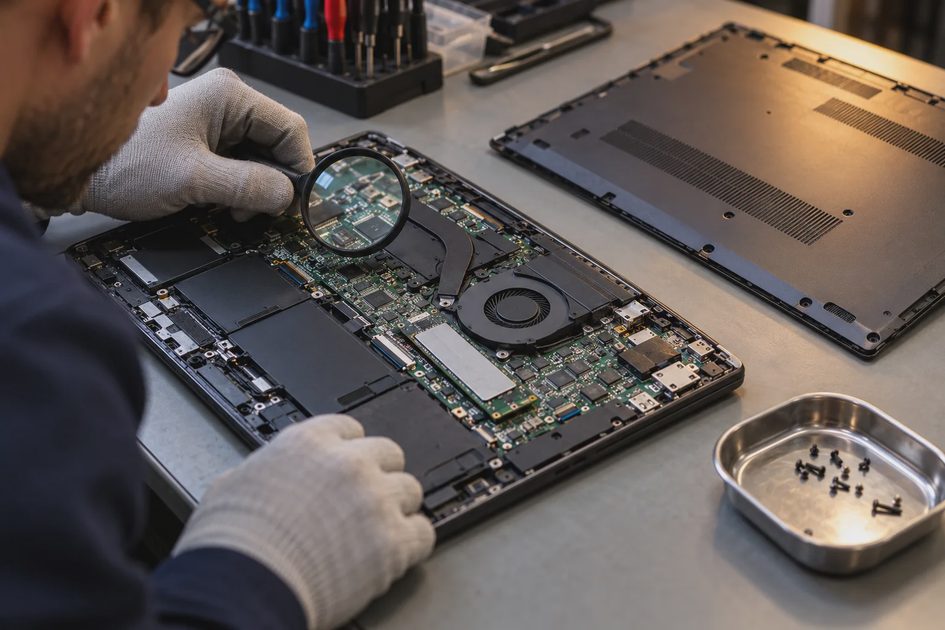
A laptop family can include very different processors, memory amounts, storage devices, and screens. Check the exact configuration or product code in the listing and order confirmation.
Memory: leave room for the work you actually do
RAM is the working space used by active programs. Its capacity matters when you keep several applications open.
Microsoft lists 4 GB of RAM and 64 GB of storage among the minimum requirements for Windows 11. These are installation requirements, not a promise of comfortable performance with your workload.
For a new Windows laptop expected to handle everyday multitasking for several years, 16 GB is a sensible editorial shopping target when the budget allows. It is not a universal requirement. An 8 GB configuration may be adequate for lighter work, while demanding creative applications can need more. Check the software you use rather than treating one number as the answer.
Also ask whether memory can be upgraded. Dell's memory-upgrade guidance explains that some laptops have soldered memory and others have accessible slots. Read the service information for your exact model.
A future RAM upgrade is not a real plan until you have confirmed that it is possible and what it costs.
Storage: count your files and leave headroom
For a general-purpose Windows purchase, I would usually prioritize an SSD and enough room for the operating system, applications, updates, and local files. A 256 GB SSD can be workable for a modest local collection; 512 GB offers more breathing room if you keep photos, downloads, or project files.
These are practical buying judgments, not guarantees. A browser-focused device may need less local storage, and video work can need much more.
Check the storage type as well as its capacity. “128 GB storage” is an incomplete description. Ask whether it is an SSD, eMMC, or another type, and whether it is replaceable. An external drive adds file space but does not fix insufficient RAM or a weak processor.
Processor: find the full name
Do not choose between two laptops because one listing says “Intel” and the other says “Ryzen.” Find the full processor model, check the requirements of important applications, and look for trustworthy testing of the exact configuration.
Similarly, a newer-looking product name or an AI badge is not evidence that your video calls, spreadsheets, or editing tasks will run well. Pay for capabilities you expect to use.
Count the workarounds before checkout
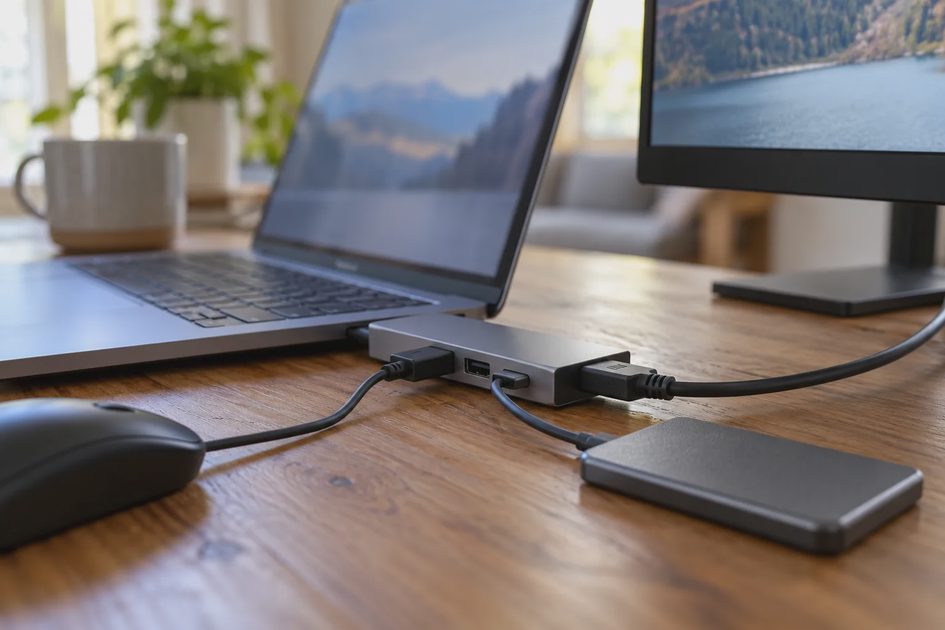
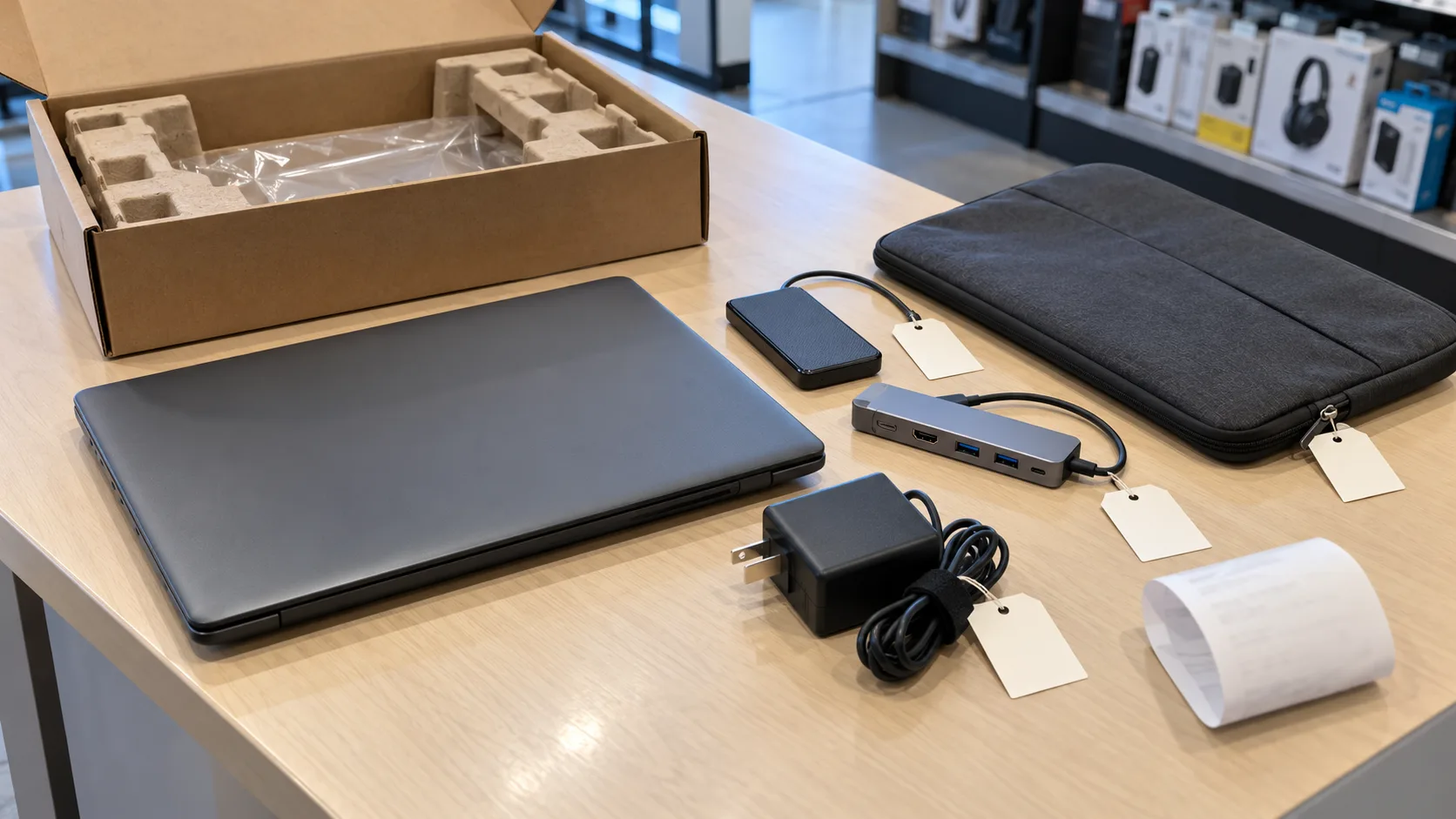
Some inexpensive laptops are inexpensive because they omit something you need. That omission may be acceptable, but put its cost in the comparison.
Limitation to check | Possible extra cost or inconvenience |
|---|---|
Too few suitable ports | A hub, adapter, or dock |
Insufficient local file space | External storage or a higher cloud-storage plan |
Unsuitable camera or microphone | An external webcam or headset |
Battery runtime that does not cover your day | More charging stops or a model-specific battery replacement |
Poor screen or keyboard for long sessions | An external monitor or keyboard |
Non-upgradeable configuration | Less room to adapt as your needs change |
Only count accessories you genuinely require. A hub you already own is different from buying a new dock, and an external monitor is unnecessary if you are happy with the built-in display.
Verify what each port supports. A USB-C connector does not, by itself, confirm charging or video-output capability. Check the manufacturer's specifications for that port and your intended accessory.
An occasional workaround can be fine. Several daily workarounds are a sign to reconsider the configuration.
A bargain needs enough software support left
A working computer can still be a poor long-term buy if its software support is close to ending.
For a Windows purchase, check official Windows 11 compatibility rather than relying on a seller's promise that Windows has been installed. Microsoft's support information states that regular Windows 10 support ended on October 14, 2025. Eligible Extended Security Updates arrangements exist, but they have conditions and an end date; check the current terms instead of treating them as permanent support.
For a Chromebook, look up the exact model's automatic-update date in Google's Auto Update policy. Its support clock is tied to the platform, not restarted by your purchase of a used device. Also check whether your essential software and school or work requirements fit ChromeOS.
A supported operating system is only one condition. Confirm that your important applications and peripherals work on the machine too.
A refurbished laptop can be good value—with clear terms
A refurbished laptop is worth considering when it offers the capabilities you need at a manageable price. A former business laptop may have useful ports and service documentation, but its original market position does not guarantee the condition of the unit you receive.
Ask the seller for:
The exact processor, RAM, storage, and screen configuration.
The battery's stated condition or any minimum capacity commitment.
The warranty length, what it covers, and who provides service.
The return window, return-shipping costs, and restocking conditions.
Whether the correct charger is included and the machine has organizational management locks.
The operating-system license and supported update path.
“Refurbished” is a description to investigate, not a standardized promise of a new battery or a particular repair process. Compare the written terms.
A low-priced unit with an exhausted battery and difficult returns may be less useful than a slightly dearer one with clear coverage. Equally, a well-described inexpensive machine may be all you need.
Test the real task while you can still return it
Once you have the laptop, confirm that its configuration matches the order. Complete normal updates and setup, then test the tasks you identified before buying.
Run a video call with the applications you normally keep open. Type a full document. Connect your actual monitor, printer, or headset. Use it away from a charger long enough to judge whether it fits your routine, without treating one session as a laboratory battery test.
Check storage after installing essential applications, and notice the screen, keyboard, fan noise, and connection reliability. Save your packaging and keep track of the return deadline.
If the laptop struggles, first distinguish a device problem from a weak internet connection, unfinished setup, or an application issue. If it still fails the job you bought it for, use the return process instead of spending more money trying to rescue a poor fit.
When the inexpensive option is enough
A cheap laptop can be the right choice for light browsing, basic documents, streaming, or an occasional secondary computer. It can also be sensible when your needs are stable and you have tested them successfully.
Keep a functioning current laptop if a modest, compatible repair solves the actual problem. Consider a supported refurbished model if a new machine is beyond your budget. Spend more only when you can identify the limitation that the extra money fixes.
The useful purchase is the one that fits your tasks, your budget, and the time you need to keep it—not the one with the biggest discount printed beside it.