A paid app can be worth every dollar when you depend on it. But a subscription that once solved a problem can quietly become a bill for features you barely use.
For ordinary household tasks, five free alternatives deserve a look: LibreOffice for Microsoft 365's desktop office apps, GIMP for Photoshop, Shotcut for Premiere Pro, Joplin for paid Evernote use, and Bitwarden Free for individual password management instead of 1Password.
These are useful substitutes for particular jobs—not promises that every feature, file, or workflow will transfer unchanged. The best free alternatives to paid apps are the ones that let you finish your actual task without adding more trouble than the subscription was worth.
This guide is based on official product information checked on October 9, 2026. It is a practical selection guide, not a hands-on comparison test.
Choose by the job you need done
Start with what you used the paid app for last month, rather than its entire feature list.
Paid app or subscription | Free alternative | A good everyday fit | The main reason to keep paying |
|---|---|---|---|
Microsoft 365 desktop office apps | LibreOffice | Letters, household spreadsheets, and simple presentations | Complex Office files, work requirements, or other Microsoft 365 benefits |
Adobe Photoshop | GIMP | Cropping, retouching, and layered image editing | Photoshop-specific files, tools, plugins, or collaboration |
Adobe Premiere Pro | Shotcut | Trimming clips, assembling videos, titles, and basic audio work | Existing Premiere projects or a demanding professional workflow |
Evernote paid plan | Joplin | Personal notes, reference material, and checklists | A particular shared workflow or service feature you rely on |
1Password | Bitwarden Free | Individual passwords across devices | Family administration, emergency access, or other paid features you use |
The first four recommendations center on desktop work, although Joplin also has mobile apps. Bitwarden works across supported browsers, computers, and phones. These are not five mobile-only replacements.
1. Microsoft 365 → LibreOffice for everyday documents
Try it if: you mainly write documents, track spending in spreadsheets, or make occasional presentations on a computer.
LibreOffice includes Writer, Calc, and Impress for those jobs. It is a free desktop office suite, and its official documentation explains how it opens and saves Word, Excel, and PowerPoint formats.
That makes it a sensible place to start if you pay for desktop Office largely to maintain a household budget or edit an occasional letter.
The trade-off is compatibility, not just familiarity. Opening a file does not prove that its layout, formulas, or automation work exactly as intended. LibreOffice specifically documents differences in Microsoft Office macro code; some VBA support exists, but you should not assume your workbook's automation will transfer.
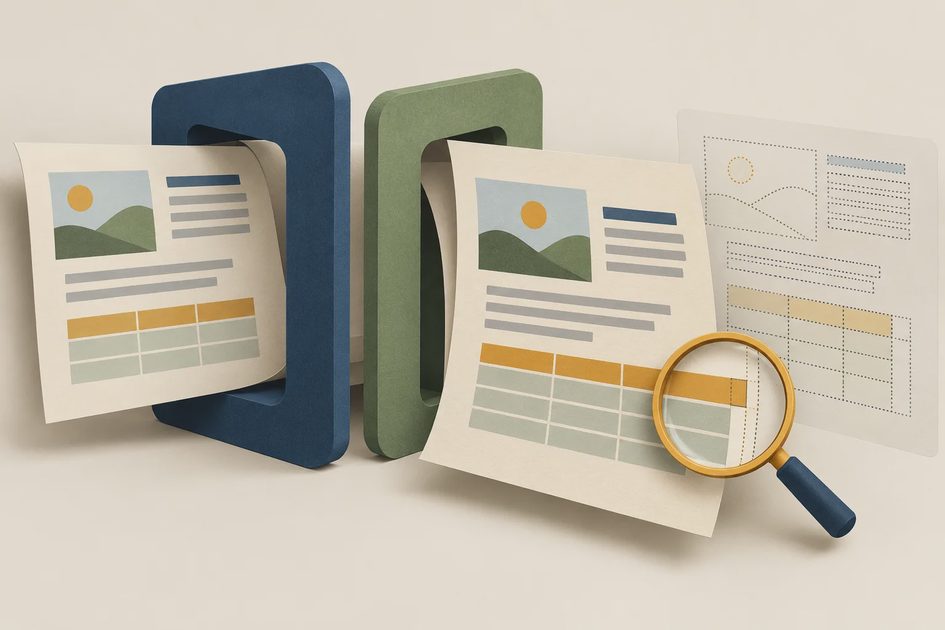
Try a copy of one document you regularly share and one spreadsheet you actually use. Check page breaks, fonts, tables, calculations, and the saved output. If the recipient needs only a finished document, inspect a PDF export too.
Also review what your Microsoft subscription includes. LibreOffice replaces office-editing tasks; it does not replace every benefit of a Microsoft 365 plan, such as included cloud storage. If your family relies on that storage, plan what happens to those files before canceling.
Keep Microsoft 365 when an employer requires it, a critical workbook depends on its behavior, or its other benefits justify the bill. Check work or school access before buying a separate personal license.
2. Photoshop → GIMP for occasional image editing
Try it if: you want to crop photos, adjust an image, remove a small distraction, or build a simple composition with layers.
GIMP is a free, open-source image editor for Windows, macOS, and Linux. Its official site describes tools for retouching, restoration, and compositing. For someone who edits a few images each month, that is a more useful starting point than paying for a professional tool out of habit.
The cost you are most likely to notice is learning time. Menus, shortcuts, and editing methods differ from Photoshop. Do not assume that a Photoshop-specific plugin or editable project will behave the same way.
A useful first trial is one real image: crop it, correct its appearance, make the edit you normally need, and export it in the format you use. Keep the original and an editable working copy.
If your entire need is cropping and rotating, your device's built-in photo editor may be enough. A more capable free app is still unnecessary if a simpler tool finishes the job.
Keep Photoshop when its particular tools save meaningful time, collaborators need Photoshop projects, or your work depends on its ecosystem. GIMP is a task-based alternative, not a reason to disrupt a workflow that earns its cost.
3. Premiere Pro → Shotcut for straightforward videos
Try it if: you assemble family clips, trim a recording, add titles, or create a simple video for a club or side project.
Shotcut is a free, open-source desktop video editor. Its feature list includes timeline editing, text tools, audio mixing, and transitions. The project also confirms in its FAQ that commercial use is permitted.
For a practical trial, use a few clips you already own. Trim them, arrange them, adjust the audio, add a title, and export a short finished video. Watch that exported file all the way through on the device where you expect to share it.
That last step matters: saving an editable project is not the same as exporting a playable video. Shotcut's FAQ distinguishes the two.
Free software also does not remove hardware demands. Test your actual footage on your actual computer; a complicated high-resolution project can still be slow. Shotcut recommends preview scaling and proxy files for less capable systems. Proxies are lighter editing copies that can make previews easier to work with.
Keep Premiere Pro if you need existing projects, specific integrations, or a professional workflow that would be costly to rebuild. Treat a switch as a new editing workflow, rather than expecting your old projects to transfer perfectly.
4. Evernote paid plan → Joplin for personal notes
Try it if: your main need is keeping searchable notes, reference material, attachments, and checklists.
Joplin offers a free, open-source note-taking app across desktop and mobile platforms. Its import documentation supports Evernote ENEX files, including notes, tags, and attachments.
Move one notebook first. Check a plain note, a formatted note, an attachment, and a note with links to other notes. Joplin documents possible differences in complex formatting and how internal links are restored. An import success message is not a substitute for inspecting important material.
The app and the sync service are separate decisions. Joplin supports services including Dropbox and OneDrive, while Joplin Cloud is a separate paid offering. See its sync documentation and Cloud plans. A no-cost setup depends on your chosen service, its storage allowance, and your attachment volume; “free app” does not mean unlimited free cloud storage.
Decide where your notes will live, how they will reach your phone, and how you will back them up. Syncing changes between devices should not be your only recovery plan.
Keep your paid notes service if shared notebooks, a particular capture method, or another workflow you depend on would become cumbersome. Saving a subscription is less useful if you can no longer find or access important information.
5. 1Password → Bitwarden Free for individual logins
Try it if: you mainly need to store passwords, generate stronger ones, and access them across devices.
Bitwarden's Free plan includes unlimited passwords and devices. That makes it a credible alternative for individual use if you are considering whether to keep a 1Password subscription.
Check the household requirements before switching. Bitwarden's plan documentation separates free individual accounts from paid features such as emergency access and encrypted file attachments. Its free organization supports sharing with one other user in up to two collections; that is not equivalent to a full family plan.
Do not save money by giving everyone one shared vault login. People need appropriate individual access, and a family may reasonably pay for administration and recovery features it actually uses.
Follow the official migration instructions for your source manager. Verify important logins, autofill on your phone and browser, shared items, and recovery arrangements. Check passkeys, attachments, and other special items separately instead of assuming a password import covers everything.
Treat any exported password file as sensitive. Do not email it to yourself or put it in an ordinary shared folder. Bitwarden's import guidance recommends deleting the exported file after import. Confirm the transfer first, then remove unnecessary temporary exports.
Keep your paid manager if its household sharing, recovery, or specific features provide value. Reliable account access is a good reason to retain a subscription.
Test one real task before you cancel
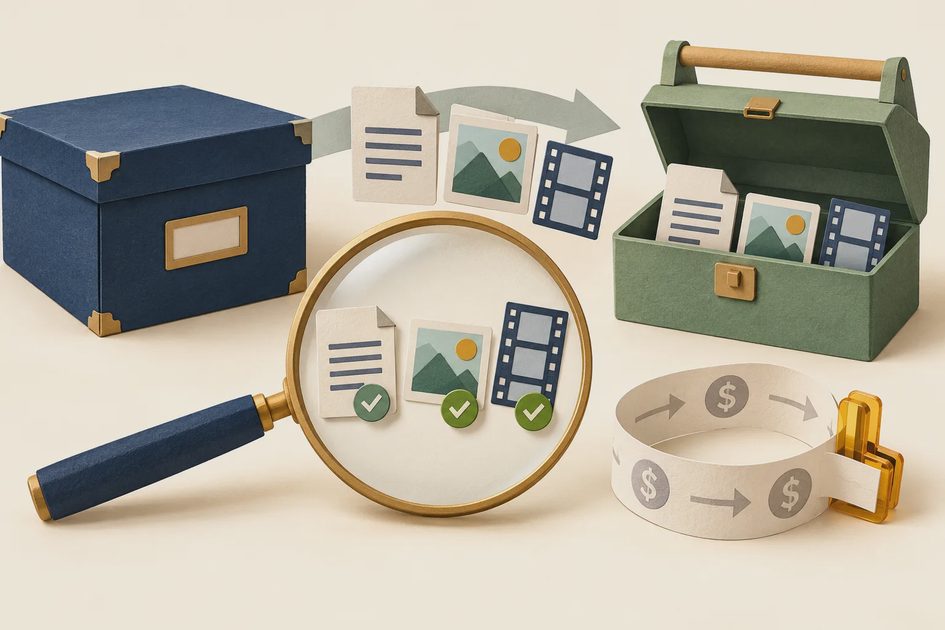
Switch one app at a time. A manageable trial tells you more than downloading five replacements in an afternoon.
Name the task. Use something specific: “edit this budget,” “export this video,” or “sign in on my phone.”
Check the full subscription. Identify storage, sharing, bundled services, and any cancellation conditions you would lose or still owe.
Preserve the originals. Work on copies of documents, images, and notes. Handle password exports separately and remove temporary copies after a verified migration.
Finish and inspect the result. Saving, syncing, sharing, printing, and exporting are part of the task.
Decide whether the friction is acceptable. Include setup, learning, maintenance, and any replacement storage expense.
Cancel only after the replacement works. Confirm the renewal date and save the cancellation confirmation.
Get installers from the official project website or a trusted distribution source. For the apps here, follow the product links in each section rather than selecting a sponsored download button on an unrelated site.
Then keep the replacement updated and maintain backups. Local editing can avoid uploading a document or image merely to work on it, but a local file still needs protection from loss.
Keep the subscription that earns its place
You do not need to replace all five apps to make this worthwhile. Start with the bill attached to the least demanding task.
If LibreOffice handles your documents, GIMP finishes your occasional edits, or Bitwarden Free covers your individual logins, you may have found a sensible expense to remove. If a paid app saves substantial time, supports your work, or makes family access easier, keeping it can be the economical decision.
The goal is a smaller bill with your everyday tasks still working.