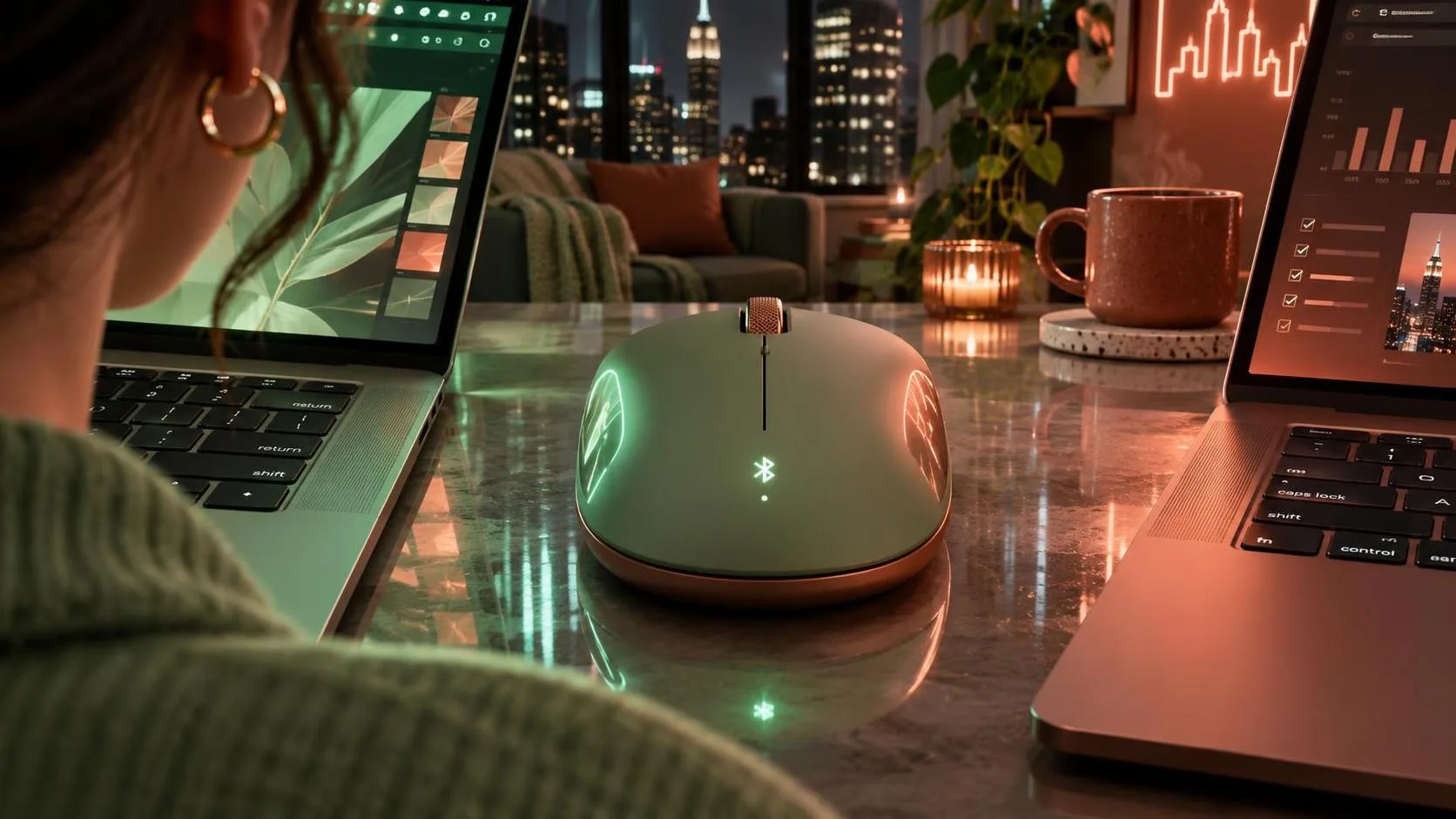
If you spend your workday juggling two different laptops—perhaps a corporate machine locked down by strict IT policies on one side and your personal writing or browsing laptop on the other—you already know the sheer annoyance of desk clutter. For years, my suburban Raleigh home office desk looked like a digital war zone. I had two separate mice parked side by side, constantly grabbing the wrong one in a rush, or trying to remember which wireless dongle belonged to which machine. If you have ever caught yourself thinking, "i want to connect my one mouse to 2 laptops," you are definitely not alone.
Most generic tech articles will toss a handful of product links at you or suggest generic software without explaining the real-world trade-offs. As an independent tech tester who loves practical, cost-saving solutions, I wanted to test every realistic path to share a single mouse across two laptops—ranging from free built-in features to hardware switches and network tools. Here is how you can actually set this up without wasting money or violating your company's IT security rules.
First, Identify Your Mouse and Hardware Setup
Before buying anything new or downloading untrusted utilities, turn your current mouse upside down and take a close look at what you are working with.
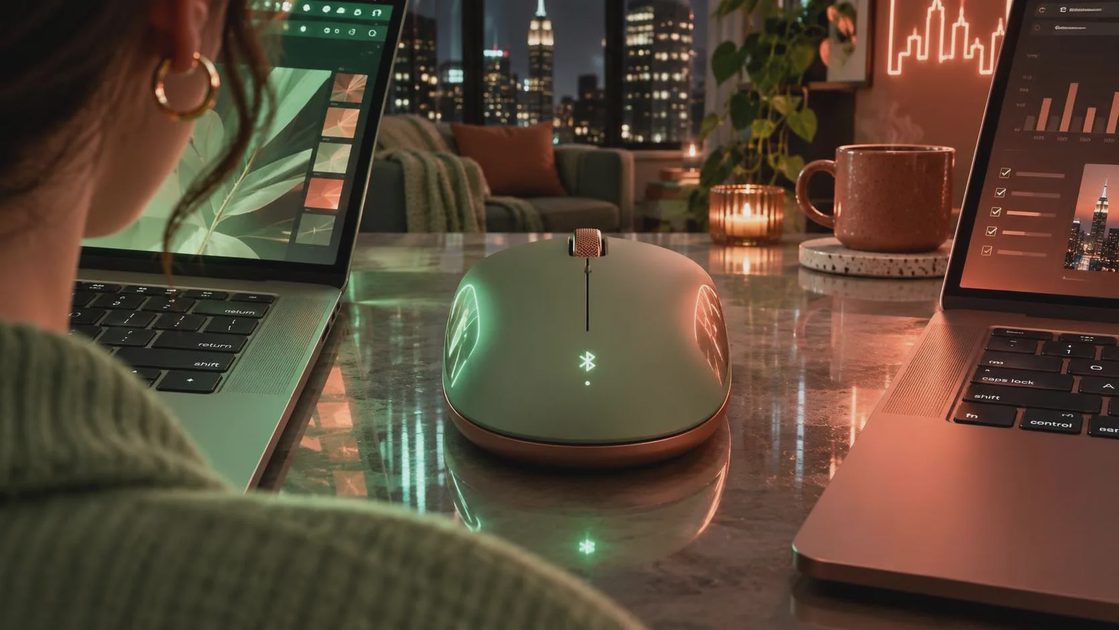
Multi-Device Bluetooth Mice: Look for a physical device-switch button (often marked with numbers like 1 and 2, or small LED indicator lights). If your mouse has this, it was designed specifically for multi-device switching.
Single-Device Wireless Mice: If your mouse relies on a tiny USB receiver (dongle) and has no Bluetooth or channel buttons, it is typically locked to a single receiver.
Wired Mice: The simplest to identify, but tethered entirely to whichever USB port they are plugged into.
If you are in the market for an upgrade, models like the Logitech MX Anywhere or Pebble Mouse 2 lines are fantastic examples of multi-device mice built for desk-switching. However, before buying new hardware or trying to troubleshoot mysterious wireless lag—much like diagnosing why your home network drops speeds before blaming your ISP, as detailed in our guide on how to improve home Wi-Fi—let's look at how you can make your existing gear work first.
Method 1: Bluetooth Multi-Device Switching (The Cleanest Wireless Path)
If your mouse supports multiple paired devices and both laptops have built-in Bluetooth, this is by far the neatest solution because it leaves zero cable clutter on your desk.
Step-by-Step Bluetooth Setup
Pair Device Slot 1: Open your first laptop’s Bluetooth settings (on Windows, go to Settings > Bluetooth & devices > Add device; on Mac, open System Settings > Bluetooth). Put your mouse into pairing mode following its manual, then select it.
Pair Device Slot 2: Switch your mouse's physical channel button to slot 2, put it into pairing mode again, and repeat the exact same pairing process on your second laptop.
Switching Between Laptops: Once paired, a quick tap of the mouse's channel button lets you jump between machines. Give it one or two seconds to re-establish the Bluetooth handshake.
⚠️ WARNING: Pairing Overwrite Risk Some inexpensive mice do not have independent channel slots; pairing them with a second laptop will overwrite and disconnect the first one. Always verify your mouse specifications before forcing a re-pair every single time you switch computers.
Method 2: The USB Physical Switcher (The Reliable Hardware Fix)
What if you have an older, highly comfortable wired mouse or a standard wireless mouse with a USB receiver that you refuse to part with? That is where a USB Switcher comes in handy.
How a USB Switch Works
A USB switch is a small desktop puck or box that connects a single USB device (your mouse or its wireless receiver) to two separate computers. It features a physical button on top: press it once, and the USB data stream instantly redirects from Laptop A to Laptop B.
Buying and Setup Tips
Don't Buy a Hub by Mistake: Make sure you purchase a USB Switcher (sharing one device between two computers), not a USB Hub (which expands one computer's ports into many).
The Desk Trade-Off: While a basic USB switch is usually cheaper than buying a brand-new multi-device mouse and requires zero software installation, you will have an extra little box and a couple of cables sitting on your desk.
If you only switch computers once a day, you can even skip buying hardware entirely: simply pull the tiny USB wireless receiver out of one laptop and plug it into the other. Just be careful not to lose the tiny receiver, as replacements can be notoriously difficult to source for specific older mouse models.
Method 3: Software-Based Sharing (For Side-by-Side Workspaces)
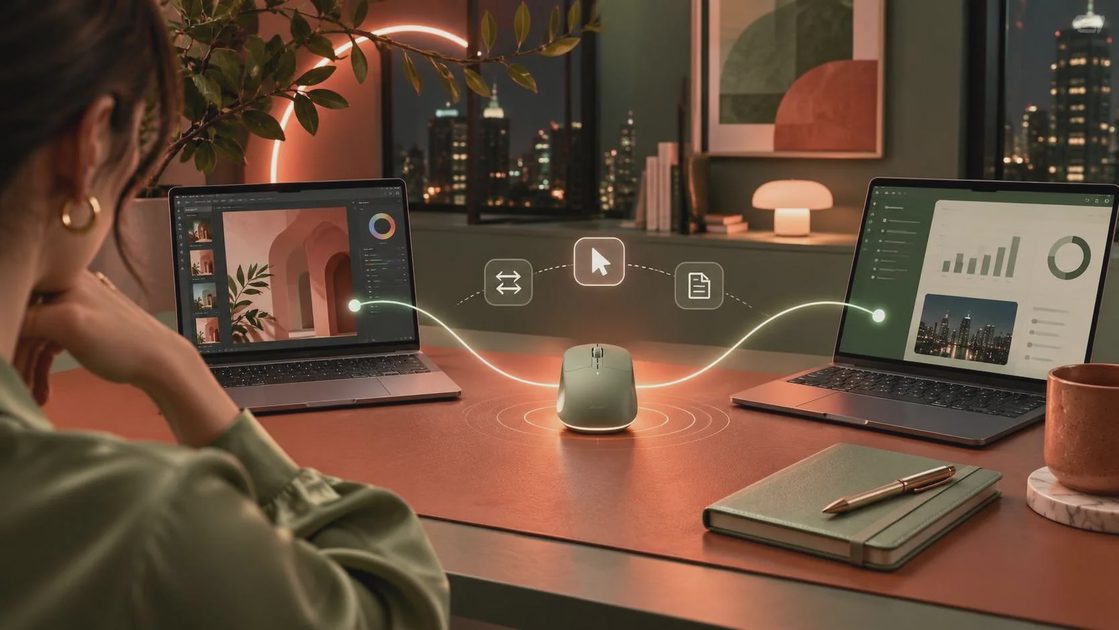
If both of your laptops sit open side by side on the same desk and you want your mouse pointer to glide seamlessly off the edge of one screen and onto the other, software-sharing tools are worth investigating.
Popular Tools to Explore
Microsoft Mouse Without Borders: A brilliant, free utility from Microsoft's Garage project that lets you control multiple Windows computers with a single mouse and keyboard, share clipboards, and drag-and-drop files.
Barrier: An open-source, cross-platform alternative that works wonderfully if you are mixing Windows and Mac machines.
Important IT and Security Warnings
Before installing any mouse-sharing software, consider your environment:
The Work Laptop Restriction: Corporate work laptops frequently block unauthorized software installations or prohibit linking to personal networks. Never attempt to bypass IT security policies. If your work machine restricts third-party tools, respect the boundary and use an approved physical USB switch instead.
Network Dependency: Software solutions rely entirely on an active, stable local Wi-Fi or Ethernet connection. If your home network stutters, your cursor lag will stutter right along with it.
Troubleshooting: Why Won't Your Mouse Switch?
Even with the best hardware, tech gremlins occasionally show up. Run through this quick diagnostic checklist if your setup acts up:
Power Check: Swap the batteries or recharge the mouse. Low battery voltage is the #1 cause of dropped Bluetooth channels and stuttering cursors. While you are tidying up your desk and inspecting your hardware, it is also a great time to check your other daily tech essentials—make sure you follow proper guidelines on how to safely clean your phone screen, case, and charging ports to keep your entire workspace dust-free and reliable.
Dongle Interference: If you are using a USB receiver or switch, avoid plugging it directly behind metal laptop chassis or right next to a busy USB 3.0 external hard drive port, which can cause 2.4GHz radio frequency interference.
Sleep State Delays: When a laptop wakes up from deep sleep, it takes a few seconds to re-initialize its Bluetooth stack. Give it a moment before assuming the connection is broken.
Final Verdict: Which Method Should You Choose?
Use Bluetooth multi-switching if your mouse supports it—it’s clean, modern, and completely free.
Buy a USB switch if you love your current wired or single-receiver mouse and want a rock-solid physical setup without software hassles.
Reserve software sharing (like Mouse Without Borders) strictly for home-network setups where both laptops sit side by side and you have full administrative rights.
By matching the right method to your specific desk environment, you can eliminate desktop clutter and make switching between machines feel effortless.