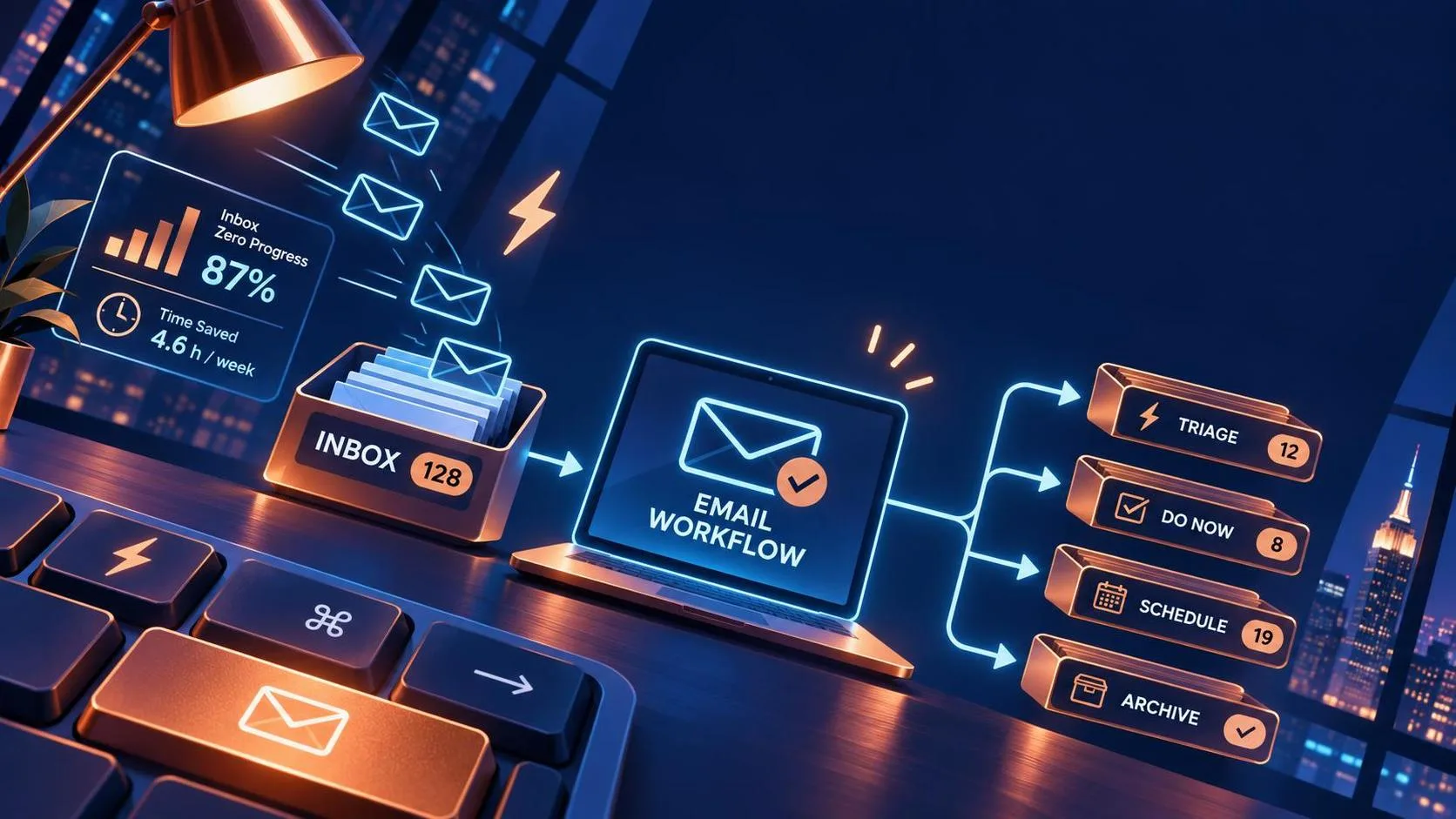
If your inbox feels like a relentless digital chore that devours your mornings, you are not alone. As a tech writer who spends way too much time testing software in a suburban Raleigh home while juggling family logistics, school emails, and client messages, I know the exact sinking feeling of staring at an unread count that refuses to drop. Every day, millions of us waste precious minutes moving our mice back and forth—clicking to open, hunting for the archive button, closing tabs, and scrolling endlessly.
Most online guides hand you a massive, overwhelming spreadsheet of every single shortcut Google ever invented, expecting you to memorize dozens of arcane key combinations on day one. That is a guaranteed recipe for frustration.
Instead, this guide focuses on the minimum viable set (MVP) of Gmail shortcuts designed specifically for busy adults and shared household devices. Drawing from real-world testing and addressing common pain points—such as migrating from Outlook or trying to process mail quickly without making embarrassing typos—here is how to reclaim your time with a simple, three-day practice plan.
1. How to Enable Gmail Keyboard Shortcuts (The Essential First Step)
Before your keyboard can do any magic, you have to flip the switch. Gmail does not always enable shortcuts by default on new accounts or desktop browsers.
Step-by-Step Setup
Open Gmail on your computer browser.
Click the gear icon (Settings) in the top right corner.
Select See all settings.
Under the General tab, scroll down until you find the Keyboard shortcuts section.
Select Keyboard shortcuts on.
Scroll all the way to the bottom of the page and click Save Changes.
Troubleshooting Common Setup Headaches
If your keys aren't responding, check these three common culprits:
Lost Focus: You must click once anywhere inside your email list so the browser window recognizes the active tab.
Browser Extensions: Certain ad-blockers, password managers, or third-party text expanders can intercept keystrokes before Gmail registers them.
Platform Limitations: These shortcuts shine on desktop browsers (Chrome, Edge, Safari, Firefox). While the mobile Gmail app supports touch gestures and swiping, it does not offer a full desktop keyboard environment.
2. The High-Impact Core 6: Shortcuts Worth Learning
Why do these specific keys save time? Moving your hand from the keyboard to the mouse, aiming the cursor, clicking an action button, and moving back takes roughly three to four seconds per email. Executing a single keystroke reduces that action to a fraction of a second. Over fifty emails a day, that adds up to serious minutes saved.
Here are the only six shortcuts you need to master right now:
c(Compose): Instantly pops open a new write window from anywhere in your inbox.r(Reply) /a(Reply All): Jump straight into replying without touching your trackpad. (A huge relief for anyone migrating from Outlook and missing quick reply flows).e(Archive): The ultimate inbox-zero tool. Pressingeremoves the message from your primary inbox view while keeping it safely stored in "All Mail" and search results. It is much safer than deleting receipts, school forms, or flight confirmations you might need next month.j/k(Down / Up): Move your selection cursor down and up through your conversation list without touching your mouse scroll wheel.oorEnter: Open the currently highlighted email.u: Instantly jump back up to your main inbox list after reading or archiving a message.
3. Workflow Upgrade: Combining Shortcuts with Advanced Search Operators
Knowing how to zip through your inbox is fantastic, but what happens when you need to find an email from three months ago? Most generic cheat sheets stop at basic movement keys, ignoring how search and navigation work together.
By pressing the / key, your cursor instantly snaps to the top search bar without requiring a mouse click. Pair that with powerful search operators to build a lightning-fast email workflow:
from:[email protected]: Instantly isolates messages from a specific sender.has:attachment: Filters results to show only emails carrying important files or PDFs.after:2026/01/01: Restricts your search to a specific timeframe.
Pro Workflow Example: Press /, type from:[email protected] after:2026/05/01, hit Enter, use j and k to scan the results, and press e to archive the ones you’ve already handled. This eliminates the need to create dozens of overly complex folder hierarchies.
4. Beyond Archive: Using Keyboard Shortcuts with Labels and Folders

While pressing e to archive is the foundation of keeping your inbox clean, real life doesn't stop at a single "All Mail" pile. Busy households, freelancers, and parents managing school notices can't just dump everything into a generic archive without sorting it out. That is where Gmail's keyboard-driven labeling and moving features come in.
The l Key (Label As): Pressing l instantly brings up the label menu. Type a few letters of the tag name (like "School" or "Receipts") and hit Enter to tag the message.
The v Key (Move to): Pressing v opens the folder/move menu, allowing you to instantly file the conversation into a specific category folder while cleaning up your primary view.
Real-World Household Example: When your child's school emails a weekly permission slip or a software merchant sends an important digital receipt, you don't just want to hide it. Press l to tag it under Family or Expenses, and then immediately press e to archive it. Your primary inbox stays immaculate, but the information remains instantly retrievable without hunting through a messy digital clutter.
5. Safety First: Preventing Accidental Sends and Shared Device Risks
Speed should never come at the expense of security or professionalism. When building new muscle memory, you need to be aware of a few classic household pitfalls.
The
Ctrl + EnterTrap: If you have Gmail's send-and-archive or send confirmation features enabled, be careful not to triggerCtrl + Enterby accident while typing rapidly. Always take a beat to double-check your recipient list and tone before finalizing sensitive replies.Shared Family Computers: If other family members occasionally use your computer, make sure browsers do not save automatic logins to your primary account. Never install unverified third-party "shortcut extension tools" from unknown developers that request full read-and-write permissions to your inbox. Gmail's native built-in shortcuts require zero external extensions or paid subscriptions.
6. The 3-Day Practical Training Plan for Busy Beginners
Rome wasn't built in a day, and your email habits won't change overnight. Instead of cramming a massive cheat sheet, follow this realistic three-day progression:
Day 1 (The Basics): Enable shortcuts in your settings. Practice
c(write),r(reply),e(archive), andu(return) strictly on low-risk promotional or notification emails.Day 2 (Navigation): Introduce
jandkto navigate your inbox completely hands-free without touching your mouse scroll.Day 3 (Search & Integration): Practice hitting
/to search for specific emails using operators likefrom:orhas:attachment.
Stick with this routine for a week, and your fingers will naturally take over. Your email productivity will soar, transforming a stressful daily chore into a calm, controllable routine that leaves you more time for what actually matters offline.