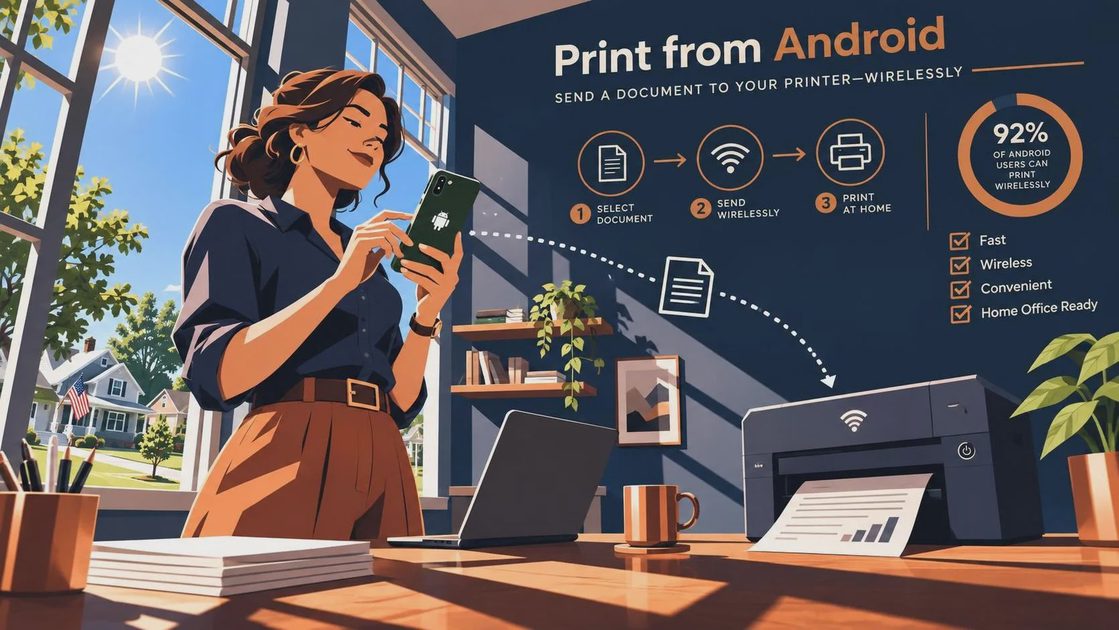
If you need to know how to print from android phone, the good news is that most recent Android devices can send documents, photos, emails, and web pages to a compatible printer without a computer. The easiest method uses the same Wi-Fi network for your phone and printer. Once the connection is set up, printing usually takes less than a minute.
The exact menu names differ between Samsung Galaxy, Google Pixel, Motorola, and OnePlus phones, but the basic process is similar. You choose the file, open the sharing or menu button, select Print, choose a printer, and confirm the number of copies and pages. Before buying an app or replacing a printer, try the built-in Android printing tools first.
How to print from android phone over Wi-Fi
Wi-Fi printing is the best everyday option because it does not require a cable and works with many home printers. Start by turning on the printer and connecting it to your home Wi-Fi. Use the printer's screen or setup app if it is not already online. Then connect your Android phone to that same network. A phone using cellular data or a guest Wi-Fi network might not see the printer.
On your phone, open the item you want to print. In Google Photos, for example, open a picture, tap the three-dot menu, and look for Print. In Chrome, open the page menu and choose Share, then Print if that option appears. In Gmail, open a message and use the menu to select Print. Microsoft Word, Google Docs, Adobe Acrobat, and many banking apps also include a print command in their menus.
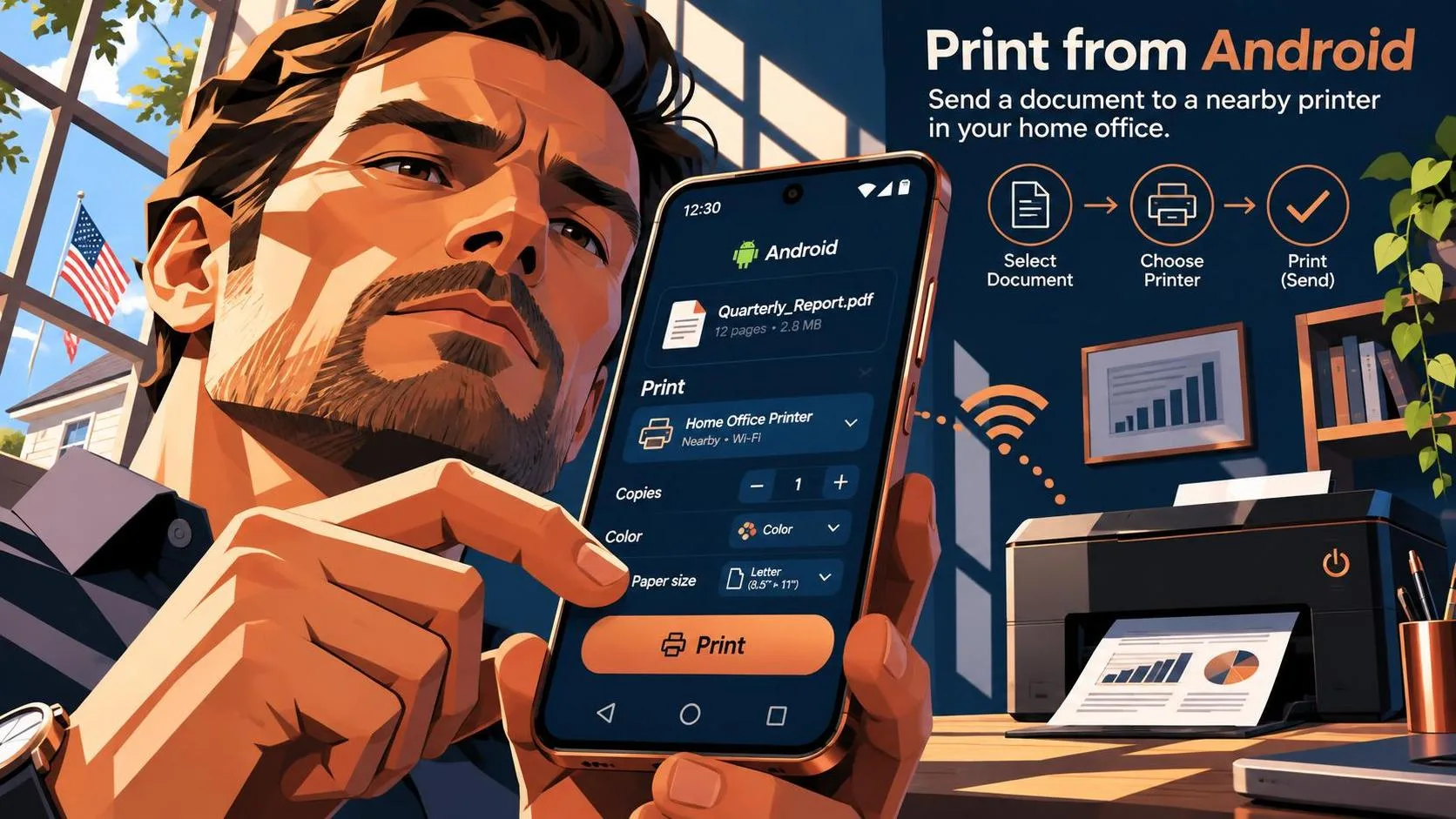
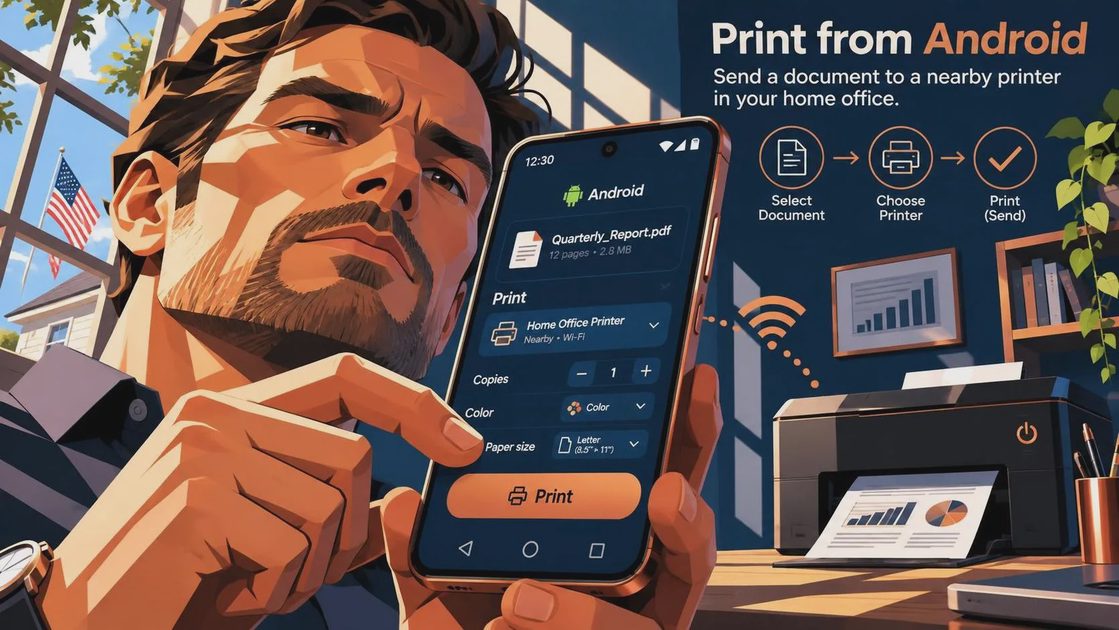
When the Android print screen opens, tap Select printer. Your printer might appear by its brand and model, such as HP LaserJet, Canon PIXMA, Brother HL, or Epson EcoTank. Select it, review the paper size, color setting, orientation, and copies, then tap the print button. For a one-page household form, the default settings are usually fine. For a photo, choose the correct paper size and color option before sending the job.
Add or fix Android printing services
If no printer appears, open Settings and search for Printing. On many phones, you will find Default Print Service under Connected devices or Connection preferences. Turn it on and wait several seconds. Some printer manufacturers offer a separate service, such as HP Print Service Plugin, Mopria Print Service, or Canon Print Service. Install one only from Google Play and only when your printer requires it.
Mopria is useful because it supports a wide range of printers from different manufacturers. HP Smart, Canon PRINT, Epson Smart Panel, and Brother Mobile Connect can also help with setup, ink information, scanning, and printer discovery. These apps are free for basic use, but read the permissions and skip optional subscriptions. You should not need to pay a monthly fee simply to print a document you already own.
If you are learning how to print from android phone on a Samsung device, the Print option may appear after tapping Share rather than the three-dot menu. Samsung phones often detect compatible printers through the default service or a manufacturer plugin. On a Pixel, the command commonly appears in the app's main menu or share sheet. If the wording is different, search the open app for Print instead of assuming the feature is missing.
What to do when the printer is not found
The most common problem is that the phone and printer are connected to different networks. Check the Wi-Fi name on both devices. If your router has separate networks for 2.4 GHz and 5 GHz, either can work, but both devices must be reachable on the same home network. Temporarily turn off a VPN, because some VPN settings interfere with local device discovery.
Next, restart the printer, phone, and router in that order. A printer that has been asleep for several days can appear connected while its network service has stopped responding. Give it a minute after restarting. Also check for a paper warning, open tray, low-ink message, or paused print queue. The phone may send the job correctly, but the printer will wait until the physical problem is resolved.
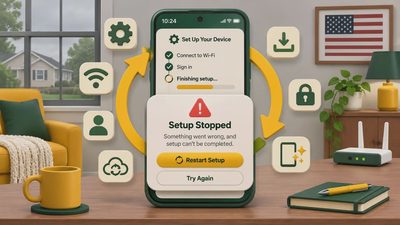
If the printer still does not appear, open its companion app and complete the connection there. You may need to enter the Wi-Fi password again. Avoid connecting your phone directly to a random printer hotspot unless the setup instructions specifically require it. Direct Wi-Fi printing can be useful away from home, but the normal home-network connection is simpler and safer for everyday use.
Printing with a USB cable
A USB connection can help when Wi-Fi printing is unreliable. You will need a USB OTG adapter that matches your phone, such as USB-C to USB-A, plus the printer's USB cable. Android support varies by phone, printer, and app, so this method is less convenient than wireless printing. Some phones can recognize the printer through a compatible print service, while others need the manufacturer's app.
Connect the adapter to the phone, attach the printer cable, and open the document. If Android detects the printer, choose Print and select the USB device. If nothing happens, the phone may not support that printer connection or the adapter may not support data transfer. Cheap charging-only adapters are a frequent cause of failure. A wireless setup is usually the better long-term choice if the printer is used regularly.
Bluetooth printing is also possible with certain compact photo printers and label printers. It is not a universal replacement for Wi-Fi printing. Pair the devices in Bluetooth settings, then use the printer's app if required. Standard office printers often rely on Wi-Fi instead, even when the phone has Bluetooth enabled.
Print photos, PDFs, and web pages correctly
Photos require more attention than ordinary documents. Select a paper size that matches the photo paper, such as 4 by 6 inches, and choose borderless printing only if the printer supports it. A phone image can look sharp on screen but print poorly if it is heavily cropped or compressed. For important pictures, preview the result and print one test copy before using a full pack of paper.
For PDFs, check whether the file has multiple pages and whether you need all of them. A long lease, school packet, or insurance document can use dozens of sheets if you accept the default range. Choose a page range when available, and use black-and-white or duplex printing if the document does not need color. These small choices reduce ink and paper costs without changing the information.
When printing a web page, expect advertisements, menus, and sidebars to appear. If the page offers a reader view or downloadable PDF, use that version instead. You can also copy the important text into Google Docs, adjust the spacing, and print a cleaner copy. This takes an extra minute but often saves several pages.
A simple checklist before buying anything
If you want to know how to print from android phone without wasting money, follow this order. First, confirm that the printer is powered on and connected to Wi-Fi. Second, put the phone on the same network. Third, look for Print in the app menu or share screen. Fourth, enable Default Print Service. Fifth, install a manufacturer service only if the printer is not supported automatically. Finally, restart both devices before assuming new hardware is needed.
A printer that works from a Windows laptop may still need a service enabled on Android. That does not necessarily mean the printer is defective. Conversely, an old printer with unreliable Wi-Fi, expensive cartridges, and no current app support may not be worth troubleshooting for hours. A basic monochrome laser printer can cost roughly $100 to $180 and often makes sense for households that mostly print forms. An inexpensive inkjet is more flexible for color photos, but cartridge costs deserve attention.
The practical answer to how to print from android phone is to start with Wi-Fi, use the phone's built-in Print command, and add the correct service only when necessary. Most household printing problems are network or settings problems, not reasons to buy another app. Once your phone and printer are on the same network, you can print useful documents quickly, privately, and without turning on a computer.