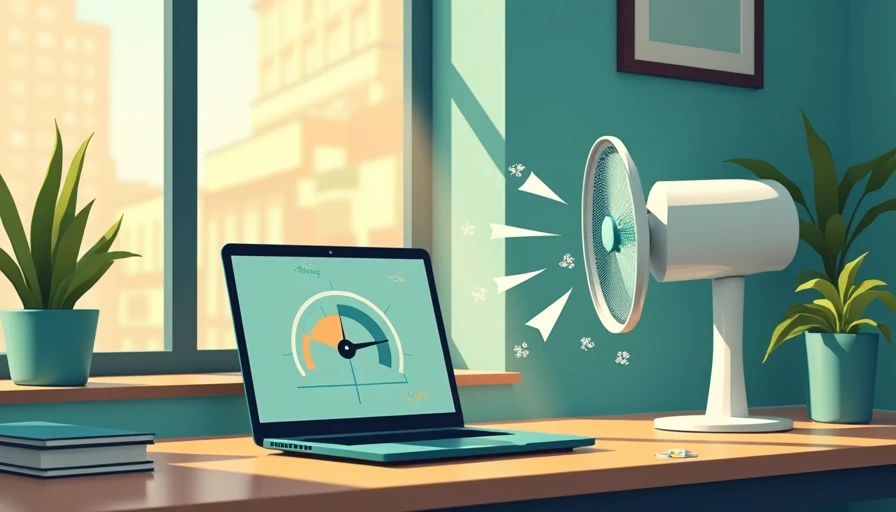
If you are searching for how to fix laptop overheating, start with the basics: shut the computer down, move it to a hard surface, and check whether dust or blocked vents is restricting airflow. A warm laptop is normal during gaming, video editing, or charging. A laptop that becomes painfully hot, slows down suddenly, shuts off, or smells like hot plastic needs attention.
Overheating is usually caused by poor airflow, dust buildup, an overworked processor, a failing fan, or old thermal paste between a chip and its heatsink. You do not need to buy a new laptop immediately. Many household fixes cost nothing, and even a professional cleaning is often far cheaper than replacing a computer.
Start With Airflow and a Safe Shutdown
The quickest answer to how to fix laptop overheating is to improve cooling before changing software or opening the case. Save your work, close demanding applications, and shut the laptop down completely. Let it cool for at least 15 minutes. Do not put it in a refrigerator or aim an ice pack at it; condensation can damage electronics.
Place the laptop on a desk, table, or other firm surface. Beds, couches, blankets, and carpets can cover intake vents on the bottom and trap heat around the machine. If you work from a sofa, use a rigid lap desk or inexpensive cooling stand. A stand costing $20 to $40 can help airflow, but it cannot compensate for a clogged fan.
Look along the sides, back, and underside for vents. Remove visible lint with a soft, dry brush. Compressed air can help, but use short bursts and hold the can upright. If possible, prevent the fan from spinning freely while blowing air into it. An uncontrolled high-speed spin can stress some small fan motors. Never use a vacuum directly on the vents because static electricity is an unnecessary risk.
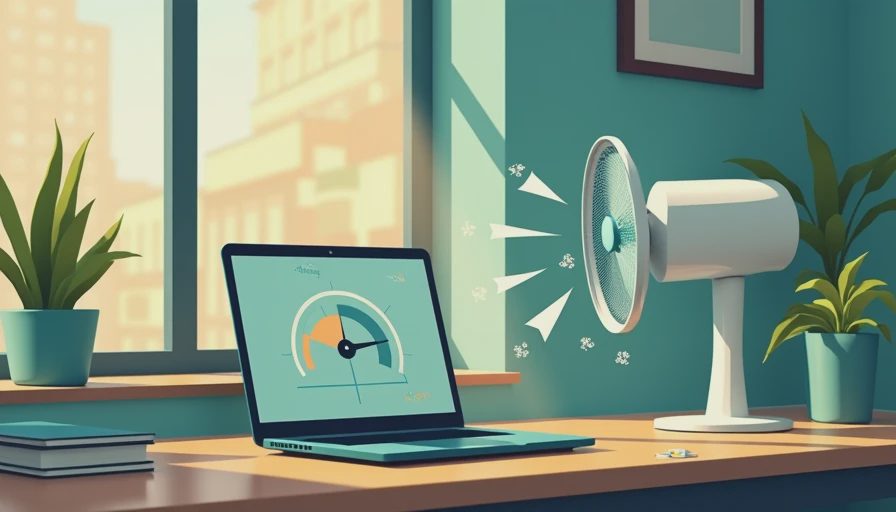
After cleaning the outside, turn the laptop on and listen. A quiet fan that suddenly becomes loud under light use suggests restricted airflow or a software process working in the background. A grinding, clicking, or intermittent sound points more strongly to a worn fan.
Find the Program Creating Excess Heat
Another important part of how to fix laptop overheating is finding out what the processor is doing. On Windows, press Ctrl, Shift, and Esc together to open Task Manager. Sort the Processes list by CPU usage, then look at the Performance tab. On a Mac, open Activity Monitor and sort by the CPU column.
A browser with dozens of tabs, a video call, a game launcher, cloud backup, or Windows Update can temporarily push CPU usage high. Give legitimate updates time to finish, but close programs you are not using. If an unfamiliar application stays near the top after a restart, search for its name before uninstalling it. Some background utilities belong to your computer manufacturer, while others are unnecessary startup programs.
Reduce the workload in practical ways. Lower game resolution and frame rate, close extra browser tabs, pause large file transfers, and avoid running several video-heavy applications at once. In Windows, the Battery Saver or balanced power mode can reduce heat compared with a high-performance setting. On a MacBook, lowering screen brightness and quitting unused apps helps battery life and can reduce overall system activity.
Do not install a random “temperature booster” or registry cleaner. These tools often add advertisements, run constantly, or request broad permissions without solving the cooling problem. Use built-in system tools first. For temperature readings, a reputable utility from a known hardware maker is safer than a download promoted through an alarming pop-up.
Clean Inside Only If You Are Comfortable
If external cleaning does not help, opening the bottom panel may reveal a thick mat of dust around the fan and heatsink. This is a reasonable next step for an older Windows laptop with accessible screws, but it is not required for everyone. Opening a thin ultrabook or MacBook can damage clips, strip screws, or affect warranty service.
Before opening anything, shut down the computer, unplug the charger, and disconnect accessories. Read the manufacturer’s service guide for your exact model. Use a small Phillips or Torx screwdriver, keep screws organized, and avoid touching the battery connector or exposed circuit boards. A can of compressed air and a soft brush are usually enough for dust. Do not scrape components with metal tools.
Thermal paste replacement is more advanced. Thermal paste fills microscopic gaps between a processor and its heatsink, but it does not need routine replacement every few months. Consider it when temperatures remain excessive after cleaning, especially on a laptop several years old. A repair shop may charge roughly $60 to $150 for cleaning and thermal service, depending on the design. That cost can make sense for a $700 laptop but not necessarily for a very old machine with a failing battery and a cracked hinge.

Check for Battery and Hardware Warning Signs
Knowing how to fix laptop overheating also means recognizing when a home fix is not enough. Stop using the laptop and unplug it if the battery is swollen, the trackpad is lifting, the case is separating, or you notice a chemical smell. Do not press the case flat or puncture the battery. A swollen lithium-ion battery needs professional replacement and should not go into household trash.
Frequent shutdowns, a fan that never starts, or temperatures that spike immediately after turning on can indicate a failed fan, blocked heatsink, damaged sensor, or other hardware fault. A repair technician can test those parts. Ask for a diagnosis and an estimate before approving work. For a common 15-inch Windows laptop, a fan replacement might cost $80 to $200; premium models can cost more because parts are harder to access.
You can also compare repair cost with replacement value. If the laptop has 8GB of memory, a slow hard drive, a weak battery, and an aging processor, spending $180 on cooling may only postpone several other problems. If it has a recent Intel Core i5, AMD Ryzen 5, or Apple silicon chip and otherwise works well, repair is usually the cheaper path.
Prevent the Problem From Returning
The final part of how to fix laptop overheating is changing the conditions that caused it. Keep vents clear, clean the room around your desk, and avoid using the computer directly on fabric. Once every few months, inspect the intake openings for lint, especially if you have pets or use the laptop in a dusty room.
Install operating system and firmware updates from Windows Update, macOS Software Update, or the manufacturer’s official support page. Updates can improve fan control and power management, although they will not repair a physically blocked heatsink. Keep your files backed up before major maintenance.
A cooling pad is optional. It can help a gaming laptop with bottom intake vents, but it adds noise, uses a USB port, and may provide little benefit for a thin laptop with side or rear exhaust. Spend $25 on a basic stand before paying $80 for a heavily advertised cooling accessory. The free fix is still better airflow and fewer demanding programs running at the same time.
The Sensible Next Step
If you want to know how to fix laptop overheating today, shut the laptop down, move it to a hard surface, inspect the vents, remove visible dust, and check CPU activity after restarting. Those steps solve many everyday cases without tools or a purchase. If the fan makes grinding noises, the computer shuts down under light use, or the battery is swollen, stop experimenting and get a repair estimate.
A clean, well-ventilated laptop should feel warm during demanding work but should not burn your hands or repeatedly switch itself off. Try the free fixes first, pay for cleaning when the computer is worth saving, and replace it only when repair costs no longer match its remaining useful life. That is the practical way to keep everyday tech simple, safe, and affordable.