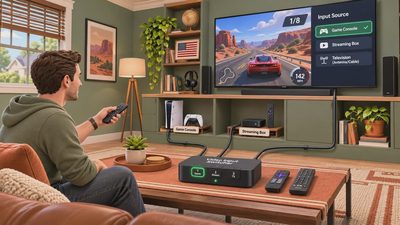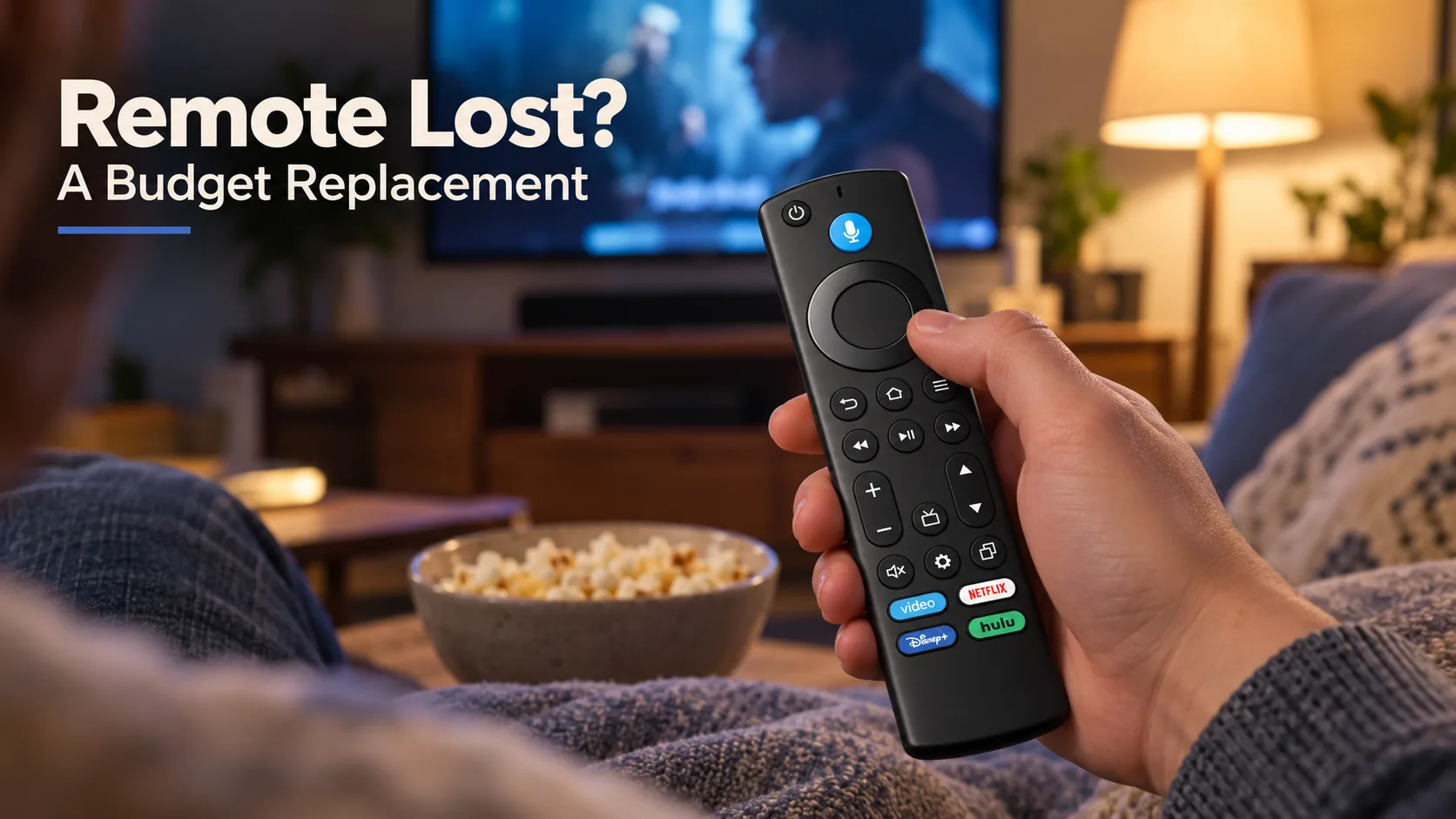
When a missing remote turns a quiet movie night into a frustrating search through the sofa cushions, you don't necessarily want to fork over $30 to $50 for an official replacement. You just want your television back.
The ORQRQO replacement voice remote for fire stick changes the math. At a reference price of just $9.98, it gives you a way out of a minor household headache without a painful price tag.
→ Check Price & Compatibility on Amazon
The Core Philosophy: Fix First, Spend Less
My starting point with household tech is simple and consistent: try the useful fix you already have, then buy the least expensive option that meets the actual need. For this remote, that means checking your exact Fire TV model before considering price. Compatibility makes the bargain worthwhile.
A missing controller does not, by itself, mean your expensive streaming device needs replacing. If the picture, apps, and home network connection were working normally before the remote vanished, keeping that setup is the sensible place to start.
"A lower price does not have to mean a disposable purchase. Judge the value by whether the controls you actually use keep doing their job."
Quick Product Overview
Before diving into setup and troubleshooting, let's look at the baseline specifications for this budget-friendly alternative:
Detail | What to Know |
Reference Price | |
Everyday Controls | Navigation, voice search, streaming shortcuts, TV power & volume |
Button Layout | 22 standard buttons |
Power Source | Two AAA batteries (not included) |
In the Box | One replacement remote and an instruction manual |
Return Policy | Amazon’s standard 30-day voluntary return guarantee |
Why Physical Remotes Still Beat Smartphone Apps
Before ordering anything, you can technically use Amazon’s Fire TV phone app if your mobile device and Fire TV share the same Wi-Fi network. It may give you enough control to keep watching while you hunt for the original.
But let's be honest about real-world friction:
Unlocking your phone screen takes extra steps in the middle of a movie.
Finding and opening the app adds unnecessary delay.
Handing your personal phone to a family member just to pause a program is inconvenient.
A physical remote still earns its place. Anyone using the television can reach for it without borrowing someone’s phone. You do not need to unlock a screen, find an app, or hand over a personal device just to pause a program.
Straightforward Setup Without a Complicated Programming Routine
The attraction of an affordable replacement disappears if installing it becomes an evening project. Here, the useful starting point is the included manual: the seller provides different pairing instructions for streaming devices and compatible smart TVs.
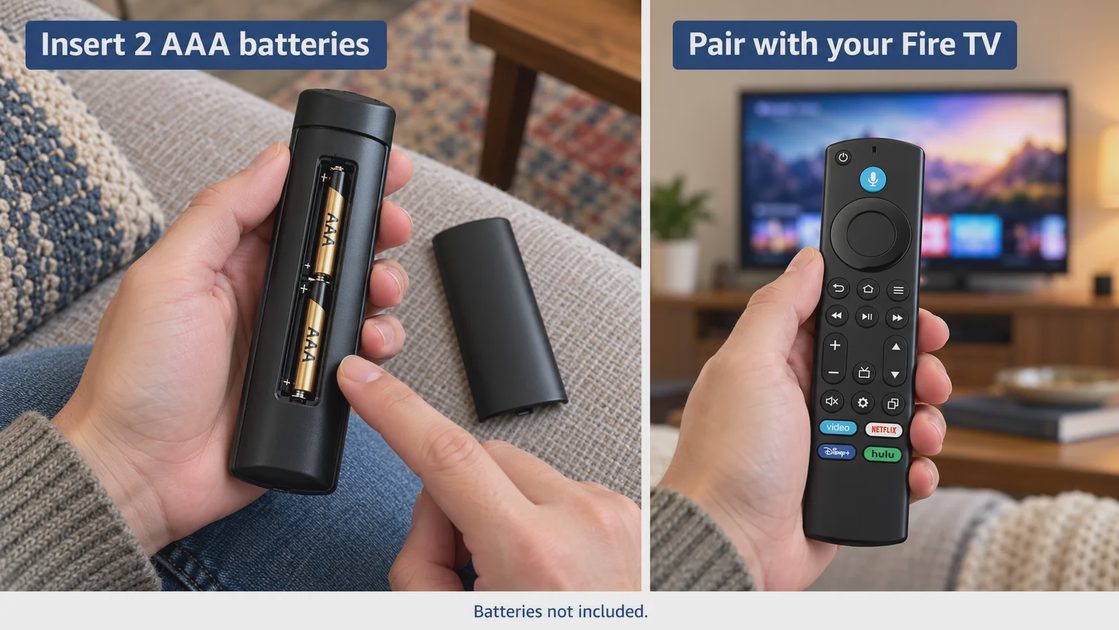
For a supported Fire TV Stick or Cube, the seller’s illustrated sequence is:
Remove the batteries from your old remote, if it is still around, to prevent signal interference.
Disconnect your streaming device from power for about ten seconds, then reconnect it.
Insert two fresh AAA batteries into the ORQRQO replacement and wait for the on-screen pairing prompt.
Press the confirmation button as instructed by your television screen.
For Compatible Smart TVs: The seller describes using the remote’s infrared controls to navigate to Settings, then Controllers & Bluetooth Devices, TV Remotes, and Add New Remote. Follow the screen prompts to complete Bluetooth pairing. That pairing matters for voice commands; getting a response from a basic button does not establish that voice setup is complete.
The time needed depends on your device and whether it detects the remote immediately. The appeal is a short, documented sequence, with no programming codes to memorize or enter.
Keep fresh batteries nearby and leave the manual beside the television until everything works. Test navigation, voice, power, and volume separately. If power or volume needs attention, Amazon’s Equipment Control settings provide the next place to check before assuming the remote is defective.
→ Check Price & Compatibility on Amazon
Familiar Controls for Shared Living Rooms
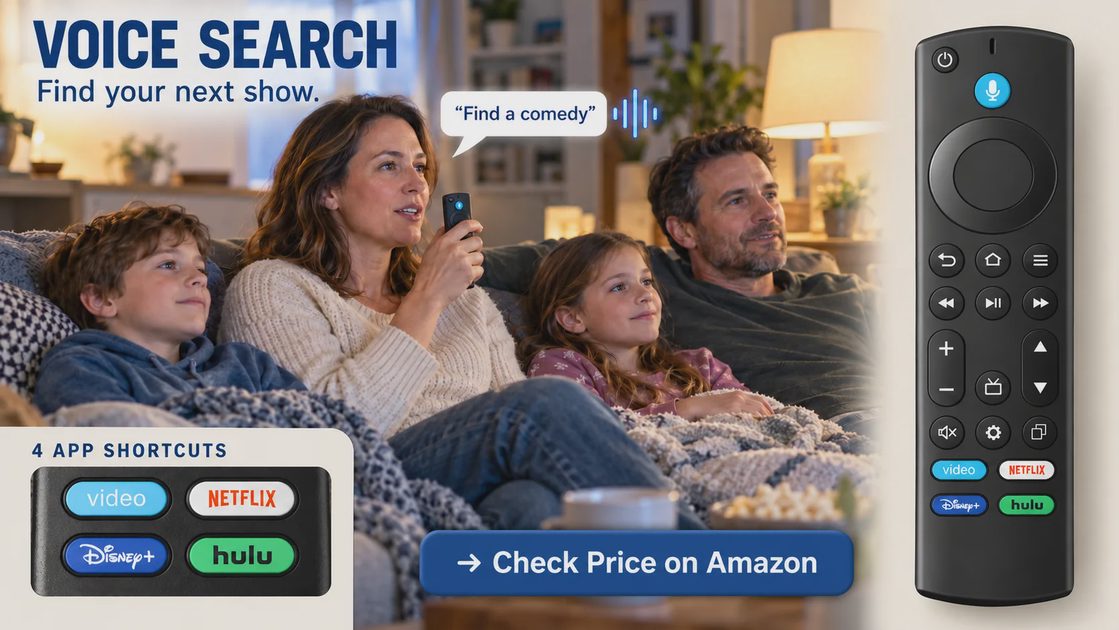
The best replacement accessory asks very little of the people using it. With this remote, the relevant features are ordinary and familiar:
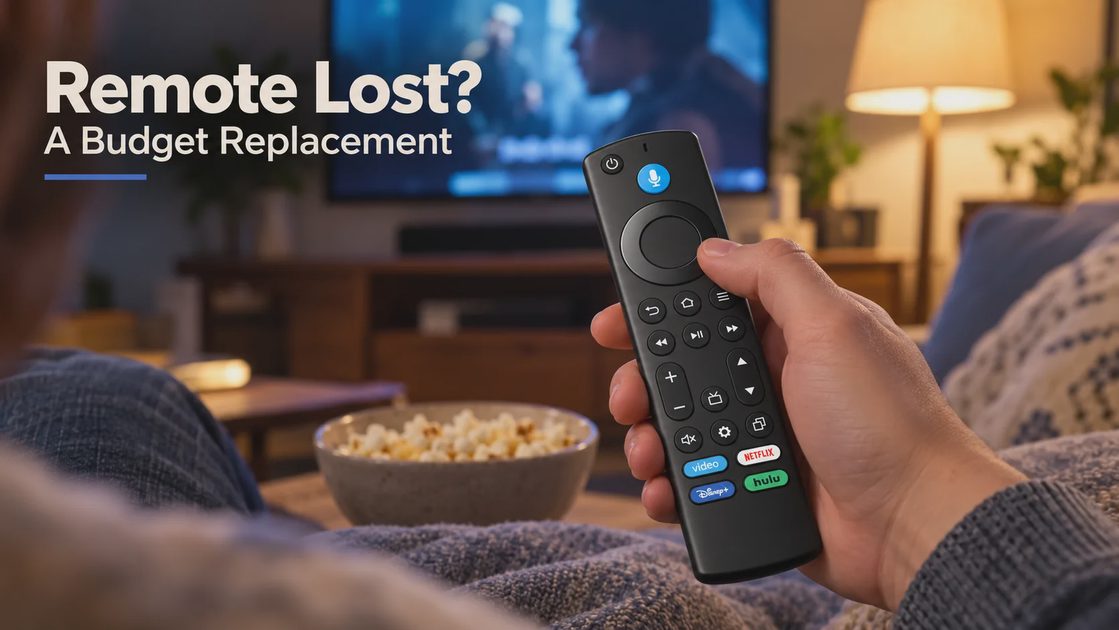
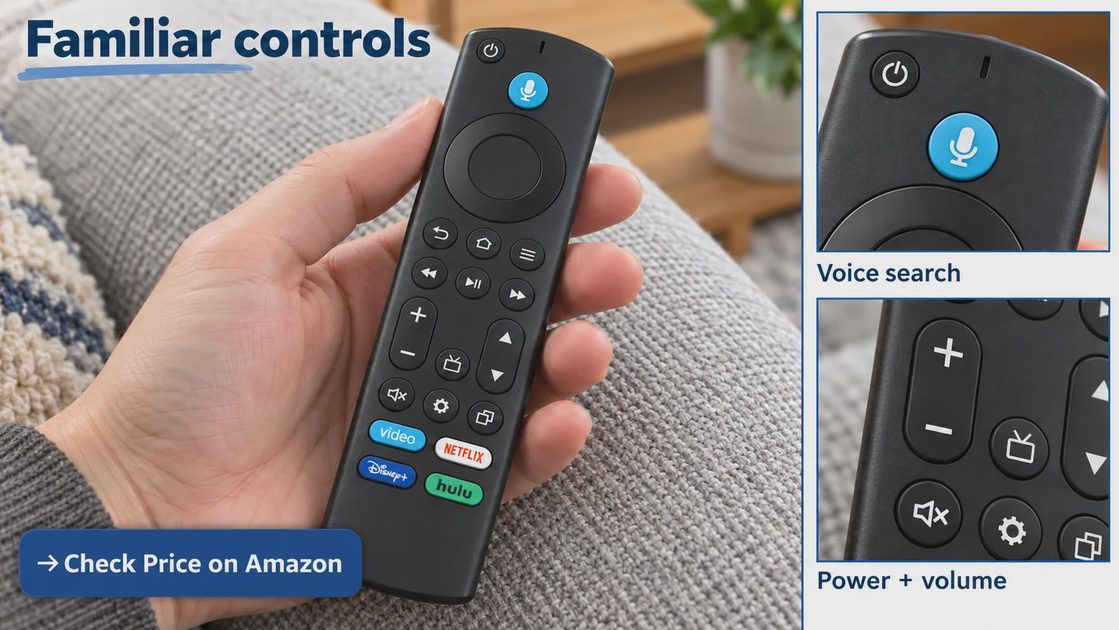
Everyday controls in one place. The circular navigation pad, playback buttons, and TV power and volume controls cover the actions most people use throughout an evening. On a supported, correctly configured setup, you can browse, pause, adjust the sound, and turn off the television from the same remote.
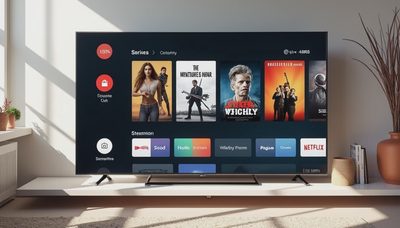
Shortcuts to your usual streaming apps. Four dedicated app buttons reduce the need to scroll through the home screen. Clearly labeled keys such as Netflix, Disney+, and Hulu give family members a familiar starting point, especially when they return to the same services every evening. Check the pictured button layout when choosing your version.
Voice search for Fire TV. Entering a long title with a directional pad can be tedious. Voice search offers an alternative: use the microphone button to say what you want to find. It is a useful convenience for anyone who prefers speaking a title to selecting letters individually on an on-screen keyboard.
Furthermore, built-in voice search for fire tv makes searching for long titles much faster than typing letters individually with a directional pad. The manufacturer also advertises a maximum operating range of 40 feet, though line-of-sight and room layout always play a practical role.
Checking Device Compatibility Before You Buy
Broad compatibility is wonderful, but a long list only helps when your exact device appears on it. "Fire TV" covers streaming sticks, Cubes, and integrated smart televisions. Similar names can hide critical hardware differences.
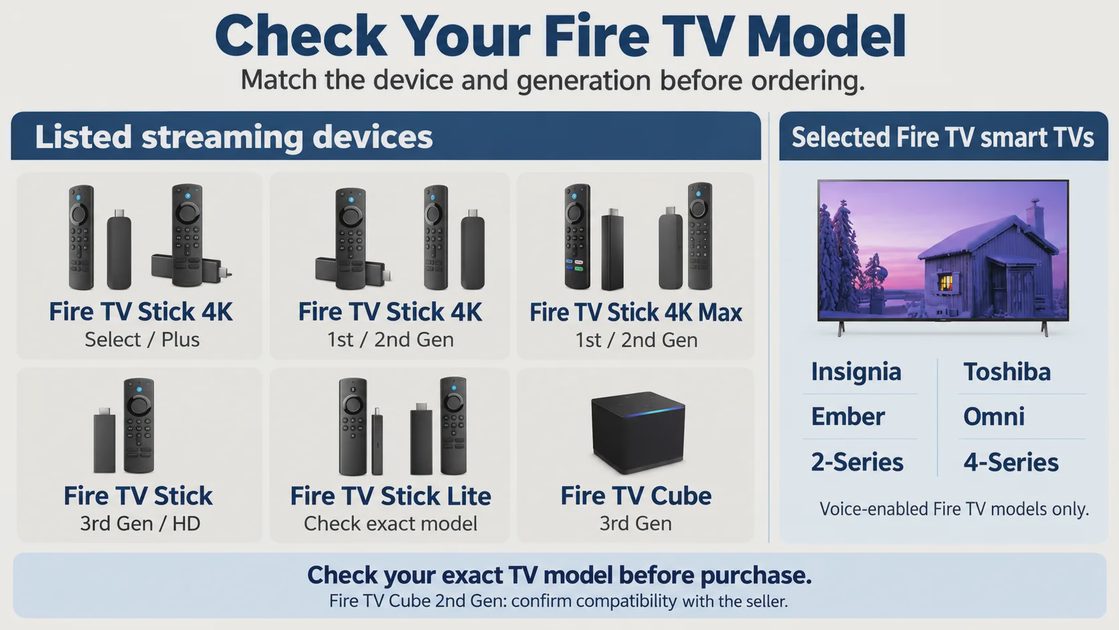
Use this checklist against your device settings or physical label before placing an order:
Fire TV Stick: Third generation is listed as fully compatible.
Fire TV Stick 4K: First and second generations are supported.
Fire TV Stick 4K Max: First and second generations are supported.
Fire TV Cube: Third generation is explicitly listed. (For second-generation models, confirm compatibility with the seller because listing text and packaging graphics can occasionally differ).
Fire TV Stick Lite: Check your specific listed model number.
Fire TV Smart TVs: Selected voice-enabled Omni, Ember, Insignia, Toshiba, and Pioneer models.
Note that older legacy hardware—such as 1st and 2nd generation Fire Sticks, the 1st generation Cube, and LG Smart TVs—is explicitly excluded.
Honest Limitations and Realistic Expectations
Transparency is essential when evaluating budget hardware. To keep expectations realistic and prevent unnecessary returns, keep these trade-offs in mind:
Build Materials: The plastic body is functional and lightweight, but it lacks the denser, heavier feel of an official factory remote.
Voice Recognition: While voice search works reliably for standard app launches and title lookups, heavy users may occasionally notice slight pickup variations compared to high-end original hardware.
Power Supplies: Batteries are excluded from the package; you must supply two AAA cells.
Framing this device correctly transforms how you view it. It is not an indestructible heirloom or a luxury upgrade. Instead, it is an efficient, low-risk stopgap that solves an immediate household annoyance for less than ten dollars.
Final Verdict: Who Should Buy This?
The ORQRQO replacement makes a sensible shortlist when your model matches, your original remote is missing or broken, and you want familiar physical controls at a modest cost. Its strongest selling point is the combination: ordinary buttons, voice search, documented pairing, and a price that keeps the purchase small.
Worth trying first if: You lost or broke your original remote, your specific Fire TV model matches the compatibility list, and you prefer a functional stopgap before committing to an expensive official accessory.
Less ideal if: You require flawless, premium build quality, demand absolute voice recognition perfection every single time, or own unsupported legacy equipment.
Frequently Asked Questions
→ Check Price & Compatibility on Amazon
Affiliate Disclosure: This post contains affiliate links. If you buy through them, I may earn a small commission at no extra cost to you. I only write about products I've actually used in my own home, and the opinions here are mine.