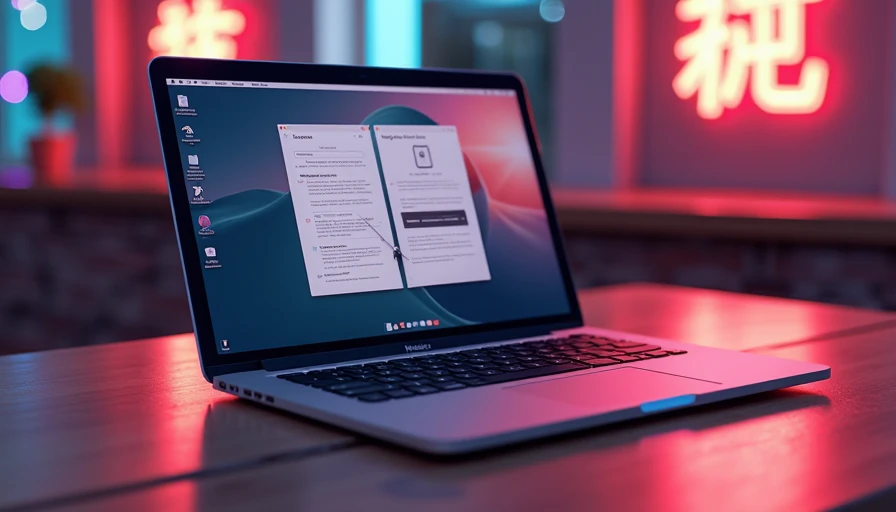
If you are asking, “how do I split screen on Mac,” you probably want to read an email while writing a document, compare two websites, or watch a meeting while taking notes. The good news is that your Mac already includes the tool you need. Apple calls it Split View, and it places two app windows side by side without requiring extra software, a subscription, or a second monitor.
The quickest method is to move your pointer over the green button in the upper-left corner of a window. Click and hold the button, then choose “Tile Window to Left of Screen” or “Tile Window to Right of Screen.” Select the second app from the other side of the display, and macOS will arrange both windows automatically. That is the basic answer to how do I split screen on Mac, but a few details make the feature easier to use.
Use Split View with the green window button
Open the first two apps you want to use. For example, you might open Safari and Notes, Microsoft Word and a PDF, or Google Chrome and a spreadsheet. Make sure both apps have visible windows rather than being completely minimized.
Move the pointer to the green circle in the upper-left corner of the first window. Do not simply click it, because a normal click enlarges the window. Instead, click and hold, or place the pointer over the button until the small menu appears. Choose the option that tiles the window on the left or right side of the screen.
The first window will move into position, and the remaining windows will appear on the opposite side. Click the second app you want. Your Mac will then show both apps at equal widths. You can drag the vertical divider in the center to give one app more room. This is useful when a browser needs only one-third of the display while a document takes up the other two-thirds.
If you are learning how do I split screen on Mac for the first time, remember that the apps are still running normally. You can type, scroll, copy, paste, and use keyboard shortcuts in either window. Split View changes the arrangement, not the files or settings inside the apps.
How to leave Split View
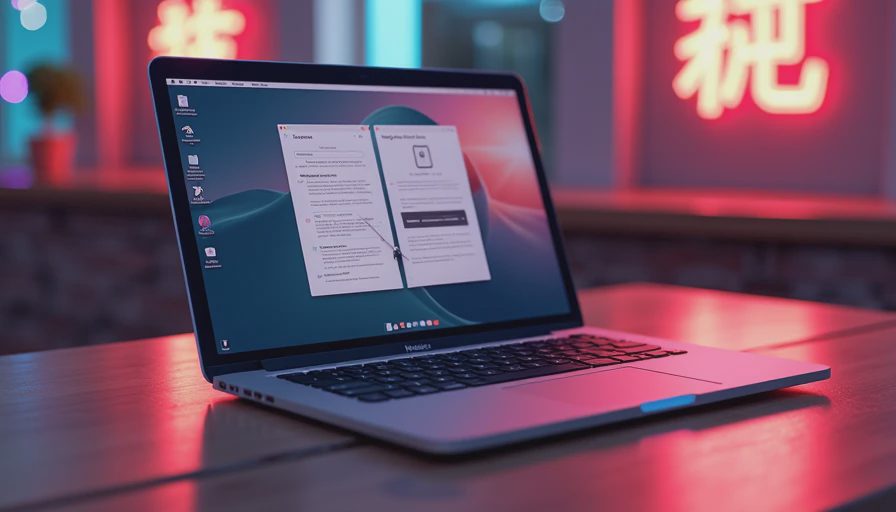
To exit Split View, move the pointer to the top of the screen so the macOS menu bar and window controls appear. Move over the green button in either window and choose “Exit Full Screen.” One app will usually return to a regular window, while the other may remain full screen or occupy the desktop.
You can also press the Escape key in some apps, although this is not consistent across every version of macOS. If Escape does nothing, use the green button instead. Your apps will not close when you leave Split View, so unsaved work should remain open. Still, save important documents before changing layouts, especially if you are using older software.
A useful keyboard-based alternative is Control-Command-F. This shortcut toggles full-screen mode for many Mac apps, but it does not always create a two-app Split View by itself. The green-button method is more dependable when you need two specific windows side by side.
Newer window tiling options on macOS
Recent macOS versions include more flexible window tiling than the traditional two-column Split View. Drag a window toward the left or right edge of the screen, and macOS may display a highlighted area showing where the window will land. Release the window to tile it. You can also move it toward a corner to create a smaller quarter-screen arrangement, depending on your macOS version and display size.
You may find tiling commands in the green-button menu, including options for moving a window to a side, a corner, or another display. These choices are helpful when you need three or four apps visible. For example, a household budget session could use Numbers in the largest area, Safari in a side panel, and Calculator in a corner.
If you want a more powerful version of how do I split screen on Mac, third-party tools are available. Rectangle is a popular free option for keyboard shortcuts and predictable window zones. Magnet is a paid alternative with similar tiling features. For most people, macOS Split View is enough, so install an extra utility only if you regularly rearrange many windows.

What to do when Split View does not work
When Split View refuses to start, first check whether the app supports full-screen mode. Some older or unusual applications do not cooperate with macOS window management. Try the same process with Safari, Finder, or Notes. If those apps work, the problem is probably limited to the original program.
Next, update macOS if your Mac is eligible. Open System Settings, choose General, and select Software Update. An update can fix window-management bugs, but create a backup before a major operating system upgrade. Time Machine is built into macOS and can save your files to an external drive.
You should also check whether the window is actually maximized or hidden behind another desktop. Press Command-Tab to switch between open apps. If you use multiple Spaces, swipe left or right with three or four fingers on the trackpad, or use Control plus the left or right arrow key. Sometimes the feature is working, but the second app is on another desktop.
For a quick reset, close and reopen the affected app. If that fails, restart the Mac. These basic steps fix many temporary window and full-screen problems without downloading cleanup software or paying for technical support.
Split screen tips for everyday work
A large external monitor makes split screen more comfortable, but you do not need one. On a 13-inch MacBook Air, two full-size apps can feel cramped. Increase the window width for the app that needs more text, hide unnecessary sidebars, and use Command-Plus to enlarge small web pages. On a 15-inch MacBook Air or a larger monitor, equal halves are often comfortable for email and a document.
Keep the most important app on the wider side. A video call, for example, may need only a narrow column while your notes occupy the rest of the display. If text looks crowded, reduce zoom in the browser instead of immediately buying a larger screen.
Split View is also useful for family tasks. You can compare internet plans in one window and record prices in Numbers, follow a recipe in Safari while keeping a grocery list visible, or read an online bill while entering information into your bank’s website. Avoid entering passwords into unfamiliar pop-ups, even when two windows are visible together; split screen improves organization, not security.
The simple answer for most Mac users
For anyone still wondering how do I split screen on Mac, open both apps, hold the pointer over the green window button, choose a left or right tile, and select the second app. Drag the center divider when one window needs more space. To leave, use the green button and select “Exit Full Screen.”
Start with Apple’s built-in tools before paying for a window manager. Rectangle or Magnet can be worthwhile for heavy multitasking, but they are optional. The practical choice for most households is to use Split View today, update macOS if the controls are missing, and add a tiling utility only after you know what the built-in feature cannot do.