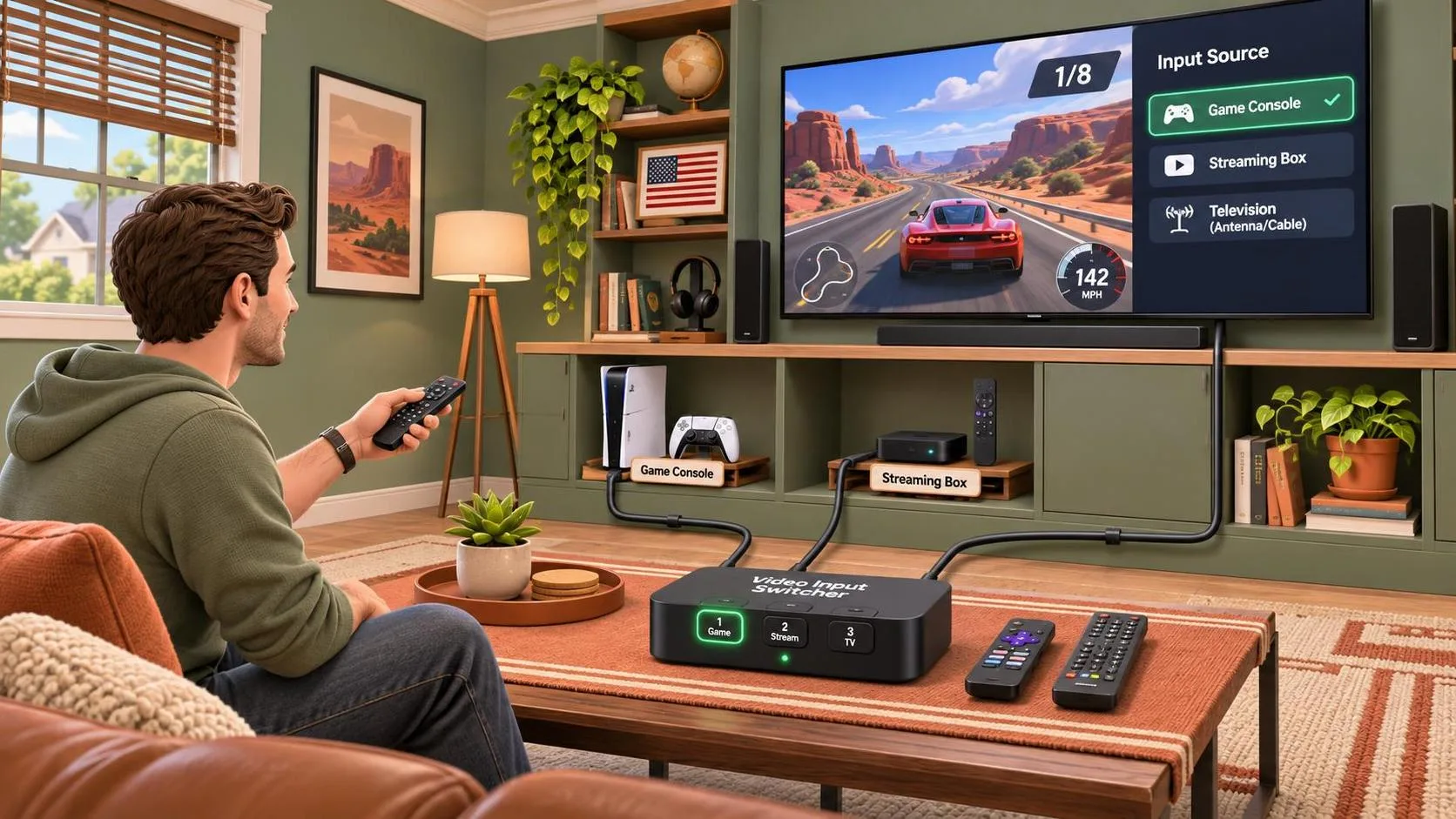
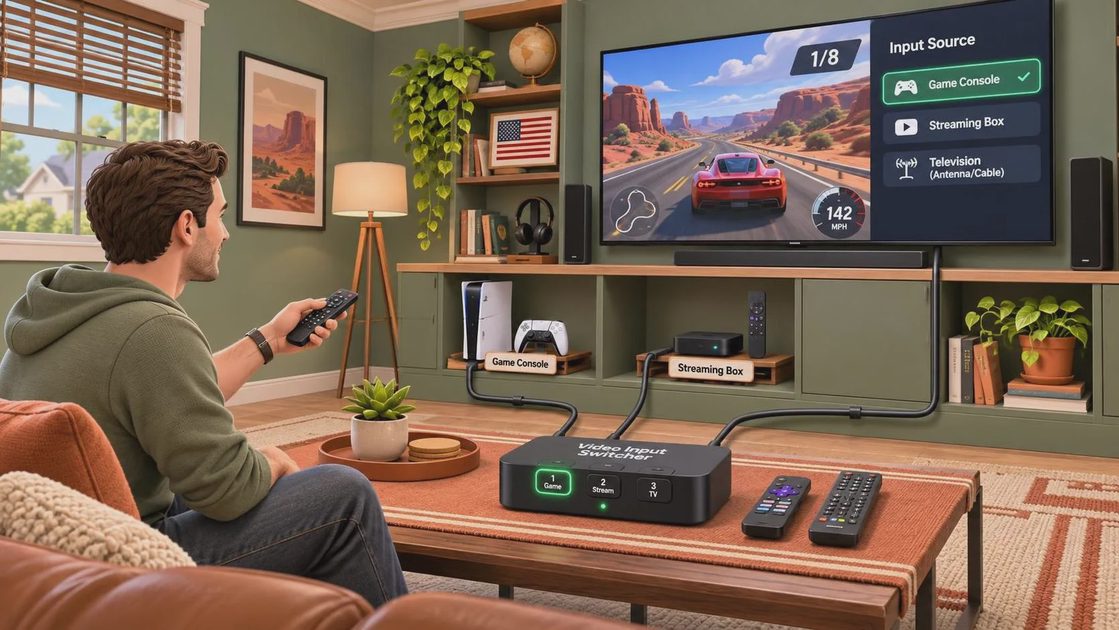
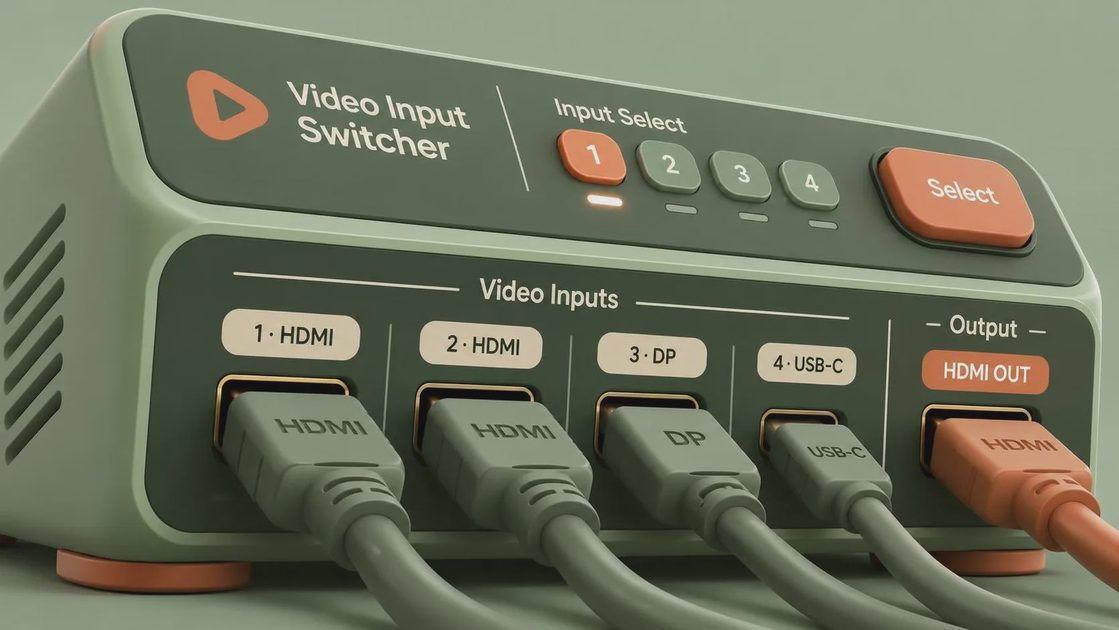
An HDMI switcher lets several devices share one HDMI input on your TV or monitor. Connect a streaming stick, game console, and cable box to the switcher, then run one HDMI cable from the switcher to the screen. You choose which device appears, usually with a button or remote. If your TV has run out of ports, this is often a simpler fix than replacing it.
Before buying anything, check whether an existing HDMI port is hidden on the side of the TV or occupied by a device you no longer use. If every port is spoken for, count the devices you want to connect and leave one spare input if the price difference is small.
What to look for before buying
Choose an HDMI switcher with enough inputs, one output, and support for the picture and sound features you actually use. For an ordinary 4K TV used mainly for streaming, a switch that explicitly supports 4K at 60 Hz and HDR is a practical starting point. A gamer who wants 4K at 120 Hz or variable refresh rate needs to check for those specific capabilities; a generic “4K” label is not enough.
For places to start shopping, look at HDMI switches from UGREEN for a straightforward household setup, Monoprice for shoppers comparing connection and format options, and OREI for households that want to compare switches with more specialized audio or video features. These brands sell different devices, so check the exact listing rather than assuming every model handles the same formats.
A basic switch can cost around $10 to $30, while models with more inputs or demanding gaming features often cost more. Prices vary, and the cheapest option is no bargain if it cannot pass the signal your devices need. Most ordinary switches have no subscription or account requirement.
Match the switch to your screen and devices
The whole connection has to support the features you want: source device, cables, HDMI switcher, and TV or monitor. If one link is limited to 4K at 60 Hz, you should not expect 4K at 120 Hz through that path. The same principle applies to HDR formats and surround sound.
Check the product page for the actual combination you need, such as 4K at 120 Hz with HDR, rather than a list of features that may not work together at every setting. For streaming services and other protected video, look for support for the HDCP version required by your source and display. HDCP is the copy-protection system that lets compatible devices agree to show protected content.
If you use a soundbar, consider its connections before moving cables. A TV’s HDMI ARC or eARC port is often used to send sound from the TV to the soundbar. An ordinary switch is not automatically a substitute for that connection. If possible, leave the soundbar connected to the TV’s ARC or eARC port and use a different TV input for the switch.
Cable length matters, too. Use the cables you already own first, but make sure they are suitable for the signal you want. For 4K at 120 Hz, look for certified Ultra High Speed HDMI cables. Avoid buying unusually long cables unless your room requires them; longer runs can make high-bandwidth signals harder to carry reliably.
Switcher, splitter, or HDMI hub?
The names are easy to mix up. An HDMI switcher sends one of several sources to one display. An HDMI splitter sends one source to multiple displays. Some devices combine both functions, but a basic splitter will not solve the problem of connecting three consoles to one TV input.
A USB-C hub is different again: it connects to a computer or compatible device and may provide an HDMI output along with USB ports or charging. It is useful when a laptop lacks the right connector, not necessarily when a TV is short on inputs.
Also watch for small bidirectional switches. These may work in either direction, but that does not mean they can show multiple sources at once or drive two screens independently. Read the diagrams on the listing before ordering.
Set it up and fix common problems
Turn off the TV and source devices, then connect each source to an input on the HDMI switcher. Connect the switcher’s output to an HDMI input on the TV. If the switch requires external power, plug in its included adapter or use the power source specified by its manufacturer. Turn everything on, select the TV input connected to the switch, and then select the desired source on the switch itself.
If the screen is blank, first confirm that you selected both the correct TV input and the correct switch input. Then try the source directly on the TV with the same cable. If it works directly but not through the switch, reconnect the switch and check its power, supported resolution, and HDCP compatibility. Restarting the connected devices can also help them establish a fresh HDMI connection.
For flickering or intermittent black screens, try a shorter or better-suited cable and reseat both ends. As a diagnostic step, lower the source’s resolution or refresh rate. If that stabilizes the picture, the switch, a cable, or a TV setting may be limiting the higher-bandwidth signal.
If picture works but sound does not, check the TV’s audio output setting and the source’s audio format. Temporarily selecting stereo can help identify a surround-sound compatibility problem. Then consult the switch’s supported audio formats before changing equipment.
Automatic switching and HDMI-CEC controls can be convenient, but behavior varies by device. A streaming stick that stays awake may prevent the switch from selecting a console as expected. If the household finds that frustrating, use the switch’s remote or button instead of chasing an automatic setting.
The sensible household choice
For most families, a powered HDMI switcher with enough inputs, a clear return policy, and support for their TV’s actual resolution is plenty. Spend extra on high-refresh-rate gaming or specific audio features only if you will use them. Once it arrives, test every device, including streaming playback and sound, while the return window is open. Labeling the inputs can save everyone a surprising amount of button pressing later.