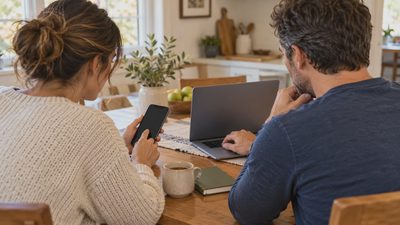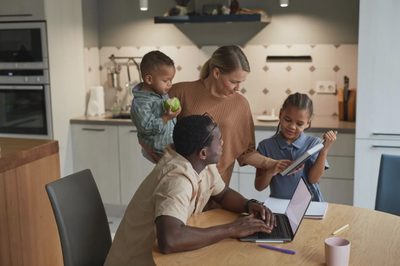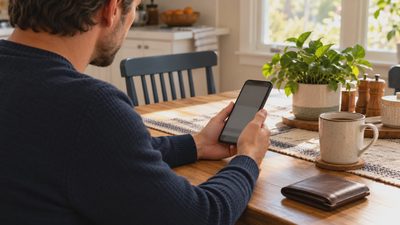
A private space is not a secret bunker or a collection of expensive gadgets. It is a practical digital area where your messages, photos, files, searches, and account details are less exposed than they would be on default settings. For most households, building a private space means changing a few phone, browser, cloud, and Wi-Fi habits rather than buying another subscription.
The quick answer is to start with your most sensitive accounts, use unique passwords, turn on multifactor authentication, and review who can access shared devices. You do not need to become a cybersecurity expert. A focused hour can remove several common privacy problems and make everyday technology feel more under control.
What a private space means in everyday technology
A private space can be physical, digital, or both. A phone with a lock screen, a laptop used on your home network, and a cloud folder shared only with your partner are simple examples. Privacy does not mean that no company, app, or internet provider can ever collect information. It means you make deliberate choices about what is visible, who receives it, and how long it remains available.
Start by separating convenience from necessity. A grocery app might need your address for delivery, but it probably does not need access to your contacts. A flashlight app should not need your microphone. A family calendar may need sharing, while a folder containing tax documents should stay limited to two trusted adults. This distinction is the foundation of a private space: grant access for a clear reason, not because a pop-up asked politely.
On a smartphone, review permissions in Settings every few months. Look at location, camera, microphone, photos, contacts, and Bluetooth access. Change unnecessary permissions to “Never,” “Ask Next Time,” or the closest available option. On Android and iPhone, you can also remove apps you no longer use. An old app is not automatically dangerous, but an account you forgot about is difficult to monitor.

Build a private space on your phone and computer
Your lock screen is the front door. Use a six-digit PIN or a strong password instead of an easy pattern, birthday, or repeated number. Face ID, Touch ID, and similar features are convenient, but keep the passcode private because it can still unlock the device. Set the screen to lock quickly, especially if you often leave your phone on a kitchen counter, desk, or car seat.
Notifications deserve attention too. A text message containing a verification code can appear on a locked screen. That is useful when you are trying to sign in, but it also exposes information to anyone nearby. Turn off preview text for banking, email, password manager, and work apps. You can still see that a message arrived without displaying its contents.
For a computer, install operating system updates, use a standard user account for daily work, and enable automatic screen locking. Windows Security and macOS built-in protections are adequate for many homes when they are updated and used alongside sensible browsing habits. You do not need three antivirus programs. Extra security software can cost $30 to $100 per year and sometimes creates confusing alerts without improving your routine.
A password manager is one of the best investments for a private space. Services such as 1Password, Bitwarden, and Proton Pass can create different passwords for each account. Bitwarden offers a low-cost approach, while paid services often provide smoother family sharing and support. The important feature is not the brand; it is avoiding one password across email, banking, shopping, and social media.
Make your browser and cloud accounts less exposed
Browsers remember a surprising amount: browsing history, saved passwords, payment details, location permissions, and active sign-ins. Open the privacy and security settings in Chrome, Safari, Firefox, or Edge. Delete old site permissions, block intrusive pop-ups, and remove extensions you do not recognize. Keep extensions to the few you actually use because each one can read some information from the pages you visit.
Private browsing is useful, but its name is easy to misunderstand. It usually prevents the browser from saving local history after the window closes. It does not make you invisible to websites, your employer, your school, or your internet provider. Use it for shared computers or temporary searches, not as a complete private space solution.
Cloud storage needs the same careful approach. Google Drive, iCloud, OneDrive, and Dropbox make family files convenient, but shared links can outlive the original reason for sharing them. Once a month, review “Shared with me,” link access, and old collaborators. Change broad settings such as “Anyone with the link” to a named person whenever practical. For sensitive documents, store them in a dedicated folder with limited access and a clear name.
Email is often the master key to your private space because password resets arrive there. Turn on multifactor authentication, preferably with an authenticator app or security key when available. Save backup codes in your password manager or another secure location. Do not keep those codes in an unprotected note titled “Important Passwords.”
Improve privacy on your home Wi-Fi
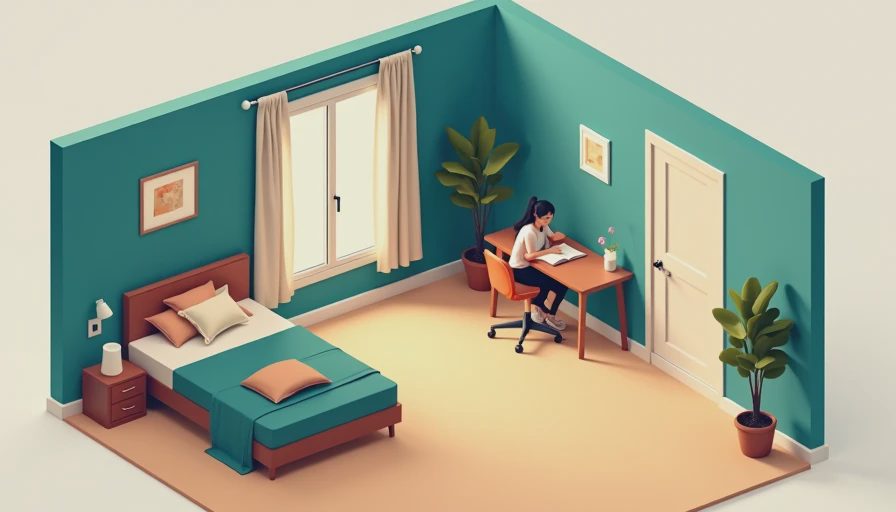
Your home network is another part of a private space. Begin with the router administrator password, which is different from the Wi-Fi password. Replace the manufacturer’s default admin credentials, update the router firmware, and use WPA2 or WPA3 security. If your router is several years old and no longer receives updates, replacing it can be more valuable than purchasing a premium mesh system.
Create a guest network for visitors, smart TVs, inexpensive cameras, and devices that do not need to communicate with your computers. A guest network is not a perfect security barrier, but it limits unnecessary access. Name it something neutral rather than broadcasting your address, family name, or apartment number. Disable remote router administration unless you have a specific reason to manage the network from outside home.
You can usually complete these changes through the router app or an address printed on the router label. Take a screenshot of the final settings and store the router model and support information in your household records. That small step saves frustration when a device stops connecting months later.
Create family rules that actually work
Technology privacy fails when rules are too complicated to follow. Agree that children ask before installing apps, adults do not share verification codes, and nobody sends a password through ordinary text messages. Teach family members to pause when a message demands urgency, payment, or secrecy. A calm second opinion is more useful than a warning that every message is a scam.
For shared tablets and streaming devices, create separate profiles where possible. This keeps recommendations, watch history, and saved payment information from blending together. Remove stored cards from shopping apps used by children, and require a device password for purchases. These steps protect both privacy and the household budget.
A simple private space checkup
Set aside 45 minutes this weekend. First, update your phone, computer, browser, and router. Next, delete unused apps and browser extensions. Then review email forwarding rules, cloud-sharing links, account recovery addresses, and active sign-ins. Finally, turn on multifactor authentication for email, banking, shopping, and social accounts.
If you find an unfamiliar sign-in, do not panic. Change the password from the official app or website, sign out other sessions, and contact the company through its published support channel. Avoid clicking a security link in the suspicious message that alerted you. This response protects your private space without turning a confusing event into a household emergency.
The best private space is usually built from boring, repeatable habits: updates, unique passwords, limited permissions, locked screens, and occasional account reviews. Start with the device that contains your email and photos, then work outward to browsers, cloud storage, and Wi-Fi. Making everyday tech simple, safe, and affordable is more useful than chasing perfect privacy.