
For most families, the sensible choice is a password manager for organizing accounts, plus passkeys for supported sign-ins. You can often do both in the same tool.
A passkey changes how you sign in. A password manager helps you store and manage the things you use to sign in. Thinking of them as competing products makes the decision harder than it needs to be.
The household question is more practical: Can everyone access the accounts they need, keep their personal accounts private, and get back in when a phone is lost?
Start there before adding another subscription.
Passkeys and password managers do different jobs
A password is a secret you enter or autofill. A passkey is a digital credential used to prove you can access an account without typing its password. A password manager is the tool that organizes your credentials; depending on the product, it can hold passwords, passkeys, or both.
Here is how passkeys work in everyday terms: your device or credential provider holds a private key, and the service holds a matching public key. When you sign in, the private key proves your identity without being sent to the service. You approve the process with a device unlock, such as a fingerprint, face scan, or PIN. Your fingerprint is not the passkey, and your biometric data is not sent to the website. Google’s passkey documentation explains these distinctions.
Household task | Passkey | Password manager |
|---|---|---|
Sign in without typing an account password | Yes, where supported | Can do this when it stores and uses passkeys |
Keep unique passwords for password-only accounts | Does not handle this task | Generates and stores passwords |
Organize credentials for many services | A passkey is one credential | This is the manager’s job |
Give another household member access | Depends on provider and service rules | Depends on sharing features and service rules |
Recover access after losing a device | Depends on storage and recovery setup | Depends on the manager’s recovery setup |
The useful comparison is therefore passkeys vs. passwords for signing in, followed by which manager fits your household.
Are passkeys safer than passwords?
For supported sign-ins, passkeys offer an important advantage: they are bound to the correct website or app. A look-alike login page cannot use your legitimate passkey to authenticate to the real service. The service also holds a public key rather than a reusable login secret. These are core protections described in Google’s technical overview.
A password manager still improves password-based accounts by helping you use a different generated password for each service. That limits the damage when one password is exposed. Autofill can also help you notice a mismatched website, though manually copying a password into a fake page can defeat that safeguard.
Neither approach makes every account risk disappear. A compromised device, stolen signed-in session, or weak account-recovery route can still cause trouble. A passkey also cannot tell you whether a purchase, message, or payment request is honest.
Keep two-factor authentication enabled for remaining password-based sign-ins where available. When a service offers passkey sign-in, follow its instructions rather than assuming you must add a separate code to that particular login.
Choose the manager around the devices your family uses

An excellent setup on one person’s phone is not enough if the other adult cannot use it on their computer.
Before changing anything, list the devices and browsers people actually use: an iPhone, an Android phone, a Windows laptop, a Mac, or a work computer with installation restrictions. Then test your current credential manager on that combination.
If your existing tools already work, keep them
Built-in credential tools may be sufficient when everyone can access their own accounts and share the small number of household credentials they need.
For example, Apple documents shared password groups for passwords and passkeys on compatible devices. That makes an existing Apple setup worth checking before buying something else. It does not establish that the same sharing workflow suits a household using several platforms.
If you use several platforms, test a cross-platform manager
A dedicated family password manager may be useful when you need consistent access across different devices, private storage for each person, and shared storage for household accounts.
Passkey support is part of that decision. Bitwarden’s documentation describes saving and using passkeys through its browser extension and mobile apps. This is an example of passwords and passkeys coexisting in one manager, rather than a claim that Bitwarden is the best product for every family.
Before paying, check:
Whether it works in each person’s actual browser and operating system.
Whether sharing includes the credential types you need.
How a member recovers access after forgetting their login details.
What happens to shared items if the subscription ends.
The renewal cost and number of included members.
The best password manager for families is the one the intended users can operate reliably. A feature list cannot tell you whether your partner will be able to use it while you are unavailable.
Share household accounts without sharing everyone’s identity
Use separate personal accounts for email, school, work, and other individual services. Each person should have their own credential-manager account or appropriate private profile, rather than the whole household sharing one master login.
For jointly managed services, start with the service’s own family membership, additional-user access, or authorized-user option. Banking access deserves particular care: use the bank’s supported arrangements rather than treating an online banking login like a streaming password.
Where credential sharing is permitted and needed, put only those items in a shared group or vault. Examples might include a jointly managed internet-service account or a household subscription that allows shared access.
Sharing a passkey grants account access. Keep the group small, review its members, and understand how the provider handles removal. Do not assume removing someone from a group automatically ends every session they previously opened.
For children, use age-appropriate personal accounts and supported parental controls. Giving a child access to the entire adult vault creates more access than they need.
Plan for a lost phone before relying on passkeys
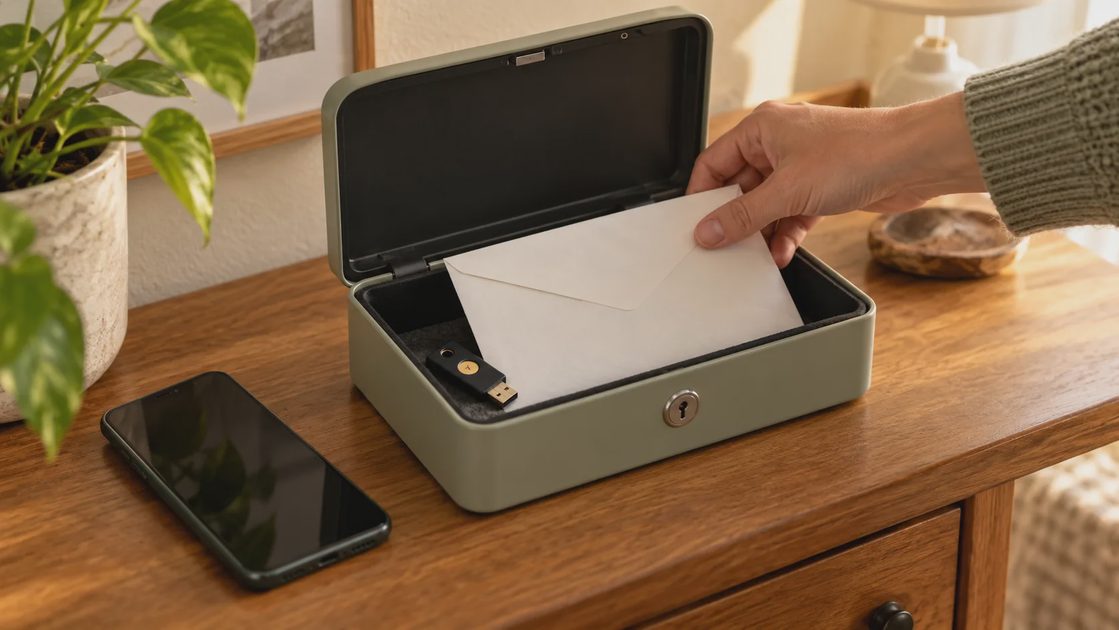
The most useful recovery question is: If my main phone disappeared today, what would I use to get back in?
Some passkeys are synced through a credential provider. Others are device-bound, such as credentials held on particular hardware. Synced access depends on regaining access to that provider; device-bound access requires the original device or a separately arranged sign-in method. Bitwarden’s passkey guide distinguishes these storage types.
For each important account, identify an available recovery route. Depending on the service, that might be another registered passkey, a separately stored hardware security key, backup codes, or its account-recovery process. Do not assume every service offers all of these.
Avoid a circular plan. If the only way to open your credential manager is stored inside that locked manager, it cannot help you regain access. Keep the provider’s necessary recovery material in a protected location you can reach independently, such as a sealed paper copy in secure physical storage.
An emergency plan can identify where recovery instructions are kept and who should handle household accounts. It does not require sharing everyone’s everyday personal logins.
If a phone is lost, use the platform’s official lost-device process and review account access from a trusted device. Google’s account guidance specifically instructs users to remove passkeys associated with lost or stolen devices. Follow the equivalent instructions for your actual service and provider.
Set up one passkey and test it before moving more accounts
Choose a supported personal account you use regularly. Begin on your own device, with a screen lock enabled and current software.
Open the service directly. Use its official app or a known address rather than a link in an unexpected message.
Find its passkey option. Look in account security or sign-in settings; wording varies by service.
Notice where it will be saved. Record which credential provider or device holds it. Choosing a different provider later may not be automatic.
Create the passkey and approve the prompt. Follow the service and provider instructions.
Test a fresh sign-in. Keep an existing trusted session available until you know the new method works.
Check access from a second device you actually use. Confirm whether it uses syncing, phone-assisted sign-in, or another supported method.
Check recovery before removing alternatives. Adding a passkey does not necessarily remove the account password. Google explicitly says creating one leaves existing authentication and recovery factors in place.
Google also warns against creating personal-account passkeys on shared devices: someone who can unlock that device may be able to access the account. Its setup guidance is a useful reminder to distinguish your own phone from a computer used by the whole household.
Before changing credential providers, check whether your particular passkeys can be transferred. Do not assume an ordinary password export includes them. If migration is unsupported, a service may let you register a new passkey with the new provider while you still have access.
What should your family do first?
Your situation | Sensible next step |
|---|---|
You reuse passwords or keep them in scattered notes | Choose one manager and replace reused passwords on important accounts |
You already use a manager successfully | Keep it; try its passkey features on one supported account |
Your household struggles across different platforms | Test a cross-platform option on everyone’s actual devices before subscribing |
One person handles every account | Arrange appropriate shared access and independent recovery instructions |
You are worried about losing your phone | Establish a supported recovery route before expanding passkey use |
You do not need to convert the whole household in an afternoon. Choose one place to manage credentials, keep personal and shared access deliberate, and add passkeys account by account.
The first successful upgrade is modest: one important account with a safer sign-in, a known storage location, and a recovery route you can explain without reaching for the phone that might go missing.