

A family can have dozens of online accounts without thinking of itself as particularly tech-savvy.
There's the banking app, the school portal, streaming services, email, family photos in the cloud, and the smart doorbell that everyone forgets has its own password.
Most days, everything works.
Then a suspicious text arrives. Someone gets locked out of an account. A child downloads an unfamiliar app. Or a laptop fails, taking years of photos with it.
Suddenly, everyday technology feels a lot less simple.
The good news is that staying safer online doesn't require turning your home into a cybersecurity project.
It requires a few sensible habits that protect the things your family actually depends on.
If someone asked me how to be safe online without becoming a technology expert, I'd start with these nine rules.
Start with three changes that make a real difference
If you only have 15 minutes today, don't try to secure every account and device in your household.
Do these three things first:
Protect your main email account. Give it a unique password or passkey and enable strong multifactor authentication. Your email often connects to account recovery for other services.
Turn on automatic updates. Check that your phones, computers, browsers, and supported security software are receiving updates.
Make one household agreement: Nobody clicks a surprising financial or account-security link before checking it through the company's official app or website.
Those steps won't eliminate every digital risk. But they establish a useful foundation before you worry about complicated settings or paid security products.
Here's how I'd build on them.
Rule 1: Give important accounts their own passwords
Password reuse is one of those habits that seems convenient until something goes wrong.
Imagine that a shopping website suffers a data breach. If you used the same password for that store and your email account, someone who obtains the stolen credentials might try them on your email too.
That's why I'd prioritize unique passwords for important accounts, especially:
Primary email accounts
Banking and payment services
Apple, Google, or Microsoft accounts
Password managers
Cloud storage and photo libraries
School and work accounts
You don't need to memorize dozens of complicated passwords.
A reputable password manager can create and store unique passwords. Many platforms also offer built-in password management, and some accounts support passkeys that can reduce reliance on traditional passwords.
The exact tool matters less than avoiding the same password everywhere.
What about sharing family logins?
Some households share access to services such as streaming platforms or certain family utilities.
Avoid sending sensitive passwords through casual group chats or leaving a list of account credentials on the refrigerator.
Where legitimate shared access is needed, use the service's family-account features or an appropriate secure-sharing option.
And don't share individual banking or personal email credentials merely for convenience.
The habit I'd teach: One important account, one unique sign-in method.
Rule 2: Add a second layer of protection where it matters
A strong password is useful. But someone could still obtain it through phishing, malware, or another security incident.
Multifactor authentication, often called MFA or 2FA, provides an additional check when someone signs in.
Depending on the account, that might involve:
A passkey
A hardware security key
An authenticator app
A confirmation on a trusted device
A one-time code sent by text message
These methods do not all provide the same level of phishing resistance.
When available and suitable for your household, passkeys or security keys can be particularly helpful against fake sign-in pages. Authenticator apps are also widely used. SMS codes can provide an extra layer where stronger options aren't supported, though they have their own limitations.
I'd begin with email, financial accounts, and the accounts that manage a family's devices or cloud data.
One detail families often miss: Set up account recovery before you lose access to your phone.
Save recovery codes securely if a service provides them. Review trusted recovery contacts or devices when available, and make sure the recovery options actually belong to you.
A security feature isn't much help if nobody can recover the account when a phone is lost.
Rule 3: Treat unexpected messages as a request to verify—not a command to act
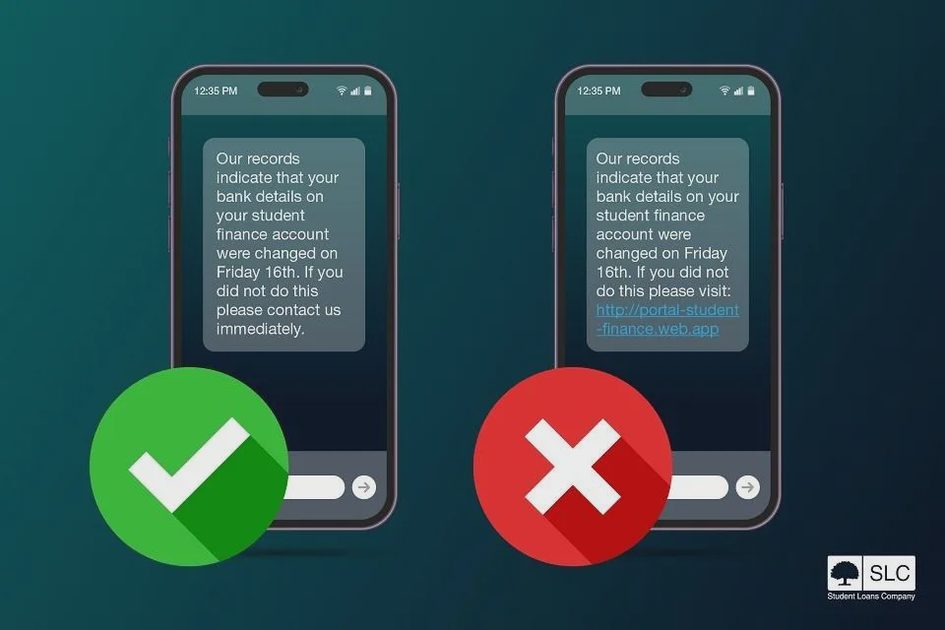
An alarming message might say:
“Your bank account has been temporarily suspended. Verify your details immediately.”
Another might claim a package couldn't be delivered.
Or an email may appear to come from a family member asking for an urgent payment.
The most useful response isn't to become an expert at detecting every fake logo, sender address, or suspicious link.
It's to develop a reliable verification habit.
If a message asks you to do something unexpected involving money, passwords, personal information, or account access, verify the request through a separate, trusted channel.
For example:
Open your banking app yourself instead of using the link in a text.
Visit the service's known website rather than clicking an unexpected email button.
Call a family member using a number you already know if a message requests money.
Contact a business through independently verified support information.
Even familiar sender names can be misleading. And legitimate organizations can send urgent messages too.
You don't need to ignore a possible problem. You need to check it without letting the message control how you respond.
Make security codes a family boundary
A code sent to your phone may be used to approve access or an important account action.
Do not read one-time sign-in or verification codes to a person who contacts you unexpectedly, even if they claim to work for technical support or a fraud department.
If you initiated a legitimate sign-in yourself, use the code only within that process and only when you understand what you're approving.
For a household, I'd make the rule easy to remember:
We don't share security codes with unexpected callers or messages. We verify first.
Rule 4: Keep devices updated—and retire unsupported ones
Security updates aren't particularly exciting.
They don't make for interesting dinner conversation, and they rarely feel as satisfying as buying a new gadget.
But updates can correct vulnerabilities that attackers might otherwise exploit.
For household devices, I'd focus on:
Phones and tablets
Laptops and desktop computers
Web browsers
Home routers
Smart-home devices that connect to the internet
Apps used for banking, messaging, and storing personal information
Enable automatic security updates where practical and supported.
Some updates require a restart or user approval. For devices you rely on, check occasionally that updates are actually installing rather than sitting in a pending state.
What about an old device that still works?
A phone or laptop can be physically functional while no longer receiving important security support.
That doesn't automatically mean you must throw it away immediately, but it changes the risk—especially if it handles financial accounts, work data, or sensitive family information.
Before replacing hardware, check whether a supported operating system or software upgrade is available.
If the device cannot be maintained securely for its intended use, plan a replacement or move sensitive tasks to a supported device.
The goal isn't to own the newest technology.
It's to avoid depending indefinitely on equipment that cannot receive the protections it needs.
Rule 5: Lock every device that can open your private life
A phone isn't just a phone anymore.
It can contain access to bank accounts, email, private conversations, family photos, saved passwords, and account recovery methods.
That's why a device lock deserves more attention than it often gets.
I'd recommend these everyday habits:
Use a strong device passcode, password, or PIN.
Enable biometric unlocking if you find it convenient and understand its limitations.
Set the screen to lock automatically after a reasonable period.
Turn on the device's supported lost-device location and protection features.
Avoid leaving sensitive notifications fully visible on a locked screen when privacy matters.
Give each family member their own account or profile where the platform supports it and sharing would expose private data.
If the device is lost, supported remote-location, lock, or erase features may help—but they must usually be configured in advance, and their effectiveness depends on the device's state and connectivity.
The shared family computer deserves attention too
If several people use one laptop, separate user accounts can help prevent accidental access to each other's files and settings.
Children may need age-appropriate limits or managed accounts.
But parental controls aren't a substitute for talking about suspicious messages, privacy, and how to ask for help.
I'd rather have a child comfortable saying, “Something weird appeared on my screen,” than afraid of getting in trouble for mentioning it.
Rule 6: Share less personal information than an app asks for
When people ask how to protect online privacy, they sometimes imagine they need special software or complicated network tools.
Often, the first improvement is much simpler: Stop sharing information that a service doesn't need.
Start with your phone's permission settings.
Does a flashlight app need access to your contacts? Does a shopping app need precise location access all the time? Does an unfamiliar game really need microphone permission?
Not every permission request is suspicious. Some features genuinely require certain access.
But you can review what you've allowed and change permissions that no longer make sense.
I'd also look at:
Location sharing in social and messaging apps
Public profile details
Photo visibility and sharing links
Advertising and tracking preferences
Apps connected to Google, Apple, or other major accounts
Services that retain old personal information you no longer need them to have
Protect family privacy on social media
A birthday photo or school celebration can seem harmless.
But public posts may also reveal school names, schedules, home locations, travel plans, or other details when combined over time.
Consider who can see family photos and whether you need to include location tags or personal information.
Review the audience for older posts too. Social platforms sometimes provide different settings for posts, stories, profiles, and contact discovery.
For children, think about long-term consent as well as immediate safety. A child may not want every milestone permanently shared with strangers.
You don't have to stop posting family memories.
Just choose the audience and details deliberately.
Rule 7: Treat unusual device behavior as a reason to investigate
Nobody wants to spend Saturday running endless security scans.
Fortunately, most households don't need to install a collection of cleanup utilities to maintain reasonable protection.
Start with the security features already supported by your operating system.
On a Windows computer, the built-in Windows Security tools can help you review protection status and run malware scans.
On a Mac, keep macOS and applications updated, pay attention to security warnings, and review unfamiliar installed apps, login items, and browser extensions.
On phones, use trusted app sources, install supported security updates, and review unexpected permission requests or unfamiliar apps.
What should make you investigate?
Possible warning signs include:
Unfamiliar sign-in alerts
Security settings changed without your knowledge
New apps or browser extensions you don't recognize
Unexpected pop-ups asking you to install software
Friends receiving messages you didn't send
Account transactions or recovery requests you didn't initiate
These clues do not automatically prove that a device has been hacked.
A slow computer, for example, may simply be installing updates or running out of storage.
Don't diagnose malware from one vague symptom.
If an account appears compromised, secure it through its official recovery process, ideally from a device you trust. Review recent sessions, change exposed credentials, and contact the provider when necessary.
For a suspicious computer, follow current platform security guidance rather than downloading whatever “virus remover” appears first in search results.
Knowing how to check a computer for viruses is useful. Knowing when not to panic is useful too.
Rule 8: Make backups part of the routine, not a rescue plan
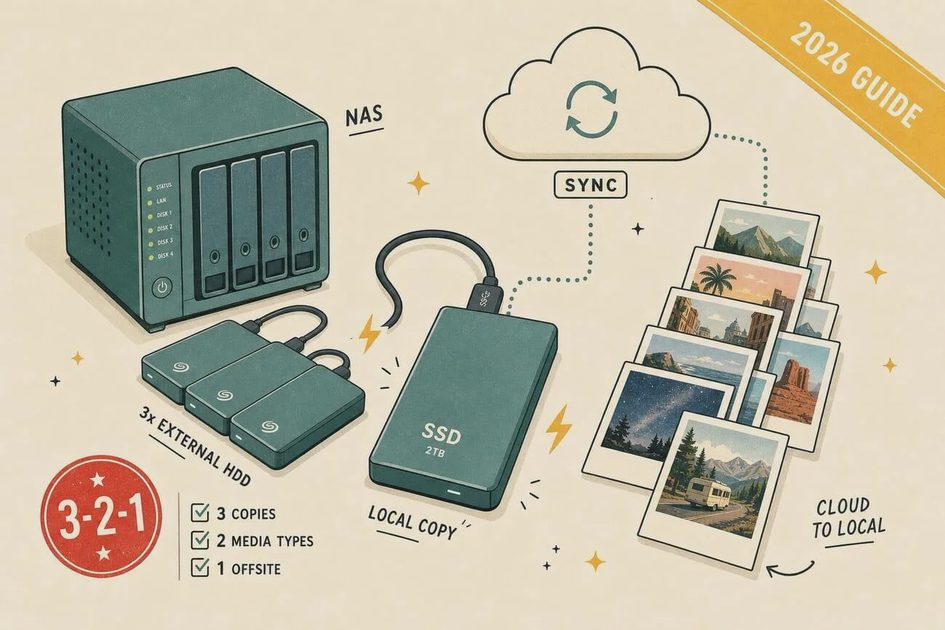
Think about the digital things your family would struggle to replace:
Photos from birthdays and vacations
Tax and financial records
School projects
Important documents
Personal creative work
Family videos
Now imagine a phone disappears or a laptop's storage fails.
Would those files still be available somewhere else?
That's the question a good backup routine should answer.
Make important files recoverable
For many families, a sensible approach includes:
An automatic backup or synchronization service for suitable important data.
A separate backup copy, such as an external drive or another trusted backup destination.
Periodic checks that files can actually be restored.
Cloud synchronization is convenient, but it isn't always a complete backup. Depending on the service, deleting or changing a file may affect synchronized copies too.
A separate versioned backup can help protect against accidental deletion, corruption, or unwanted changes.
If you use an external backup drive, follow the backup software's instructions and consider keeping a copy disconnected or otherwise protected when not in use.
Use encryption and appropriate account protections for backups containing sensitive information.
Test one recovery before you need it
A backup is much more reassuring when you've successfully opened or restored a file from it.
You don't need to stage a complicated disaster exercise.
Pick an unimportant test file, confirm that the backup includes it, and practice retrieving it without overwriting your original.
The household goal is simple: a broken or missing device should be inconvenient—not the end of your family photo collection.
Rule 9: Make the rules easy enough for everyone to follow
The most sophisticated household security plan is useless if nobody remembers it.
I would keep a family system small enough to explain at the kitchen table.
Start with four agreements:
1. Everyone can ask before clicking. A strange link, app request, or money message is a reason to check—not something to hide.
2. Important accounts get extra protection. Unique passwords or passkeys, supported MFA, and reliable recovery methods come before optional extras.
3. Devices receive regular care. Install important updates, use screen locks, and keep backups working.
4. Unexpected requests get verified separately. Whether the message claims to come from a bank, school, delivery service, or relative, don't let urgency replace verification.
Different family members will need different levels of help.
A school-age child may benefit from learning to recognize unexpected permission requests and from knowing which trusted adult to ask.
An older relative may appreciate a saved list of legitimate support contacts.
Two adults sharing household responsibilities may need a secure method for accessing jointly managed accounts without exchanging sensitive passwords in text messages.
Give everyone a way to recover
One overlooked aspect of family digital safety is knowing who can help when the usual account owner isn't available.
Review legitimate family-sharing features, emergency contacts, account-recovery options, and any supported legacy-access arrangements.
Don't create a shared master password that grants everybody access to everything.
Instead, use the specific sharing and recovery tools provided by the services you rely on, and protect them appropriately.
The goal is resilience without unnecessary loss of privacy.
A monthly digital safety check that takes about 15 minutes
You don't need to turn digital safety into another weekly chore.
Once a month, choose one or two small things to review:
Check | What to look for |
|---|---|
Important accounts | Unexpected sign-in alerts, recovery changes, or unknown sessions |
Devices | Pending security updates and unfamiliar apps |
Privacy | Location permissions or public sharing you no longer want |
Backups | Recent backup activity and occasional successful file recovery |
Family habits | Any suspicious message or confusing security prompt worth discussing |
Fifteen minutes may be enough for a light review when everything is working; catching up on neglected devices or testing a full recovery can take longer.
If something needs more attention, handle it separately.
The point is to make safer behavior ordinary rather than overwhelming.
What I wouldn't make my family do
There are plenty of security recommendations that sound impressive but create more work than they solve for an average household.
I wouldn't insist that everyone learn advanced networking terminology.
I wouldn't purchase multiple overlapping security subscriptions without identifying a specific need.
I wouldn't require children to understand every phishing technique before allowing them to use technology.
And I wouldn't expect a family member to recognize every scam from appearance alone.
I'd invest that effort in a few habits that are easier to sustain: strong account access, reliable updates, sensible privacy settings, backups, and independent verification.
Those habits won't prevent every attack, account problem, or mistake.
But they reduce avoidable risks and make it easier to respond when something does go wrong.
The rule I'd want every family member to remember
If I had to reduce this entire guide to one idea, it would be this:
Make the safe action the easy, ordinary action.
Use a password manager or passkeys so unique sign-ins don't become a burden. Let devices update automatically where appropriate. Keep backups running. And when an unexpected message asks for money or personal information, verify it through a channel you already trust.
You don't need a perfect digital household.
You need a few clear rules that people can remember on a busy Tuesday afternoon.
That's how everyday technology becomes a little safer—and a lot less stressful.