Before you buy a new laptop or start deleting random files, run this 10-minute checklist. Most sudden slowdowns are caused by something temporary—an unfinished update, a stuck browser tab, low storage, or the machine getting too hot. The steps below use only built-in tools on Windows and Mac, and you can stop at any point if the problem is already fixed.
I have walked through this exact sequence with family members more than a dozen times in the past year. The pattern is usually the same: the laptop felt fine last week, then one morning it takes forever to open a browser or switch between programs. In most of those cases the checklist below was enough to identify the cause without needing to reset the machine or call for repair.
This guide walks through practical fixes for Windows, Mac, USB printers, and wireless printers, including what to do when your printer says offline but is connected.
Quick Answer: How to Get Your Printer Back Online
If your printer is offline, try these steps in order:
Make sure the printer is powered on, awake, and free of error messages.
Check its USB connection or Wi-Fi network.
Restart the printer and the computer or device you're printing from.
Confirm you've selected the correct printer.
Clear any stuck print jobs.
Check the printer's offline or paused status.
Restart the Windows Print Spooler, if applicable.
Update or reinstall the printer using the manufacturer's official instructions.
Test printing after each step.
You may solve the problem in the first few minutes without needing the more involved fixes.
Why Is My Printer Offline When It's Turned On?
A printer can be powered on and still appear offline to your computer.
That's because offline doesn't necessarily mean the printer is switched off.
It often means the computer or printing system cannot communicate with the printer as expected.
Several things can cause this:
The printer is connected to a different Wi-Fi network.
The printer lost its network connection.
A USB cable is loose or faulty.
A print job is stuck in the queue.
The wrong printer or an outdated printer entry is selected.
The printer is paused or marked for offline use.
A driver or printing service isn't working properly.
The printer has an error, such as a paper jam or open cover.
So if you're asking, “Why does my printer say offline?”, start by identifying whether the problem is with the printer itself, the connection, or the computer.
That distinction can save a lot of unnecessary troubleshooting.
Step 1: Check the Printer Before Changing Computer Settings
Start at the printer.
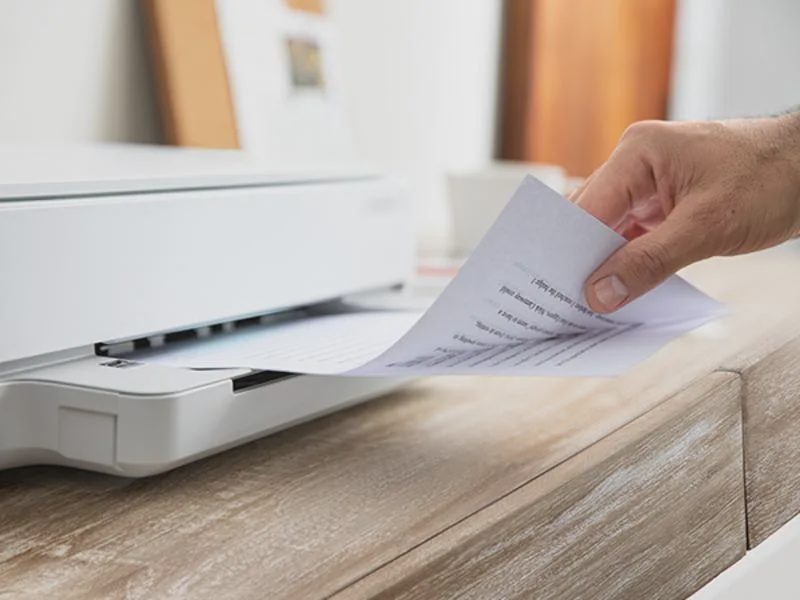
Make sure it's powered on and not showing an error message.
Check for obvious problems:
Paper jammed inside the printer
Empty paper tray
Open cover or access door
Ink or toner error
Sleep or power-saving mode
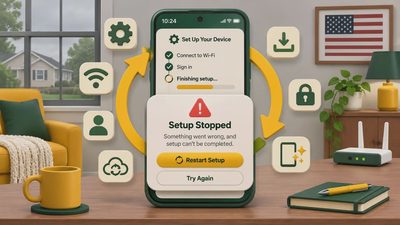
An unfinished setup or maintenance process
If the printer has a screen, read the message carefully.
If it only has indicator lights, check the manufacturer's documentation to understand what they mean.
Can the printer print a test page by itself?
Many printers can print a status, configuration, or network information page directly from their control panel.
If yours supports this, try it.
A successful internal test page suggests that the printer can perform at least basic printing functions.
It doesn't prove that its connection to your computer is working.
But it helps narrow down the problem.
If the printer cannot print its own test page, resolve any device error before spending time changing Windows or Mac settings.
Step 2: Check the USB or Wi-Fi Connection
This is one of the most common places to find a simple fix. Last month a neighbor asked me to look at her HP DeskJet wireless printer. It showed offline on her Windows 11 laptop even though the Wi-Fi light on the printer was solid. I first had her try printing from her phone. The phone printed a test page without any problem. That told me the printer and the home network were working. On the laptop, the print queue still listed an older USB version of the same printer that she no longer used. After she selected the wireless entry and canceled the stuck job, the offline status disappeared and the next document printed on the first try. The whole check took less than ten minutes because we tested another device before touching any drivers or settings.
If you're using a USB printer
Check that the cable is firmly connected to both the printer and the computer.
If possible:
Disconnect and reconnect the USB cable.
Try another suitable USB port.
Avoid an unnecessary hub or adapter while troubleshooting.
Inspect the cable for visible damage.
If you have a compatible spare cable, trying it can help rule out a cable problem.
If you're using a Wi-Fi printer
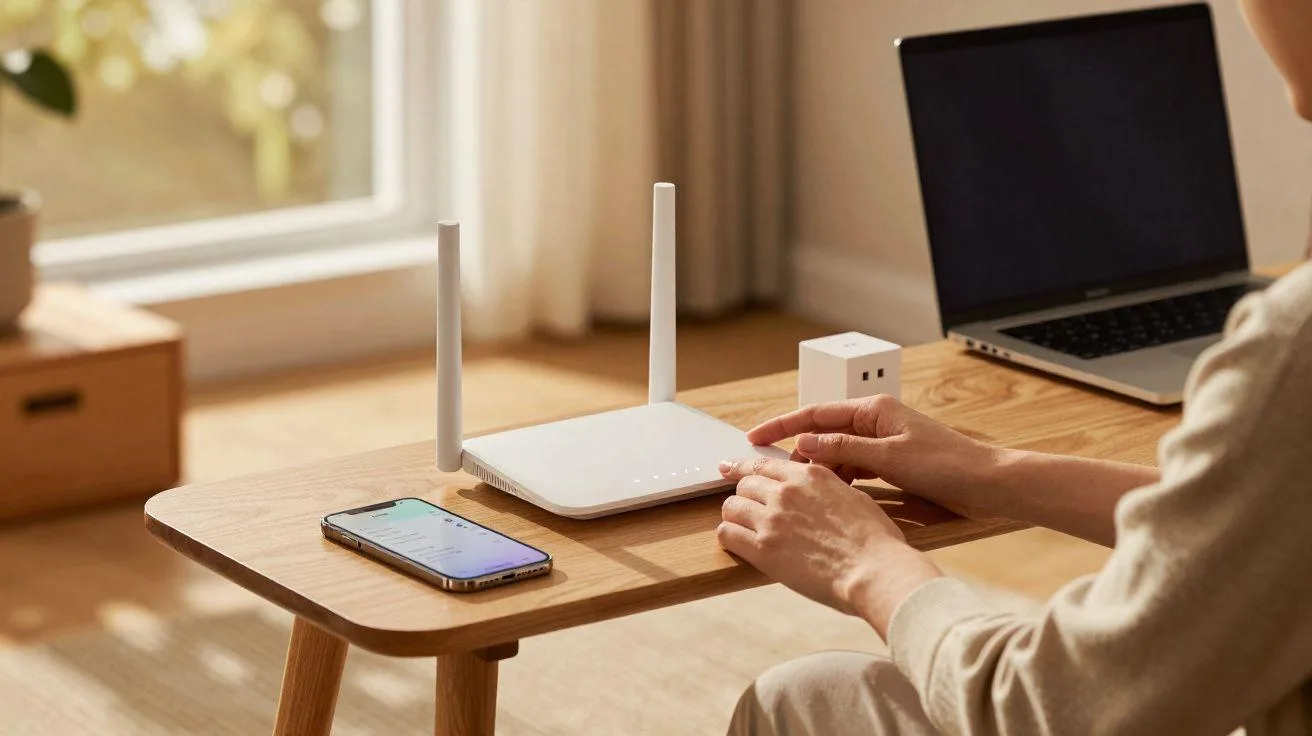
Confirm that the printer is connected to your home network.
A wireless printer can appear connected because its Wi-Fi indicator is on, even when it isn't reachable from the computer you're using.
Check the printer's network information through its screen, settings menu, or network status report.
Then compare it with the network used by your computer.
They should generally be on networks that allow the devices to communicate.
A guest network or a network with device isolation may prevent a computer from discovering or reaching a printer. If your printer and computer still cannot communicate, reviewing the home network setup for a typical family can help you identify network settings that prevent devices from connecting.
Check the Wi-Fi band and network setup
Some printers support only certain Wi-Fi bands or connection methods.
For example, a printer that supports only 2.4 GHz Wi-Fi may not connect to a network configured exclusively for 5 GHz or 6 GHz.
However, a printer using 2.4 GHz and a computer using 5 GHz can often communicate normally when both bands are part of the same home network and device isolation isn't enabled.
You usually don't need to force every device onto the same frequency band.
The important question is whether the devices can communicate across your network.
Step 3: Restart the Printer and Computer
If the connection looks correct but the printer is still offline, try a normal restart.
Turn the printer off using its power control.
Wait briefly, following the manufacturer's instructions if a specific shutdown procedure is required.
Turn it back on.
Restart the computer or device you're printing from.
Wait until the printer is ready.
Try printing a simple document.
This can resolve temporary communication or printing-service problems.
If multiple devices are having network problems, you may also need to troubleshoot the router.
But don't reset the entire home network just because one printer is having trouble. Before making major network changes, learn whether to restart, reset, or replace your router so you can choose the appropriate troubleshooting step.
Step 4: Make Sure You're Printing to the Correct Printer
It's surprisingly easy to send a document to the wrong printer entry.
This can happen when you've replaced a printer, reinstalled a driver, or connected the same printer in more than one way.
You may see multiple entries with similar names.
For example, your computer might list an old USB installation and a newer wireless installation.
On Windows 11
Open Settings.
Go to Bluetooth & devices.
Select Printers & scanners.
Choose the printer you want to use.
Review its status and available management options.
When printing a document, also check the selected printer in the application's Print dialog.
On a Mac
Open System Settings.
Select Printers & Scanners.
Find the printer you want to use.
Check whether it appears available.
Confirm that the correct printer is selected in the Print dialog.
Menu wording can vary with the operating system version and printer setup.
If there are several similar printer entries, don't immediately delete all of them.
First identify which entry corresponds to the device you're actually using.
Step 5: Clear Stuck Print Jobs
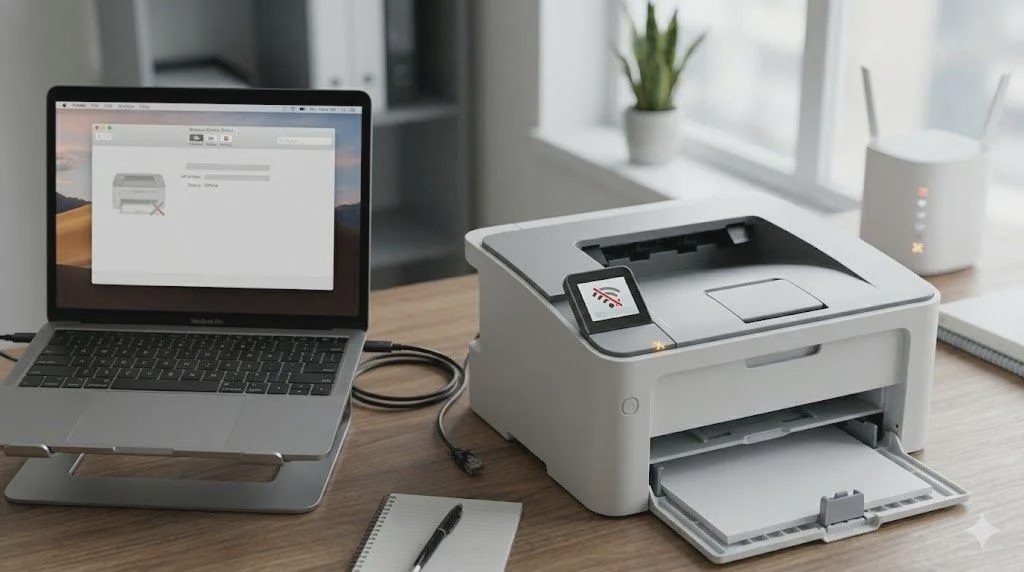
Sometimes the printer is fine, but a document is stuck in the print queue.
A failed job can prevent later documents from printing.
Clear the print queue on Windows
On Windows 11:
Open Settings.
Select Bluetooth & devices.
Open Printers & scanners.
Choose your printer.
Open its print queue.
Cancel the stuck job or jobs.
Try printing again.
If a job refuses to disappear, you may need to restart the printing service, which we'll cover below.
Clear the print queue on Mac
Open System Settings.
Go to Printers & Scanners.
Select the affected printer.
Open its print queue.
Remove or cancel stalled jobs.
Resume the printer if it's paused.
The exact buttons may differ by macOS version.
Clearing a queue removes pending print jobs, so you'll need to resend any documents you still want to print.
Step 6: Fix a Printer Showing Offline on Windows
If your printer is offline on a Windows computer, check whether Windows has been instructed to use it offline.
Check the “Use Printer Offline” setting
Depending on your Windows version and printer interface:
Open the printer's queue or management window.
Look for a Printer menu or related status controls.
If Use Printer Offline is available and selected, turn it off.
If the printer is paused, resume printing.
Try another print job.
Not every modern Windows printer interface exposes the same menu.
If you don't see this option, don't assume something is missing from your computer. Continue with the other checks.
Check the default printer
Windows can manage your default printer automatically.
That may be convenient, but it can also create confusion when several printers have been used.
Go to Settings > Bluetooth & devices > Printers & scanners and review the default printer behavior.
If appropriate, turn off automatic default-printer management and choose the printer you normally use.
This won't fix a broken connection, but it can prevent jobs from being sent to an unintended device.
Step 7: Restart the Windows Print Spooler
The Print Spooler is a Windows service that manages print jobs.
If it becomes stuck, printing can stop even when the printer is otherwise working.
To restart it:
Save any work you're doing.
Press Windows + R.
Type
services.mscand press Enter.Find Print Spooler.
Right-click it and select Restart.
Wait for the service to restart.
Try printing again.
You may need administrator permission.
Restarting the service can interrupt or affect pending print jobs.
If the spooler repeatedly stops or fails to restart, the underlying problem may involve a driver or another printing component.
Don't repeatedly change system services without understanding the cause.
Step 8: What If the Printer Says Offline but Is Connected?
This is one of the most frustrating versions of the problem.
The printer appears on your network. Its Wi-Fi indicator looks normal. Other devices can access the internet.
But your computer still says the printer is unavailable.
In this situation, the problem may involve how the computer locates the printer.
Check whether other devices can print
Try printing from another computer or phone that supports your printer. If you're using an Android device for this test, follow our guide on how to print from an Android phone to check whether mobile printing works.
If other devices can print successfully, the problem may be specific to the original computer, its printer configuration, or its connection to the network.
If no device can print, investigate the printer's network connection and status first.
Check the printer's IP address
Network printers may have a local IP address, such as one assigned by your router.
You can often find it on the printer's network status page or in the router's connected-device list.
If the printer's address has changed, an older printer configuration on your computer may no longer point to the correct destination.
This is one reason a printer can appear offline even though it remains connected to Wi-Fi.
Avoid changing advanced settings blindly
You may find online advice about printer ports, SNMP status monitoring, static IP addresses, and firewall rules.
Those settings can matter in certain cases.
But they aren't good first steps for a typical household.
Changing them without confirming the cause can create new problems or reduce network security.
If the basic steps fail, consult the manufacturer's official support instructions for your exact printer model and operating system.
Step 9: Update or Reinstall the Printer
If you've reached this point and the printer still won't work, a driver or installation problem becomes more plausible.
Start with official updates
Check for:
Operating system updates
Printer driver or software updates
Printer firmware updates
Use Windows Update, macOS's supported printer setup mechanisms, or the printer manufacturer's official support site.
Avoid unfamiliar websites that advertise generic driver downloads or promise a one-click fix.
You shouldn't have to install questionable software just to restore printing.
Remove and add the printer again
If the printer's installation is damaged or outdated, removing its entry and adding it again may help.
Before doing this, confirm that you have the information and permissions needed to reinstall it.
On Windows, use Settings > Bluetooth & devices > Printers & scanners.
On Mac, use System Settings > Printers & Scanners.
Remove the affected printer entry, then follow the operating system's or manufacturer's instructions to add the printer again.
For wireless printers, make sure the printer is connected to the correct network before reinstalling it.
What about resetting the entire printing system on Mac?
macOS has offered a printing-system reset option that can remove configured printers, print queues, and related settings.
This is a broader troubleshooting action than removing one printer.
It should not be your first choice.
Use it only when narrower fixes have failed and you've checked Apple's instructions for your macOS version.
Printer Offline Fix: Match the Symptom to the Next Step
What you notice | Most useful next check |
|---|---|
Printer is powered off or asleep | Power, display, and device status |
Printer shows a paper or ink error | Resolve the printer's displayed error |
USB printer is offline | Cable, USB port, and selected printer |
Wireless printer disappeared | Wi-Fi connection and network status |
One computer can't print, but others can | That computer's queue, settings, and driver |
All devices cannot print | Printer status, network, and connection |
Jobs stay stuck in the queue | Cancel jobs and restart the printing service |
Printer says offline but is connected | Printer entry, IP address, and network communication |
Problem returns after every restart | Driver, firmware, network stability, or hardware diagnosis |
This table isn't a definitive diagnosis.
It's a way to choose the next useful test without changing everything at once.
After we cleared the queue and reselected the correct printer on a Mac that had gone offline following a macOS update, I asked the owner to wait two days and then print again from both the Mac and her iPhone. Both devices printed without the offline message returning. The printer’s network status page still showed the same IP address it had before, so the earlier problem had been a stale printer entry on the Mac rather than a network or hardware failure. This is the kind of short follow-up I now do before recommending a driver reinstall or any bigger change.
When Should You Stop Troubleshooting?
Not every printer problem deserves hours of effort.
If you've checked the connection, cleared the queue, restarted the relevant devices, and followed official setup guidance, it may be time to contact support.
Have this information ready:
Printer brand and exact model
Windows or macOS version
USB or Wi-Fi connection type
Any error message
Whether another device can print
The steps you've already tried
This gives support a better starting point.
Should you replace the printer?
An offline status alone is not a good reason to buy a new printer.
Replacement may be reasonable when the printer has a confirmed hardware fault, no longer has suitable software support, or requires repairs that aren't economical.
Also consider the total cost of ownership.
Ink or toner, replacement parts, compatibility, and how often you print may matter more than the purchase price of a new machine.
If the printer works well once its connection is restored, keeping it is usually the cheaper path.
How to Keep Your Printer From Going Offline Again
You can't prevent every printer problem, but a few habits can reduce avoidable interruptions.
Keep the printer connected to a stable network. If possible, place it where the Wi-Fi signal is reliable.
Use the correct printer entry. Remove obsolete entries when you're confident they're no longer needed.
Install relevant updates. Follow the operating system and manufacturer's official guidance.
Avoid unnecessary network changes. Renaming your Wi-Fi network or changing its password may require reconnecting the printer.
Print occasionally if you use an inkjet. Follow the manufacturer's maintenance guidance to help manage ink-system issues. This is separate from offline connectivity, but it can prevent another kind of printing frustration.
Don't factory-reset the printer for every error. A reset can erase network settings and make setup more complicated.
The goal isn't to create a maintenance routine that takes more time than printing.
It's to keep a working setup simple.
Frequently Asked Questions
Why is my printer offline when it's connected to Wi-Fi?
Your printer may be connected to the network but unreachable from the computer. Possible causes include a stale printer entry, changed IP address, network isolation, stalled queue, or software issue. Check whether another device can print to narrow down the cause.
Why does my printer say offline after a Windows update?
An update can sometimes affect printer drivers, configuration, or compatibility. Check the printer queue, available updates, and the manufacturer's current driver instructions before reinstalling everything.
How do I change my printer from offline to online?
First confirm that the printer is powered on and connected. Then check the selected printer, clear stalled jobs, and disable any available Use Printer Offline setting. Restart the printer and computer if needed.
Why does my wireless printer keep going offline?
Recurring problems may involve an unstable Wi-Fi connection, router configuration, printer firmware, or a computer using outdated connection information. Check whether the problem affects multiple devices and whether the printer remains connected to the network.
Do I need to reinstall my printer every time it goes offline?
No. Reinstallation is a later troubleshooting step, not a routine fix. Most temporary offline problems should be investigated through basic connection, status, and print-queue checks first.
Keep the Printer. Fix the Connection First.
When your printer says offline, the message can make a simple printing problem feel like a major equipment failure.
But the first solution usually shouldn't involve buying another printer.
Start with the printer itself. Check the connection. Confirm you're using the right printer entry. Clear the queue. Restart the relevant devices.
Only move into drivers, network configuration, or reinstallation when the simpler checks haven't worked.
And if the printer is still unreliable after careful troubleshooting, use what you've learned to decide whether support, repair, or replacement makes sense.
A good printer offline fix gets you printing again without turning a small household problem into an expensive one.