If you need to know how to connect alexa to wifi, the good news is that most Echo setup takes less than 10 minutes. You will need the Echo device, its power adapter, your Wi-Fi password, and the Alexa app on an iPhone or Android phone. Keep your phone close to the speaker during setup, because Bluetooth and local network access help the app find the device.
The process is similar for an Echo Dot, Echo Pop, Echo Show, or standard Echo speaker. The main difference is that a screen-equipped Echo can complete much of the setup directly on its display. For the least frustrating experience, plug the speaker into a wall outlet rather than a USB hub or power strip with a switch that could be turned off accidentally.
What to prepare before setup
Start by checking that your home internet is working on another device. Open a website on your phone while connected to the same Wi-Fi network you plan to use for Alexa. If pages will not load, restart the router first; changing Alexa settings will not repair an internet outage.
Next, find your network name and password. The network name is often printed on the router label, while the password might be in your internet provider's app or paperwork. Passwords are case-sensitive, so check every capital letter, number, and special character. If your router broadcasts separate 2.4 GHz and 5 GHz network names, either can work with many current Echo models, but the 2.4 GHz option often reaches farther from the router.
Install or update the Amazon Alexa app from the Apple App Store or Google Play. Sign in to the Amazon account you want connected to the speaker. Turn on Bluetooth, allow the app to use your local network, and enable location access if the app requests it during setup. These permissions help with discovery; they do not mean the speaker needs your phone nearby forever.
How to connect alexa to wifi in the Alexa app
Open the Alexa app and tap Devices at the bottom of the screen. Tap the plus sign in the upper-right corner, choose Add Device, select Amazon Echo, and then choose the model that matches your speaker. If you are setting up a replacement, do not assume the old device's network settings will transfer automatically.
The app should ask you to put the Echo into setup mode. On many models, an orange or amber light appears. If that does not happen, press and hold the Action button, usually marked with a small dot, for about 15 seconds. The exact reset method can vary by model, and resetting a speaker removes its saved settings, so use the button only when you are ready to start again.
Select the Echo shown in the app, choose your home Wi-Fi network, and enter the password carefully. The app will send the network information to the speaker, which may restart or display a loading message. When setup finishes, ask, “Alexa, what time is it?” A spoken answer confirms that the device has both power and a working internet connection.
If you are learning how to connect alexa to wifi on a second Echo, repeat the device-add process instead of resetting the first speaker. You can give each one a useful name, such as Kitchen or Bedroom, to make voice commands and multi-room music easier later.
Fix the most common connection problems
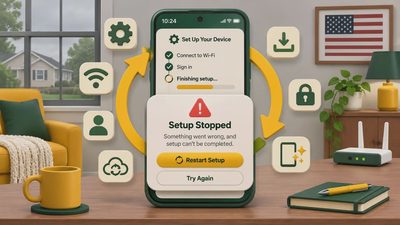
When how to connect alexa to wifi does not go smoothly, start with the simple fixes. Unplug the Echo for 30 seconds, restart the router, and close and reopen the Alexa app. Then try setup again with the phone within a few feet of the speaker. A weak phone signal to the Echo can look like a Wi-Fi problem even when the router is working correctly.
If the network does not appear in the app, check whether the router is hiding its network name. Temporarily enabling network-name broadcasting can help with setup. Also turn off a phone VPN during installation, since a VPN can interfere with local device discovery. You can turn it back on after the Echo is connected.
A password error usually means a typing mistake, but there are other possibilities. Some older Echo devices have trouble with certain enterprise, hotel, guest, or captive-portal networks that require a web page before internet access. They are designed for ordinary home Wi-Fi with a normal password. If your router uses a special security mode, try its standard WPA2 or mixed WPA2/WPA3 setting rather than the newest mode alone.
What to do when Alexa keeps disconnecting
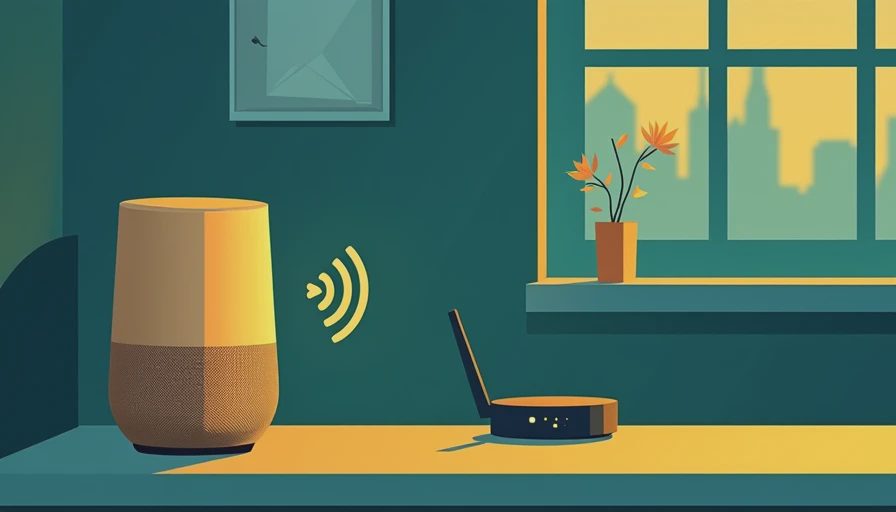
Knowing how to connect alexa to wifi is only half the job if the speaker drops offline every day. First, compare its location with the router. Thick walls, metal appliances, aquariums, and crowded wireless channels can weaken the signal. Move the Echo a few feet away from the microwave, television, cordless-phone base, or large speaker. A short move can be more useful than buying a mesh system.
Use the Alexa app to review the device's network details and update its Wi-Fi connection if you changed the router name or password. You can usually select Devices, choose the Echo, open its settings, and select the Wi-Fi network option. If the app cannot change it, put the speaker back into setup mode and run the process again.
If several household devices disconnect, investigate the router instead of blaming Alexa. Reboot it, install available firmware updates, and check whether too many devices are connected. A busy home with phones, televisions, cameras, game consoles, and smart plugs can expose an aging router's limits. Before spending $100 to $300 on new equipment, test the Echo near the existing router.
Privacy and practical setup choices
Alexa needs an internet connection for many voice features, but you can still reduce unnecessary data sharing. Review voice-history controls in the Alexa app, turn off features you do not use, and avoid placing an Echo directly beside a private home office or bedroom if that location makes you uncomfortable. The microphone can be muted with the physical button when you want a clear break from voice detection.
Give the speaker a descriptive device name and place it where everyone can hear the response without shouting. A kitchen Echo might be useful for timers and shopping lists, while a bedroom model may work better for alarms and weather. You do not need an Echo in every room. One centrally located speaker often covers a small apartment or a compact home, keeping both purchase cost and household clutter down.
If you are helping a family member with how to connect alexa to wifi, write the network name and password in a secure place rather than sending credentials through a group text. Never use a neighbor's network without permission, and avoid putting an Echo on a public guest network that blocks smart-home communication.
The affordable next step
For most households, how to connect alexa to wifi requires no new router, subscription, or accessory. Use the Alexa app, verify the password, keep the speaker close to the router during setup, and restart devices before buying anything. A basic Echo Dot is enough for timers, music, weather, and simple smart-home commands; an Echo Show is worth considering only if you specifically want a screen for recipes, video calls, or visual instructions.
If setup still fails after a router restart, app update, and careful reset, test another phone. That quickly separates an app-permission problem from a speaker or network problem. Contact Amazon support only after recording the Echo model, the router model, and the exact error message. This small bit of preparation usually produces a faster answer.
Making everyday tech simple, safe, and affordable means solving the existing problem before replacing equipment. In most cases, the right next step is to open the Alexa app and try the connection again with the basics checked first.