
Your laptop was working fine last week. Now it takes forever to open a browser tab, switch between apps, or do something as simple as type an email.
The obvious question is: Why is my laptop so slow all of a sudden?
The answer is not always an aging computer. A background update, too many open apps, limited storage, a misbehaving browser extension, or an overheating laptop can all make an otherwise usable machine feel frustratingly sluggish.
Before you buy a new laptop, install a cleaning utility, or start deleting files, try this 10-minute checklist.
The goal isn't to magically repair every performance problem in 10 minutes. It's to figure out what's happening, make a few safe improvements, and decide what deserves your attention next.
The 10-minute laptop slowdown checklist
You don't need special software, technical experience, or a toolbox. Just your laptop and a few minutes.
Before starting: Save anything you're working on. If your laptop is unusually hot, smells burnt, has a swollen battery, or is making concerning mechanical noises, stop using it and seek qualified repair advice instead of continuing the checklist.
Minute 0–1: Find out what is actually slow
Before changing anything, ask yourself three simple questions:
Is the entire laptop slow, or just the internet?
Does the problem happen immediately after startup or only after you've been working for a while?
Is one program slow, or does every program feel sluggish?
These distinctions matter.
If websites load slowly but your files and offline apps open normally, your internet connection may be the problem. If everything becomes slow after 20 minutes and the fan gets loud, heat may be involved.
If just one app is struggling, troubleshooting the whole operating system may be unnecessary.
Your first goal is to narrow the problem down, not fix everything at once.
Minutes 1–3: Restart the laptop properly
A restart is one of the simplest useful things to try, especially if your laptop has been sleeping or running continuously for days.
It closes running applications, ends many temporary background processes, and gives the operating system a fresh start.
On Windows, choose Start → Power → Restart.
On a Mac, open the Apple menu → Restart.
Save your work first, and let any important update or installation already in progress finish. Don't force the computer off just to meet the timer.
Once the laptop restarts, open the same app that was giving you trouble.
Did it improve?
If yes, a temporary software issue or background process may have been responsible. You don't necessarily need to change anything else right now.
If not, continue.
Minutes 3–5: Find the task that is slowing things down
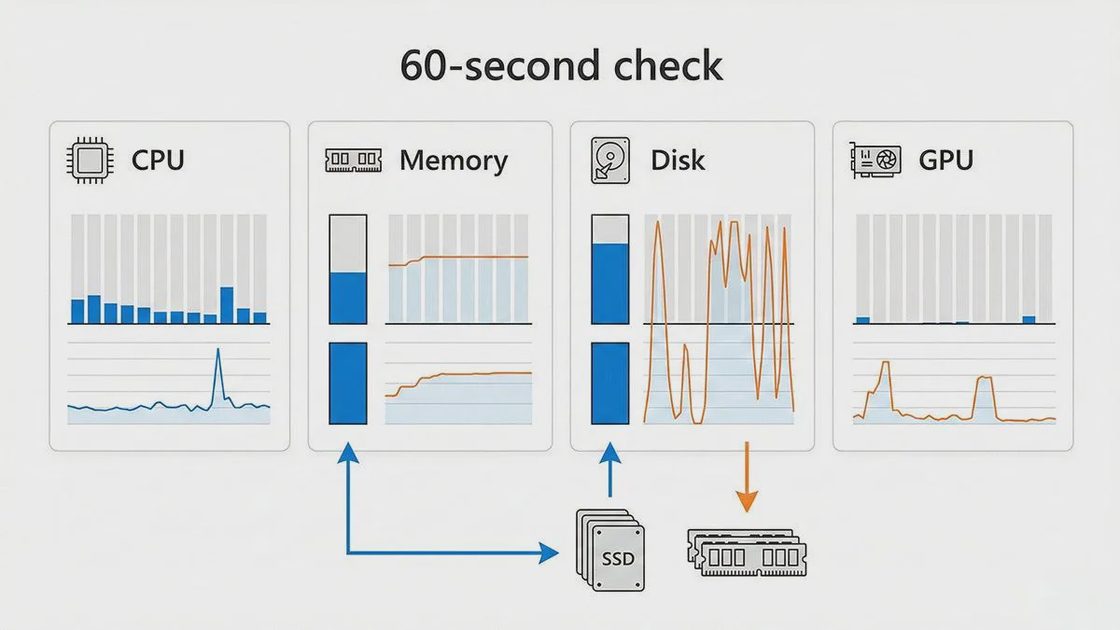
Sometimes the laptop isn't struggling because it's old. It's struggling because one or more programs are demanding more resources than it can comfortably provide.
You can investigate this using tools already installed on your computer.
On Windows:
Press Ctrl + Shift + Esc to open Task Manager.
Select Processes.
Look at the CPU, Memory, and Disk columns.
Sort by a column to see which apps or processes are using the most resources.
On a Mac:
Open Activity Monitor using Spotlight Search.
Check the CPU tab.
Check the Memory tab.
Look for apps consistently using substantial resources.
You might find a browser with many tabs open, a video editor left running, a cloud-sync app processing lots of files, or a software update working in the background.
A temporary spike doesn't automatically mean something is wrong. Watch for a short period and consider what the process is doing.
If you recognize an app you aren't using, save its work and close it normally.
Don't force-quit unfamiliar system processes or disable security software just because their numbers look high. You can cause other problems without addressing the real issue.
Minute 5–6: Check whether storage is nearly full
Your laptop needs some available storage for updates, temporary files, and normal system operations.
A nearly full drive can make certain tasks more difficult, although freeing space won't fix every kind of slowdown.
On Windows: Open Settings → System → Storage.
On a Mac: Open System Settings → General → Storage on recent macOS versions.
Look for obvious space consumers, such as downloaded videos, old installers, or files you no longer need.
Start with safe, recognizable items.
Don't randomly delete folders inside your operating system, remove unknown application files, or erase your photo collection without checking your backups.
If storage is tight, make a note to clean it up carefully after the checklist. A proper cleanup often takes more than one minute.
Minute 6–7: Test your browser
For many households, the browser is the most heavily used app on the laptop.
It handles email, banking, shopping, documents, video calls, and dozens of open tabs. That makes it a good place to look for performance problems.
Try this:
Save anything important in your open tabs.
Close tabs you don't need.
Close and reopen your browser.
Visit one familiar website and see whether it responds more normally.
If the laptop performs well outside the browser, investigate browser extensions next.
You can temporarily disable extensions you recognize and don't currently need, then test again.
Be especially cautious of an extension you installed shortly before the problem started.
You don't need to delete your bookmarks, saved passwords, or browsing history as a first step.
And if every website is slow while offline apps are fast, remember that the Wi-Fi connection may be the actual problem.
Minutes 7–9: Review apps that open automatically
Some programs start every time you sign in, even when you aren't planning to use them.
A few are useful. Too many can slow startup and contribute to background memory use.
On Windows: Open Task Manager → Startup apps, or look under the Startup section of your system's app settings.
On a Mac: In recent macOS versions, open System Settings → General → Login Items & Extensions. Menu names may differ by version.
Look for recognizable apps you don't need immediately after signing in.
A game launcher, optional chat app, or rarely used utility might not need to start automatically.
However, don't disable backup tools, accessibility features you depend on, device management software, or security tools without understanding the consequences.
Disabling an optional startup app usually doesn't uninstall it. It simply changes whether the app opens automatically.
You may need another restart to judge the difference in startup performance.
Minute 9–10: Check heat, ventilation, and power
A laptop that feels slow may be working under less-than-ideal physical conditions.
Check whether:
Its vents are blocked by a blanket, cushion, or pile of papers.
It feels unusually hot.
Its fan runs loudly even when you're doing very little.
Its performance changes noticeably when plugged in versus running on battery.
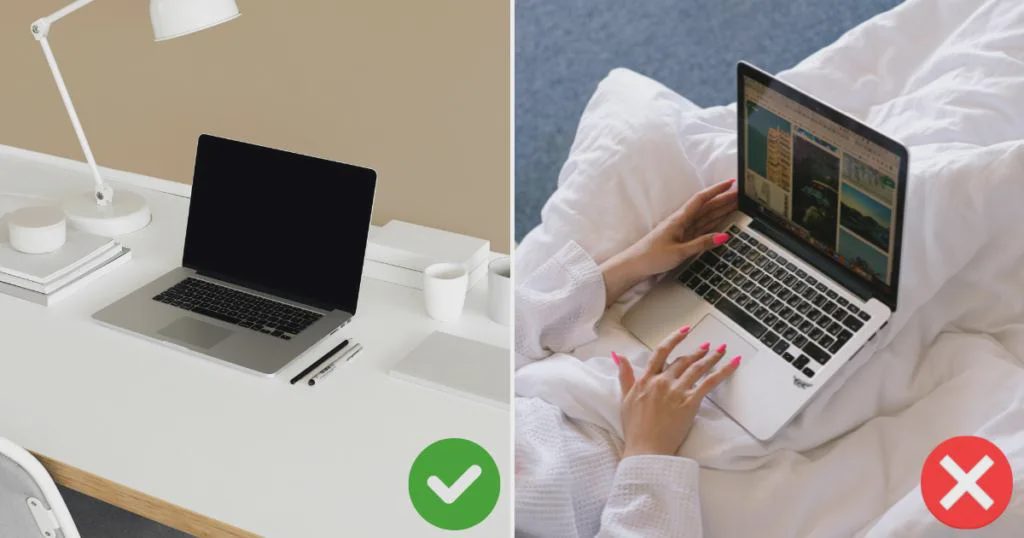
Move the laptop to a stable, hard surface with unobstructed ventilation.
Also check whether a battery-saving or low-power mode is active. These modes can reduce performance on some devices, although their effects vary by model and settings.
Don't cover vents or try to cool an overheating laptop with liquids or extreme temperatures.
If the laptop becomes excessively hot, shuts down unexpectedly, or shows signs of battery damage, stop using it and have it checked.
That's the 10-minute check. You should now have a better idea of whether you're dealing with an app, browser, storage, startup, power, heat, or a more persistent system problem.
What the slowdown is telling you
Different symptoms point toward different next steps. Use this table to decide where to focus.
What you notice | A possible cause | What to do next |
|---|---|---|
The laptop is slow immediately after signing in | Too many startup apps or background tasks | Review startup apps and wait for legitimate updates to finish |
Only the browser feels slow | Heavy tabs, extensions, or internet trouble | Test fewer tabs, disable optional extensions, compare offline performance |
The laptop becomes slow after running for a while | Heat or a demanding background process | Check ventilation and resource usage |
You keep getting low-storage warnings | Available storage is limited | Review large files and remove unneeded items safely |
Performance became worse after a recent change | An update, new app, driver, or setting may be involved | Identify what changed before trying to reverse it |
The laptop freezes, crashes, or makes unusual drive noises | A software or hardware issue may need deeper investigation | Protect important files and consider professional diagnosis |
These are clues, not guaranteed diagnoses. Two laptops can show the same symptom for very different reasons.
If it is hot, noisy, or slowing down after a few minutes
Heat deserves special attention because it can make a performance problem feel mysterious.
A laptop may work normally when first turned on, then become noticeably slower during a video call or after several browser tabs have been open for a while.
Some computers reduce performance when internal temperatures become too high. A loud fan may also indicate that the laptop is working hard, trying to manage heat, or both.
Start with the easy checks:
Use the laptop on a flat, firm surface.
Keep ventilation openings clear.
Move away from direct sunlight or unusually hot surroundings.
Close unnecessary demanding applications.
Let the laptop cool if it becomes excessively hot.
Don't open the case or attempt internal cleaning unless you're comfortable following model-specific instructions. Some laptops are difficult to service safely.
If overheating continues during light tasks, especially alongside sudden shutdowns, professional inspection may be the sensible next move.
Still slow? Three things worth doing after the checklist
If none of the quick checks helps, there are a few reasonable next steps. These can take longer than 10 minutes, so there's no reason to rush them.
1. Finish legitimate operating system and app updates
Updates may address software bugs, compatibility issues, and security problems. Occasionally, update activity itself can also cause temporary slowdowns.
Use the built-in update feature in Windows or macOS and update important apps through their trusted update channels.
Allow time for updates to install and for the computer to finish any follow-up work.
If the slowdown began directly after an update, make a note of when it happened and whether it improves after the computer finishes background tasks.
Avoid downloading random driver updaters or repair tools from search ads.
2. Check for unwanted software
If your laptop suddenly became extremely slow and you also notice unfamiliar pop-ups, unexplained browser changes, or apps you didn't install, unwanted software is one possibility.
On Windows, start with the built-in Windows Security protection and use its virus-scanning features.
On a Mac, review unfamiliar installed apps, browser extensions, system updates, and security warnings. If concerns remain, follow Apple's current security guidance or seek trusted support.
Don't assume every slowdown is malware. A busy update, limited memory, or one malfunctioning app is often a more ordinary explanation.
And don't install several different cleanup or antivirus utilities in the hope that one will make the laptop faster.
3. Back up important files before making major changes
Before removing large numbers of files, uninstalling essential applications, changing system settings you don't understand, or considering a reset, make sure your important data is backed up.
That includes family photos, documents, schoolwork, and anything difficult to replace.
A laptop that has suddenly become unreliable is also a reason to take backups seriously, especially if you suspect a storage problem.
If you hear repeated clicking or grinding from a device with a mechanical drive, avoid unnecessary use and get qualified help. Continuing to troubleshoot can make recovery more difficult if the drive is failing.
Should you repair, upgrade, reset, or replace the laptop?
A slow laptop doesn't automatically mean you need a new one.
If the problem is limited to unnecessary startup apps or a resource-heavy browser, changing a few habits may be enough.
If the laptop regularly runs out of memory or uses an older mechanical hard drive, a compatible memory or storage upgrade might help. But upgrade options vary widely: some modern laptops have components that cannot be replaced.
Check the exact model and its repairability before buying parts or paying for an upgrade.
A factory reset is more disruptive. It can remove applications, settings, and potentially personal files, depending on the option selected. It also won't repair failing hardware.
I'd treat a reset as a later step, not the first response to a slow afternoon.
Consider professional repair or replacement when the laptop repeatedly crashes, shows signs of hardware failure, remains unusably slow after appropriate troubleshooting, or cannot run the software and supported operating system you need.
The sensible choice depends on the device, repair cost, remaining support, and what you actually use it for—not simply how old it is.
A few questions about slow laptops
Why is my laptop extremely slow all of a sudden?
A sudden slowdown can come from a background update, a demanding app, high memory or disk activity, low storage, overheating, or a software problem. Start by checking whether the entire laptop is affected and which processes are using resources.
If the slowdown comes with crashes, unusual noises, or signs of physical damage, prioritize your files and hardware safety.
Will deleting files make my laptop faster?
Sometimes, particularly if the drive is nearly full and the system needs space for updates or temporary operations.
But deleting a few photos won't necessarily help when the real problem is a browser using too much memory or an overheating processor. Check storage usage before deleting anything.
Do laptop cleaning apps actually help?
Some utilities can remove temporary files or manage startup items, but many of those functions are already available in Windows and macOS.
Be skeptical of apps that promise dramatic speed improvements, display alarming error counts, or encourage you to pay before identifying a specific problem.
Should I reset my laptop to make it faster?
Not as your first step. A reset is time-consuming and can remove settings, applications, and data. It may help with certain persistent software issues, but it doesn't solve physical damage, inadequate hardware, or every performance problem.
Back up your files and investigate less disruptive options first.
A slower laptop doesn't always need an expensive solution
When a computer suddenly feels slow, it's tempting to assume something major has gone wrong.
But a useful first response is much simpler: restart it, identify where the slowdown occurs, check what's using resources, and look for obvious storage, browser, startup, or heat problems.
Those small checks won't fix every laptop. They will, however, help you avoid guessing—and may save you from paying for software or hardware you don't actually need.
Start with the least disruptive change. See what improves. Then decide whether the problem really deserves a bigger fix.