
Last month my daughter’s soccer schedule changed three times in one week. Instead of digging through emails, I asked Siri to read the latest message from the coach while I was already in the car. It worked. The week before that, I asked it to set a timer for the oven and it opened a random recipe page. Both experiences are normal.
Siri is not a general-purpose assistant that understands everything. It is a voice shortcut for a limited set of tasks that Apple’s system already handles well. When those tasks match what you actually need, it saves real minutes. When they do not, it creates friction. After testing it across our phones, iPads, and HomePod for ordinary family use, here is what consistently works and what I now ignore.
First: Make Sure It Is Actually On
A surprising number of people search for how to enable siri on iphone or how to activate siri because the feature was turned off during setup or after an update. The steps are short:
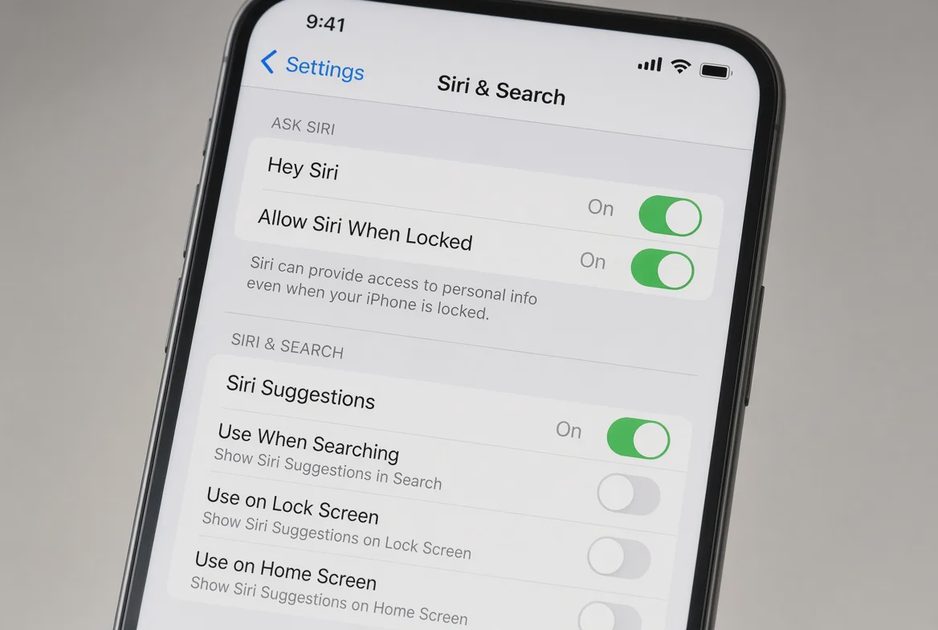
Open Settings → Siri & Search (or Apple Intelligence & Siri on newer iOS).
Turn on “Listen for ‘Hey Siri’” or “Press Side Button for Siri.”
Complete the voice training if prompted. This improves recognition for your specific accent and speaking style.
Check that “Allow Siri When Locked” is on if you want to use it without unlocking the phone.
How to set up siri and how to turn on siri on iphone are essentially the same process. Once it is enabled, say “Hey Siri” or hold the side button and give a clear command. If nothing happens, the most common fix is restarting the iPhone and re-enabling the toggle. I have seen this resolve the issue more often than any deeper troubleshooting.
What is siri at this point is simply Apple’s on-device voice interface for system functions, apps that support it, and a narrow set of web queries. It is not ChatGPT. Expecting open-ended conversation usually leads to disappointment.
Commands That Save Time in a Real Household
These are the siri commands I use multiple times per week. They work reliably on iPhone and iPad and do not require perfect phrasing.
Task | Reliable Command | Notes from Testing |
|---|---|---|
Timers & alarms | “Set a timer for 12 minutes” | Works even with background noise in the kitchen |
Messages | “Read my last text from [name]” | Useful while driving; requires Messages access |
Calendar | “What’s on my calendar tomorrow?” | Pulls from the default calendar only |
Reminders | “Remind me to call the dentist at 3” | Creates a Reminder, not a Calendar event |
Navigation | “Directions home” or “How long to [place]” | Opens Maps with current traffic |
Music / Podcasts | “Play the latest episode of [show]” | Needs the app already installed |
Home controls | “Turn off the living room lights” | Only if HomeKit devices are set up |
Translation | “How do you say ‘where is the bathroom’ in Spanish?” | Decent for short phrases |
Siri voice quality is good enough for these short interactions. You do not need to speak slowly or unnaturally. Background noise from kids or a running dishwasher is the bigger variable; moving closer to the phone or HomePod helps more than changing settings.
Commands That Usually Fail or Waste Time
Not every request is worth trying. These are the ones I stopped using after repeated poor results:
Open-ended questions (“What’s a good weeknight dinner for picky kids?”) — Siri often returns a web link instead of a useful answer.
Complex multi-step requests (“Text my wife that I’m running late and add milk to the grocery list”) — It frequently drops the second part.
Anything requiring recent context it does not have (“Continue that email I was writing”).
Precise app control inside third-party apps that have not added Siri support.
If a command fails twice, I switch to typing or opening the app directly. Fighting with it costs more time than it saves.
Apple Intelligence: Worth Turning On?

Is apple intelligence worth it depends on your devices and what you already do. On an iPhone 15 Pro or newer (or M-series Mac/iPad), Apple Intelligence adds better writing tools, notification summaries, and slightly improved Siri understanding for some requests. In our house the notification summaries have been the clearest win—fewer taps to see which messages actually need attention.
It does not transform Siri into a conversational partner. Most of the useful siri commands listed above worked before Apple Intelligence and continue to work the same way. If your devices support it and you are already in the Apple ecosystem, turn it on. If you are on older hardware, the existing Siri features cover the majority of practical household needs.
Quick Setup Checklist for the Whole Family
Enable Siri on every iPhone and iPad that family members actually carry.
Turn on “Hey Siri” only on devices where accidental triggers are unlikely (avoid it on shared iPads if young kids constantly talk near them).
Review which apps can use Siri under Settings → Siri & Search. Disable it for apps you do not want voice access to.
Test three commands per person: a timer, a message read-back, and a calendar check. If those three work, the setup is good enough.
For HomePod or Apple TV, confirm the same Apple ID and HomeKit home are signed in so shared commands (lights, music) stay consistent.
How to enable siri, how to switch on siri, and turn on siri all point to the same Settings path. Once that is done, the value comes from sticking to the short, specific commands rather than treating it like a general search engine.
Siri will not manage your life. It will, however, set the pasta timer while your hands are wet, read the coach’s text while you are driving, and turn the lights off when everyone is already in bed. Those small, repeated wins are why I keep it enabled. Everything else I handle the old-fashioned way—by opening the app myself.