Your home Wi-Fi probably connects more of your life than you realize.
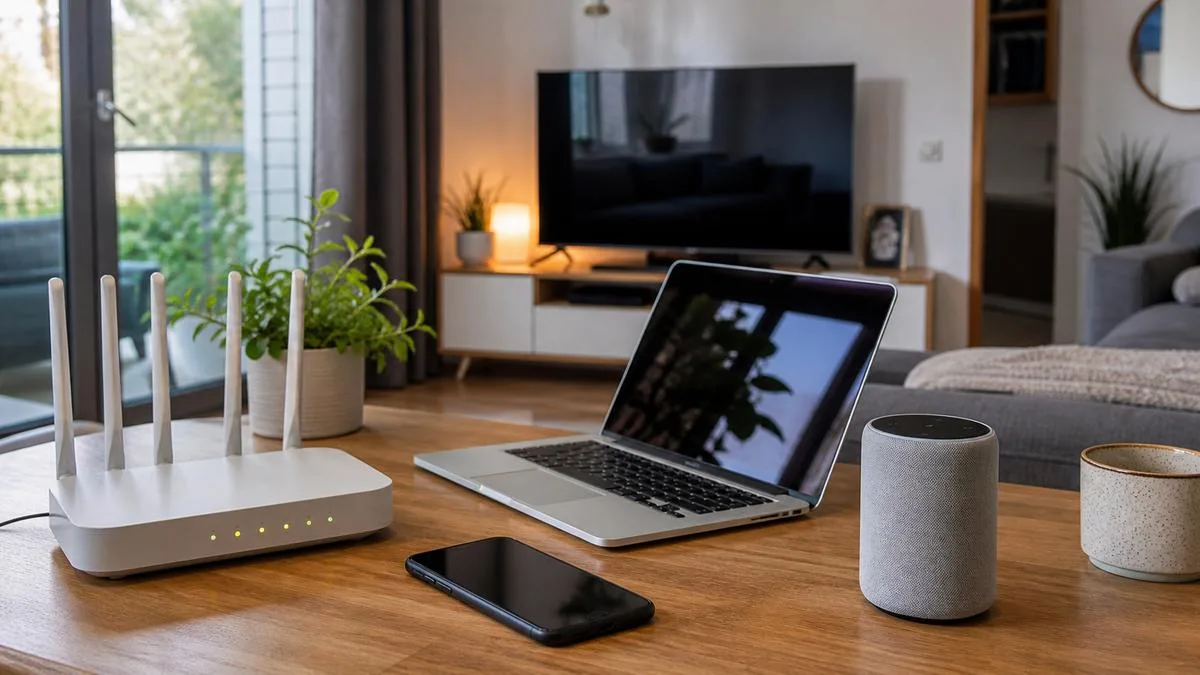
There's the laptop you use for work, the phones everyone carries, the television in the living room, and maybe a few smart plugs, cameras, or speakers quietly connected in the background.
Most of us set up our router once, write down the password, and forget about it.
That's understandable. Nobody wants home internet to become a second job.
But a few overlooked router settings can make your home network less secure than it needs to be.
The good news? You don't need expensive security software, a complicated networking setup, or an afternoon studying technical terms to improve your home Wi-Fi security.
For a typical family, I'd focus on eight practical things:
Find the router's actual settings.
Protect the router's administrator login.
Use appropriate Wi-Fi encryption.
Set a strong, unique Wi-Fi password.
Keep the router's software updated.
Give visitors appropriate network access.
Review unfamiliar connected devices.
Turn off unnecessary convenience features that increase exposure.
You may already have several of these covered. If so, don't change them just for the sake of changing something.
The goal is a safer network that still works for everybody in the house.
Before you begin: Find out what equipment you have
Look for the device that provides your home's Wi-Fi. It might be a router you purchased, a mesh Wi-Fi system, or an all-in-one gateway supplied by your internet provider.
Check the model number on the device or in its companion app.
If your internet provider manages the gateway, some settings may be controlled through the provider's app instead of a traditional router administration page.
Before making changes, I'd do three simple things:
Make sure you have access to the legitimate router management app or administration account.
Record the existing Wi-Fi network name so you can recognize it later.
Choose a time when interrupting internet access won't interfere with a work call, school assignment, or important download.
Some of the steps below can briefly disconnect devices.
That's normal when changing wireless settings. It isn't a reason to panic, but it's worth planning around.
1. Find your router's settings without guessing
The first challenge isn't advanced security. It's knowing where the settings are.
For many home routers, you can manage them using either a manufacturer's app or a local administration page.
Start with the official app or instructions that came with your router. If you rent a gateway from an internet provider, begin with that provider's support documentation.
If your router uses a browser-based management page, you may be able to find its local address by checking your device's network details.
For example, some routers use addresses such as 192.168.1.1 or 192.168.0.1, but these are examples, not universal login addresses.
The correct address depends on your network.
How to access router settings safely
Connect your phone or computer to your home network.
Open the router manufacturer's legitimate management app or follow its documented local administration method.
Sign in using the router's administrator account.
Locate sections named something like Wi-Fi, Wireless, Security, Administration, or Firmware Update.
Review the current settings before making changes.
Don't enter router passwords into a website found through an unfamiliar search advertisement.
And don't confuse the router administrator password with the Wi-Fi password. They protect different things.
If you're unsure which device manages the network, pause and identify it before resetting or reconfiguring anything.
A factory reset is not necessary just to check your security settings. It may erase configurations your household or internet provider depends on.
2. Protect the router's administrator account
Your Wi-Fi password controls who can join the wireless network.
Your router administrator credentials control who can change its settings.
That's an important difference.
Someone with administrator access may be able to change wireless settings, alter network configuration, or interfere with how devices connect.
I'd check the administrator account before worrying about more advanced protections.
What to look for
If your router still uses a default administrator password, replace it with a strong, unique one where the equipment allows you to do so.
If administration is handled through a manufacturer's online account, protect that account too. Enable multifactor authentication if supported.
Use a password manager to store the administrator credentials securely.
Don't reuse your regular Wi-Fi password as the router administrator password.
The two should be different.
If your gateway uses provider-managed authentication and doesn't expose a separate administrator password, follow the provider's supported security options instead of trying to bypass its management system.
I'd also check whether remote administration is enabled.
Remote administration can allow someone to manage a router from outside the home network. Some households or support arrangements genuinely need it, but most families have no reason to expose a traditional router management interface directly to the internet.
If the feature isn't needed, disable internet-facing administration when the router allows it.
Don't confuse this with every form of cloud-based management. Manufacturer apps may use different architectures, so review the actual feature description before turning something off.
3. Choose Wi-Fi security that protects the connection
This is one of the settings that matters most.
Your router's Wi-Fi security mode helps protect wireless communication between compatible devices and the access point.
You may see labels such as:
WPA3-Personal
WPA2-Personal
WPA2/WPA3 mixed or transition mode
WPA
WEP
Open or None
These names look technical, but the decision is fairly simple.
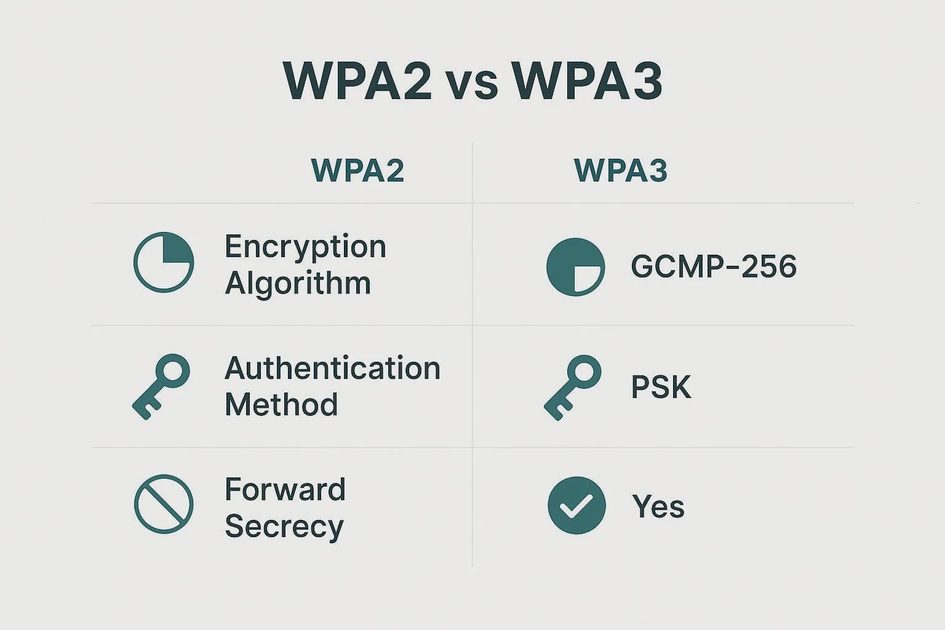
WPA3 vs. WPA2: What should you choose?
For a household with compatible devices, WPA3-Personal is a strong choice.
If some devices don't support WPA3, WPA2-Personal using AES-based encryption remains a practical option for many home networks.
Some routers also provide a mixed WPA2/WPA3 mode so newer and older devices can connect to the same network. This can help compatibility, although it doesn't mean every connection receives identical protections.
Avoid obsolete options such as WEP and legacy WPA. Also avoid outdated TKIP-based configurations where modern alternatives are supported.
Here's a quick comparison:
Security type | Practical guidance |
|---|---|
WPA3-Personal | Preferred when the router and all relevant devices support it |
WPA2-Personal with AES | Reasonable compatibility option for many households |
WPA2/WPA3 mixed mode | Useful when supported devices have different capabilities; review compatibility and security tradeoffs |
Legacy WPA or WEP | Outdated; replace with an appropriate modern mode |
Open / None | Not appropriate for an ordinary password-protected private home network |
What type of security is my Wi-Fi using?
The most direct place to check is the router's wireless-security settings.
Look for a field called Security Mode, Authentication Method, Encryption, or something similar.
Some Windows, macOS, Android, and iPhone configurations may also show information about the connected network's security, but the available details depend on the device and operating system version.
If you don't find the option, consult the router manufacturer's official documentation for your exact model.
Don't change several settings at once. Make one change, save it, and confirm that essential household devices can reconnect.
An older printer, smart plug, or home automation device may need a compatible configuration.
The answer isn't to weaken your entire household network without investigating alternatives.
4. Use a strong Wi-Fi password—and know when to change it
A secure wireless network needs more than an appropriate encryption setting.
It also needs a password that other people can't easily guess.
For most families, I'd choose a long, unique Wi-Fi password that isn't used for email, shopping, streaming accounts, or the router administrator login.
A password manager can generate one.
A sufficiently long passphrase can also be easier to share with family members, provided it isn't a familiar quote, personal detail, or common phrase.
How to change your Wi-Fi password
The exact buttons depend on the equipment, but the general process is:
Open the official router app or local administration page.
Find the Wireless or Wi-Fi section.
Select the appropriate home network.
Find the Password, Passphrase, or Network Key field.
Replace the password and save the settings.
Reconnect devices using the new password.
If your router has separate wireless networks, confirm which one you're changing.
Be aware that changing the Wi-Fi password can disconnect phones, laptops, printers, televisions, and smart-home devices.
You may have to reconnect each device manually.
Should you change the Wi-Fi name too?
You can. The network name is also called the SSID.
Choose a recognizable name that doesn't reveal unnecessary personal details.
But changing the SSID doesn't automatically make Wi-Fi more secure. It mostly changes how people identify the network.
Likewise, hiding the SSID is not a meaningful substitute for strong encryption and a good password.
Do you need to change the password every month?
Not necessarily.
For an ordinary household, I'd prioritize a strong, unique password and change it when there's a concrete reason.
Examples include:
Someone untrusted may know the current password.
The password was accidentally published or shared too widely.
You discover that the old password is weak or reused elsewhere.
You suspect unauthorized network access and have a reason to replace the credentials.
Changing a good password on an arbitrary schedule can create unnecessary work for the whole family.
And giving visitors the guest-network password, when available, reduces how widely you need to share the main one.
5. Keep your router's firmware up to date
Router firmware is the software that controls how the device operates.
Like other connected devices, routers can receive updates that address bugs, compatibility issues, and security vulnerabilities.
The process varies.
Some routers update automatically. Others provide an update option in their settings. Internet-provider gateways may receive updates managed by the provider.
I'd check:
Whether automatic firmware updates are available and enabled.
Whether the device reports that an update is pending.
Whether the manufacturer still provides security support for the model.
Whether an update requires a restart or temporary internet interruption.
Install updates through the manufacturer's or provider's supported method.
Avoid downloading firmware from unfamiliar third-party sites.
Don't interrupt an update while it's being installed.
What if the router is old?
Age alone doesn't tell you whether a router is unsafe.
But if its manufacturer no longer supplies important security updates, replacement deserves consideration even if the Wi-Fi still connects.
Before buying a new router, check the actual model's support status.
If an ISP owns or manages the equipment, ask about a supported replacement.
I'd spend money on a reasonably supported router before buying unnecessary cybersecurity subscriptions.
6. Give guests and smart devices the access they need
A family home often has more connected devices than people.
Visitors may need internet access. Children may invite friends over. Smart TVs, doorbells, plugs, cameras, and speakers may stay connected around the clock.
Not every device needs the same access.
Use a guest network when it makes sense
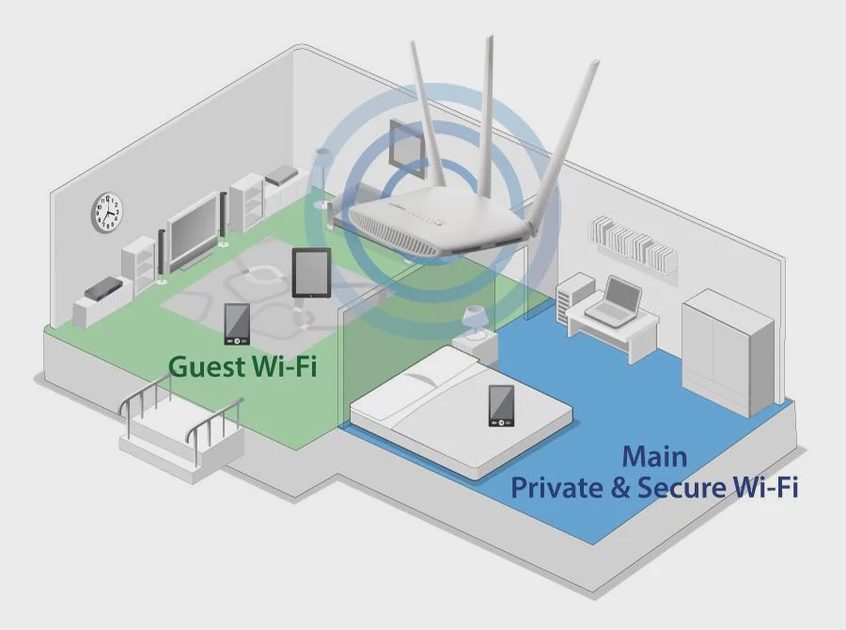
If your router offers a guest Wi-Fi feature, I'd consider using it for visitors.
That way, you don't have to give everyone your main household Wi-Fi password.
Some guest networks can also restrict access to devices on the main local network.
But this varies by product and configuration. A separate Wi-Fi name alone doesn't prove that devices are isolated.
Check the actual guest-network settings.
For example, if your router offers an option to prevent guest devices from reaching local household devices, decide whether that restriction fits your needs.
A visitor who needs to cast video to your TV or use a shared printer may encounter limitations on an isolated guest network.
What about smart-home devices?
Separating smart-home or IoT devices from personal laptops can make sense in some homes, especially when the router offers a supported and manageable way to do it.
But the setup has tradeoffs.
Some smart devices rely on local discovery or direct communication with a phone, hub, or speaker. Network isolation can interfere with those features.
I wouldn't create elaborate network segments just because the router has dozens of settings.
For a typical household, I'd start with supported firmware, secure account access, modern